

Session Replays
Use Swetrix session replays to investigate visitor interactions, understand usability problems, and diagnose issues in context.
Session replays are available on Swetrix Cloud and Community Edition. For a self-hosted instance, first configure S3-compatible replay storage.
Session Replays let you watch recorded browser sessions alongside the analytics context Swetrix already collects. Use them to debug confusing journeys, reproduce issues, review funnel drop-offs, and understand what happened before an error or conversion.
Session replays are only recorded after your website calls
startSessionReplay(). A regular pageview or custom
event does not automatically create a replay.
Recording replays
To collect replays, install the Swetrix tracking script as usual, initialise it with your Project ID, and call startSessionReplay() when you want recording to begin.
swetrix.init("YOUR_PROJECT_ID", {
  preloadSessionReplay: true,
});

await swetrix.startSessionReplay({
  privacy: "total",
  maskAllText: true,
  maxBytesPerChunk: 512 * 1024,
});
The optional preloadSessionReplay: true setting preloads the replay recorder. Recording still begins only after startSessionReplay() is called.
See the tracking script reference for all privacy modes, recorder options, and code examples.
To mask all text while using the less restrictive normal privacy mode, set maskAllText: true:
await swetrix.startSessionReplay({
  privacy: "normal",
  maskAllText: true,
});
Replay size controls
Swetrix keeps replay recordings lighter by default:
- Mousemove and scroll events are sampled before upload.
- Script tags, comments, and noisy metadata are removed from DOM snapshots where possible.
- Media, canvas, SVG, inline images, fonts, and iframe content are not recorded unless you opt into more capture.
- Replay chunks are uploaded when they reach 100 events or roughly 512 KiB, whichever happens first.
- A single replay event larger than 5 MiB is dropped before upload.
You can tune the client-side chunk limits:
await swetrix.startSessionReplay({
  maxEventsPerChunk: 100,
  maxBytesPerChunk: 512 * 1024,
  maxBytesPerEvent: 5 * 1024 * 1024,
});
Recording iframes
Iframe capture is disabled by default because embedded pages can be large, sensitive, or controlled by another vendor. This keeps replay storage predictable and avoids recording third-party content unintentionally.
If the iframe is part of your own product and you need it in the replay, enable it explicitly:
await swetrix.startSessionReplay({
  privacy: "normal",
  recordIframes: true,
});
Cross-origin iframe recording also requires rrweb's cross-origin iframe support and should only be enabled for domains you control:
await swetrix.startSessionReplay({
  recordIframes: true,
  rrweb: {
    recordCrossOriginIframes: true,
  },
});
Third-party iframes that you do not control cannot be captured reliably because browsers restrict access to their contents.
Replays list
Open the Replays tab in your project dashboard to see recorded sessions for the selected date range.
Each replay row shows:
- The profile or anonymous visitor.
- Country, operating system, and browser.
- Replay event count, pageviews, custom events, revenue, and errors.
- Replay start time and duration.
- Expiry date, when retention metadata is available.
Use dashboard filters to narrow the list by the same dimensions available elsewhere in analytics, such as country, browser, operating system, page, traffic source, campaign, or custom event.
The row actions let you:
- Watch replay: open the replay player.
- View session: open the session details and full event/page timeline.
- Go to profile: open the visitor profile when the replay is associated with a profile.
Replay player
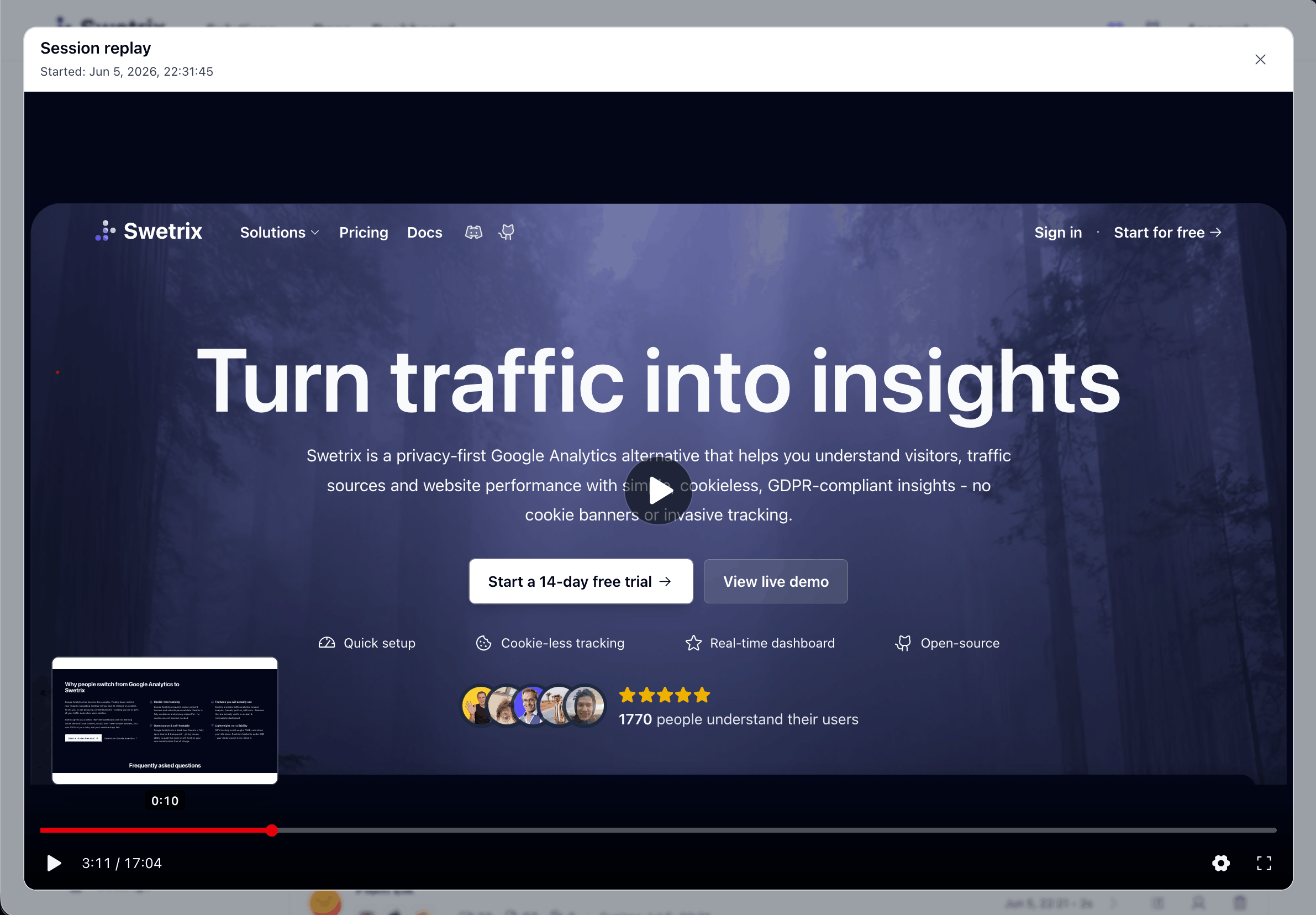
The replay player opens in a modal so you can review the recorded session without leaving the dashboard.
Available controls include:
- Play, pause, and scrub through the replay timeline.
- Hover the timeline to preview a point in the replay.
- Change playback speed.
- Toggle the replay event timeline.
- Capture the current frame as a PNG screenshot.
- Export the replay as an MP4.
- Enter fullscreen mode.
If a replay has no events, has expired, or cannot be loaded, the player shows an empty or error state instead of the recording.
Session and error context
Replays are connected to sessions. In the Sessions list, sessions with an available replay show a replay indicator with duration and expiry details. Opening that session shows a Watch replay button in the session detail panel.
Error details can also point you toward the sessions that experienced a specific issue. When a replay exists for one of those sessions, use it to see what the visitor did before the error happened.
Privacy and retention
Session replays can capture page state, user interactions, and non-password input values depending
on the privacy mode and masking options you choose. We recommend asking users for explicit consent
before starting replay recording, especially on public websites or pages that may contain personal
data. If a user opts out or withdraws consent, do not call startSessionReplay() for that visitor,
or stop the active replay if one is already running.
Choose the privacy mode in code when you start the replay:
total: masks all text and inputs, and blocks media/canvas content. This is the default.normal: masks all inputs.none: only forces password inputs to stay masked unless you add your own recorder masking options.
Set maskAllText: true to mask all non-input text with asterisks in any privacy mode. If you do not set it explicitly, Swetrix enables it for total privacy and leaves it disabled for normal and none.
Configure replay retention in Project Settings > Session replays. Retention changes apply only to newly recorded replay chunks; existing replay chunks keep the expiry date they were recorded with.
Review your privacy policy, consent flow, masking settings, and legal basis before recording replays on pages that may contain personal, financial, health, authentication, or other sensitive data. This page is not legal advice, and requirements vary by jurisdiction and use case.

Help us improve Swetrix
Was this page helpful to you?
Individual User Insights (Profiles & Sessions)
Explore visitor profiles and sessions in Swetrix to understand individual activity, navigation paths, and events on your website.
Error Tracking
Investigate JavaScript errors in your Swetrix dashboard with error details, stack traces, and trends to prioritise website fixes.