

Data Import
Import historical analytics data from third-party platforms into Swetrix
Data Import
Swetrix allows you to import historical analytics data from other platforms so you can switch without losing your history. Imported data appears alongside your live-tracked data in dashboards, charts, and reports. It's tagged internally so it can be identified and, if needed, removed later without affecting your live-tracked data.
Imported pageviews and custom events are free and do not count towards your plan's event allowance or billable usage, even when their dates fall within the current billing period.
Import Instructions
Select your analytics provider below to see the step-by-step import guide.
Unlike file-based imports, GA4 import works by connecting your Google account directly. Swetrix uses the GA4 Data API to pull your historical analytics data automatically.
GA4 imports use aggregated data from Google's API. Some dimensions like language and browser/OS versions are not available due to API limitations. Data is imported with hourly precision.
Connect Your Google Account
- Go to your project's Settings page in Swetrix
- Click the Import data tab
- Click the Google Analytics 4 provider card
- Click Connect Google Account
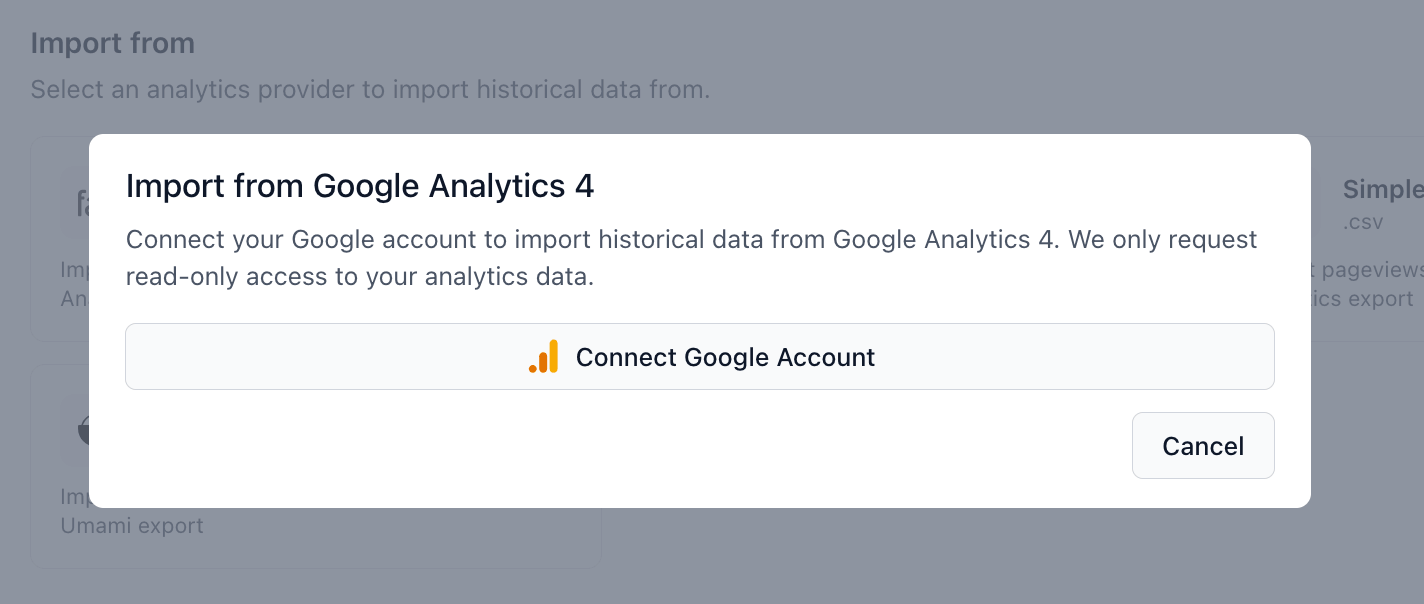
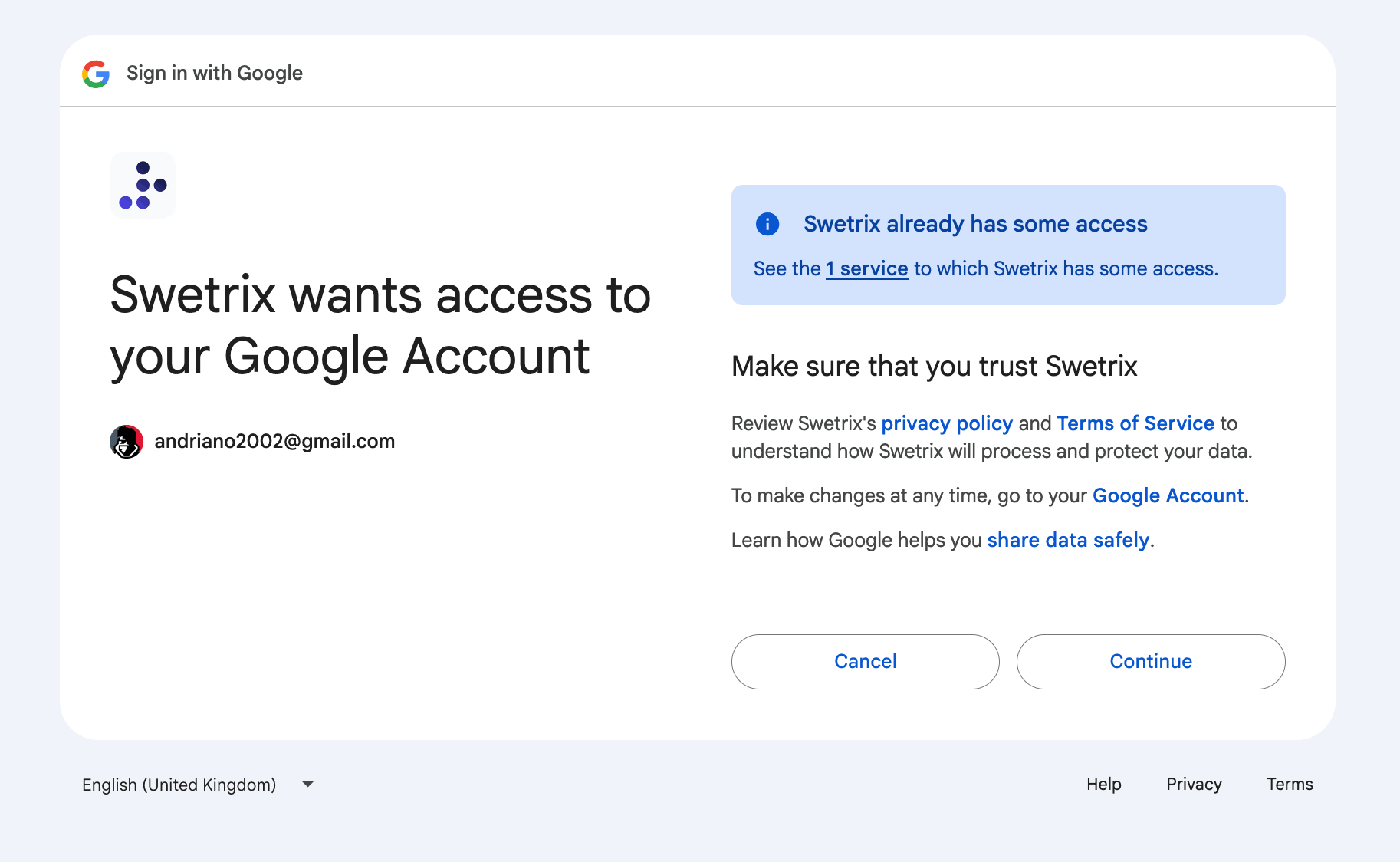
- You'll be redirected to Google's sign-in page. Sign in and grant Swetrix read-only access to your analytics data
Select a GA4 Property
After connecting, you'll be redirected back to Swetrix. A dropdown will show all GA4 properties accessible from your Google account.
- Select the GA4 property you want to import data from
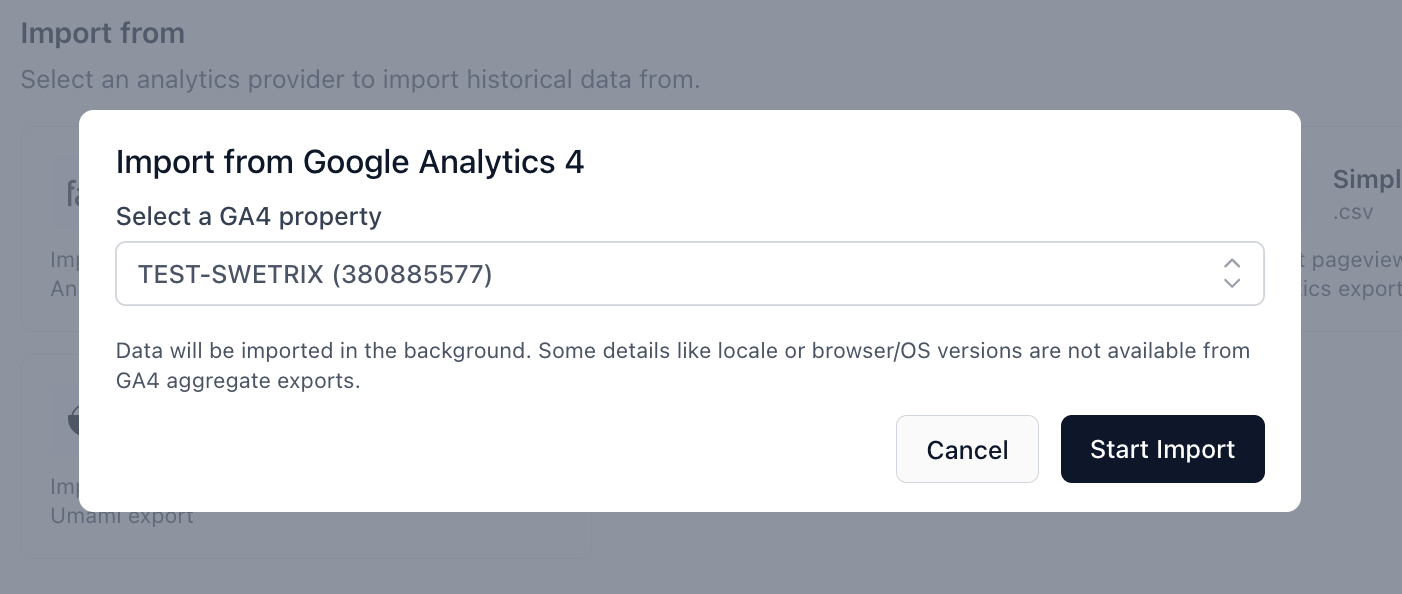
- Click Start Import
Monitor Progress
After starting the import, it will appear in the Import history table below the provider cards. You can see:
- Status — Pending, Processing, Completed, or Failed
- Date range — The time span of the imported data
- Rows — How many analytics events were imported
The import fetches data from the GA4 API in monthly chunks. For properties with a lot of historical data, this may take several minutes. The page auto-refreshes while an import is processing.
What data is imported?
The following dimensions are imported for pageviews:
- Date and hour
- Hostname and page path
- Device category (desktop, mobile, tablet)
- Browser and operating system
- Country, region, and city
- Traffic source, medium, campaign, term, and content (UTM parameters)
Source and UTM data is enriched from a separate report and matched by page and hour. For pages with traffic from multiple sources in the same hour, the most common source is used.
For custom events, we import all non-standard GA4 events (excluding built-in events like page_view, session_start, first_visit, etc.) with device, browser, OS, country, and page dimensions.
What's not imported?
- Language / locale is not included (GA4 API dimension limit)
- Browser and OS versions are not available from GA4 aggregate reports
- Session duration cannot be reconstructed from aggregated data
- Unique visitors may differ from GA4 numbers due to day-level aggregation
Viewing Imported Data
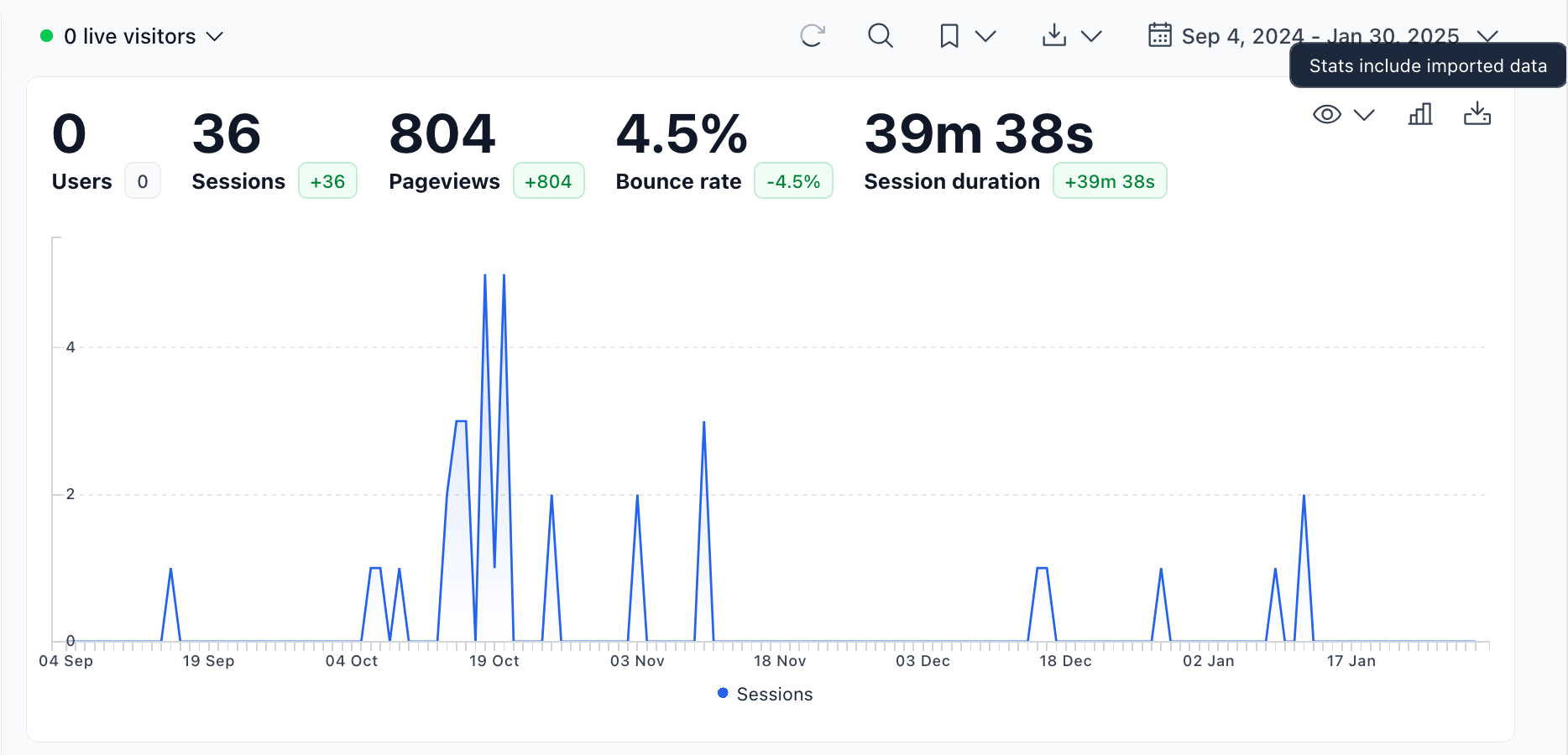
Once an import completes, the data is immediately available in your analytics dashboard. When you select a date range that includes imported data, a small "Imported" badge appears near the period selector to let you know.
Deleting an Import
If you want to remove imported data:
- Go to Settings → Import data
- Find the import in the history table
- Click the trash icon
- Confirm the deletion
This permanently removes all analytics rows associated with that import. Your live-tracked data is not affected.
Limitations
- File size: Maximum 100 MB per upload (for file-based imports)
- Plausible archive size: Maximum 2 GiB after decompression. CSVs are processed one day at a time; a single day's intermediate data is limited to 128 MiB. Archives above these limits need a shorter export range or help from support.
- Plausible daily counts: Up to 1 million sessions and 1 million custom events per day, with up to 1,000 pageviews per generated session. Imports exceeding these limits fail with an error rather than silently dropping events.
- Event count: Maximum 100 million generated events per import
- Umami archive size: The extracted
website_event.csvis limited to 512 MiB - One at a time: Only one import can be active (pending or processing) per project at a time
- Timestamps: Events with invalid timestamps are skipped during import
- GA4 dimensions: Google Analytics 4 imports are subject to API limitations — see the "What's not imported?" section under the Google Analytics 4 tab for details
Troubleshooting
Import stuck in "Processing"
Large files may take several minutes to process. If an import seems stuck, wait up to 30 minutes. If it still hasn't completed, the import may have failed - check for error messages in the import history.
"An import is already in progress"
Only one import can run at a time per project. Wait for the current import to complete or fail before starting a new one.
Invalid file type error
Make sure you're uploading the correct file format for your provider. For Umami, upload the .zip file directly - do not extract it first. For Simple Analytics and Fathom Analytics, upload the .csv export file.
Data not appearing in charts
After a successful import, select a date range that covers the imported data's time period. The imported data indicator badge should appear to confirm it's included.
Plausible outbound links
New Plausible imports convert Outbound Link: Click into native outbound events and preserve the export's link_url destination. They appear in Traffic → Pages → Outbound links, separately from custom events. Rows without a destination retain their click counts under Unknown destination. Imported visitor/session associations are reconstructed from aggregate data; click totals come directly from the export.
Previously imported rows are not changed automatically. Older Swetrix importers discarded link_url, so the original export is required to restore destination URLs. After upgrading, remove the old import and import that export again; importing another copy without removing the original would duplicate its data.

Help us improve Swetrix
Was this page helpful to you?
Annotations
Add annotations to your Swetrix charts to connect traffic changes with product releases, campaigns, outages, and other website events.
Set up 2-factor authentication (2FA) for your account
Protect your Swetrix account with two-factor authentication and learn how to configure your authenticator and recovery options.