

Ask AI
Use Ask AI in Swetrix to ask questions about your website analytics and explore traffic, visitor behaviour, and performance data.
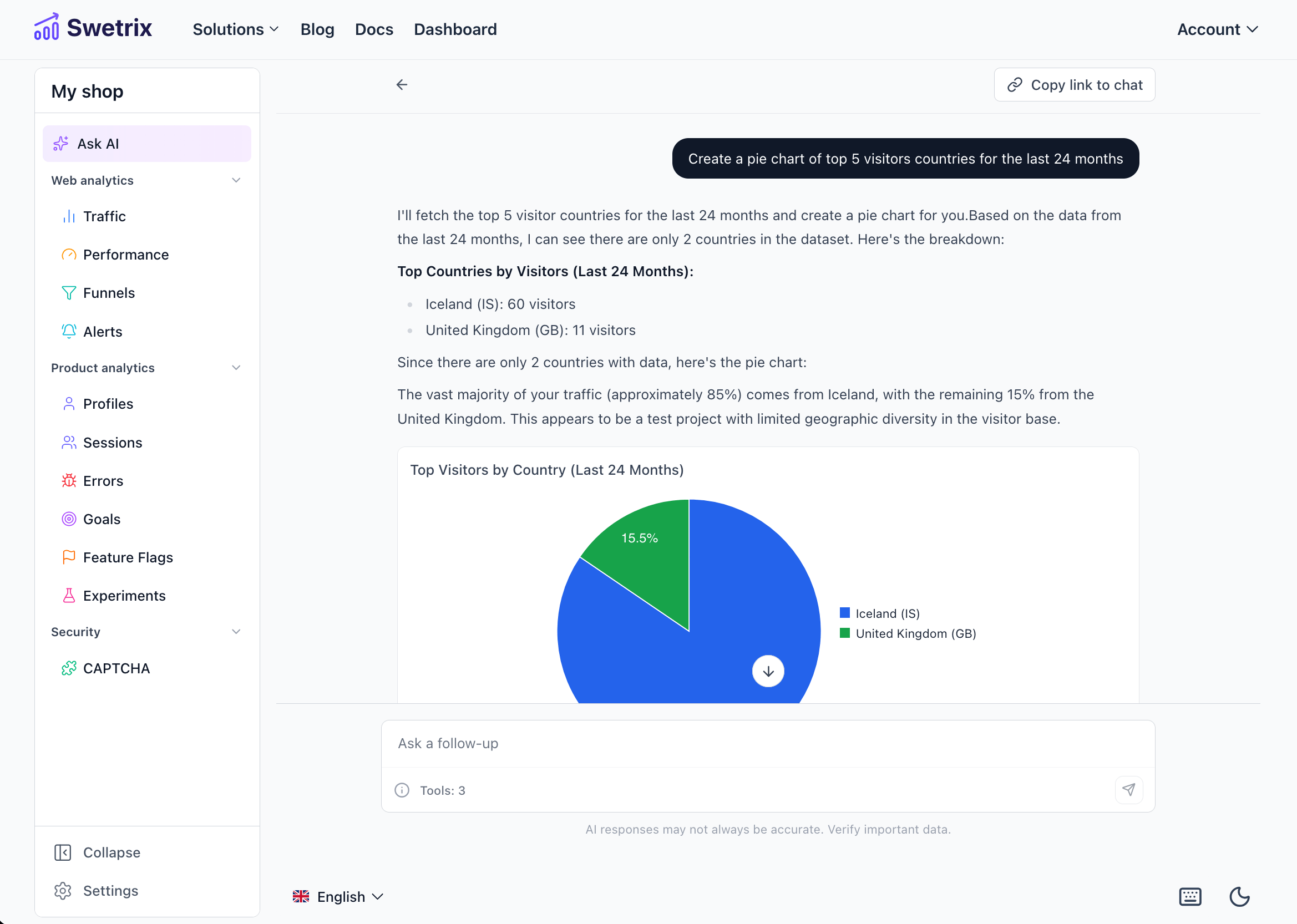
Ask AI is an analytics assistant that lets you query your project using natural language. Instead of building filters, switching tabs, or learning a query syntax, you can ask a question and get a written answer along with charts, tables, and direct links into the dashboard.
How it works
Ask AI uses a large language model that has access to a set of read-only tools for your project. When you ask a question, the assistant decides which tools to call, fetches the relevant data, and answers in plain language.
All data stays scoped to the current project. The assistant cannot browse the web, see data from other projects, or modify any analytics, goals, flags, experiments or project settings.
You can open Ask AI from the Ask AI tab in your project dashboard.
What Ask AI can answer
The assistant has tools for most of the data surfaces you can see elsewhere in Swetrix:
- Traffic analytics — pageviews, unique visitors, sessions, top pages, countries, browsers, devices, referrers and UTM sources.
- Performance — page load time, TTFB, DNS, TLS and other timing metrics, with average / median / p95 measures.
- Errors — error counts and the most frequent errors over time.
- Custom events — breakdowns by event name and frequency.
- CAPTCHA — challenge stats, when CAPTCHA is enabled on the project.
- Goals — conversion counts and rates for any configured goal.
- Funnels — step-by-step conversion data for an existing funnel.
- Feature flags — total evaluations, unique profiles exposed, and true/false rates per flag.
- Experiments — exposures and conversions per variant for A/B tests.
- Sessions — a list of recent sessions with country, OS, browser, duration and pageview count.
- Profiles — overview of returning visitors, sessions per profile, and top pages.
It also understands time ranges. You can ask for predefined periods ("last 7 days", "this month", "yesterday") or custom ranges ("between Jan 5 and Feb 12").
What Ask AI can't do
- Browse the web or pull in data from outside Swetrix.
- See data from other projects you have access to.
- Modify analytics, project settings, goals, flags, experiments or alerts.
- Guarantee correctness — always sanity-check important numbers in the underlying dashboards.
Asking a question
Open the Ask AI tab
Switch to the Ask AI tab in your project dashboard. If this is your first conversation, you'll see a few starter suggestions.
Type or speak your question
Type your question in the input at the bottom of the screen, click one of the suggestions, or use voice input by clicking the microphone icon. Speak your question and it will be transcribed into the input — click the icon again to stop.
Voice input uses your browser's speech recognition API and requires microphone permission. The icon is disabled in browsers that don't support it.
Review the streamed answer
The assistant streams its reasoning, calls the tools it needs, and renders the answer with charts, tables, and follow-up suggestions. You can hit Stop at any time while it's still generating.
Examples
- "How many unique visitors did we have last week compared to the week before?"
- "What are my top 10 pages in the US over the last 30 days?"
- "Compare conversion rate of mobile vs desktop users for the Signup goal."
- "Show me a pie chart of the most common device types this month."
- "Which feature flag has the highest exposure right now?"
- "How is the checkout button experiment performing?"
- "Show me recent sessions from Germany on Safari."
Reading the response
Charts
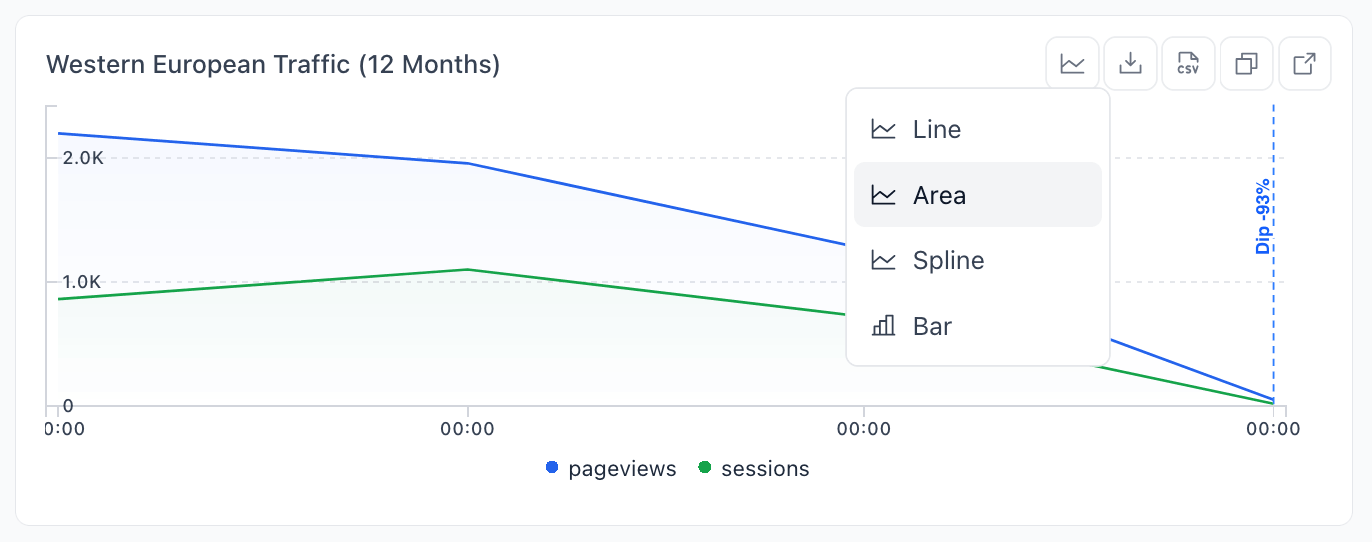
When a chart helps answer your question, the assistant renders one inline. Each chart has a small toolbar in the top-right corner that lets you:
- Switch between line, area, spline, bar, pie and donut views (when applicable).
- Download the chart as PNG.
- Download the underlying data as CSV.
- Copy the data to your clipboard.
- Open in dashboard — jumps to the main analytics view with the same time range and filters applied, so you can drill in further.
Anomaly detection
Ask AI automatically scans time-series results for unusual spikes and dips. When something stands out (using a robust median + MAD test), the assistant calls it out in prose and highlights the affected points directly on the chart with a short label such as "Spike +312%" or "Dip −64%". This makes it easy to spot incidents, marketing pushes, or tracking issues at a glance.
"How I got this"
Below each answer you can expand a How I got this drawer to see every tool the assistant called, the parameters it used (period, filters, metrics, etc.), and when each step ran. This makes it transparent how a number was produced and helps you verify the assistant pulled the right slice of data.
Follow-up suggestions
After most answers, Ask AI proposes a few related follow-up questions under You might also ask. Click any suggestion to send it as the next message — useful for digging deeper without thinking up the wording yourself.
Working with messages
Each message has a hover toolbar with the following actions:
- Copy message — copies the assistant's text answer to your clipboard.
- Regenerate response — re-runs the last turn to get a fresh answer.
- Edit message (your messages) — tweak your question and resend it.
- Branch off — creates a new conversation starting from that point. The original chat is left untouched, so you can explore an alternative direction without losing context. Branched chats show a "Branched from …" label at the top.
- Good response / Bad response — quick thumbs-up / thumbs-down feedback that helps us improve the assistant.
You can also stop generation at any time by clicking the stop button while the assistant is still streaming.
Chat history
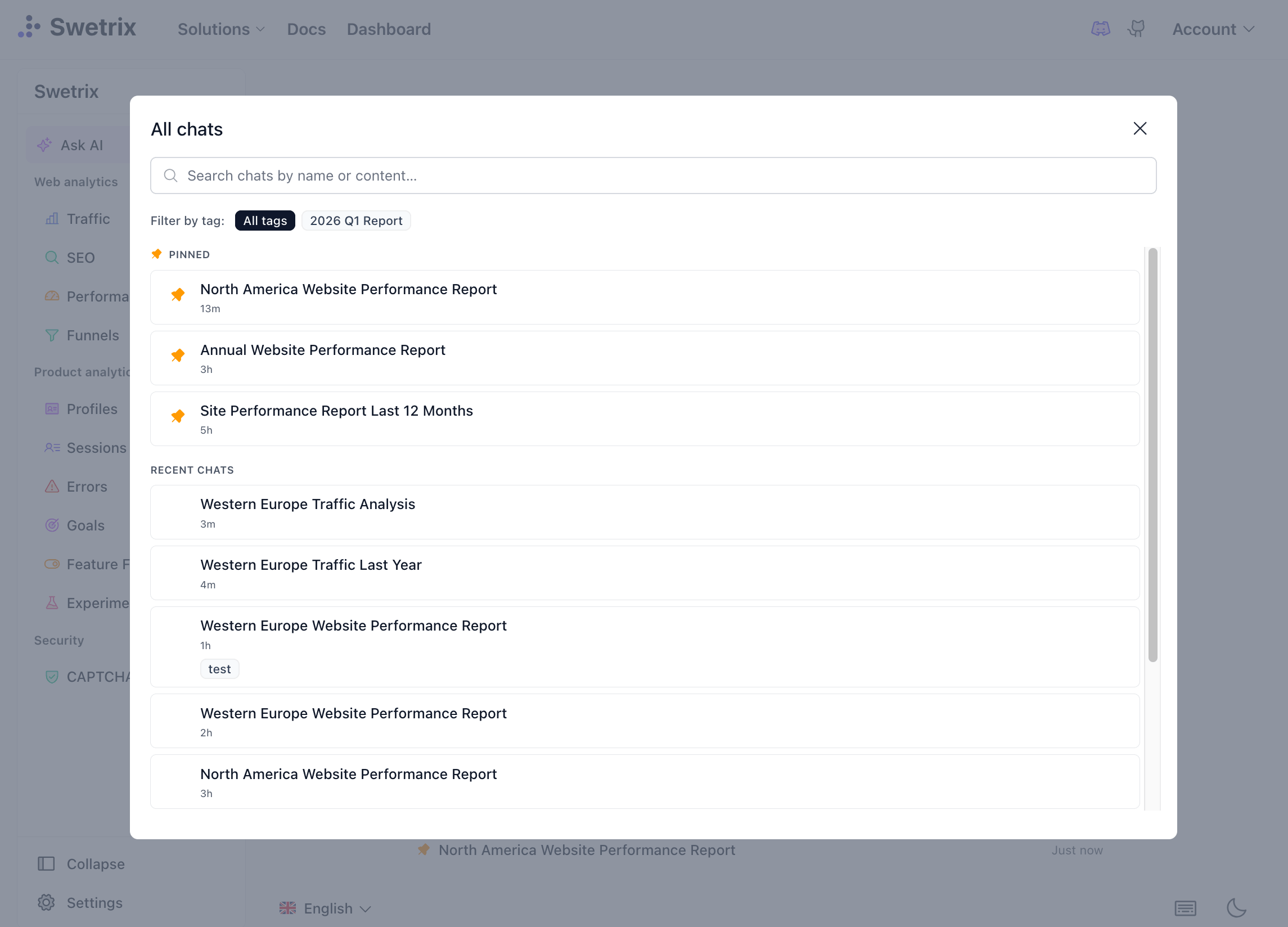
All your conversations are saved per-project in the Recent chats sidebar. From there you can:
- Search chats by name or message content.
- Pin important conversations so they stay at the top under Pinned chats.
- Tag chats (up to 5 tags per chat) and filter the list by tag — handy for grouping research, billing investigations, weekly reviews, etc.
- Rename a chat or let the assistant name it automatically from the first message.
- Copy a link to a chat to share it with teammates who have access to the project.
- Delete chats you no longer need.
Exporting a conversation
Each chat can be exported from the conversation header:
- Copy conversation — copies the entire conversation as Markdown to your clipboard.
- Download as Markdown — saves the conversation (including the assistant's reasoning and the data it returned) as a
.mdfile you can paste into a doc, ticket, or PR.
This is the recommended way to attach AI findings to an internal report or to share insights with someone who doesn't have a Swetrix account.
Tips
- Be specific about the period. If you don't say otherwise, the assistant defaults to the last 7 days.
- Mention the slice you care about (country, page, browser, source) up front — the assistant will translate it into a filter.
- Use follow-ups instead of restating context. The assistant remembers earlier turns in the same chat.
- Branch when exploring. If you want to test a "what if" question, branch off rather than overwriting the current investigation.
AI answers are a fast first pass and may occasionally be inaccurate. For anything you'll act on, click Open in dashboard on the relevant chart and double-check the numbers in the underlying view.

Help us improve Swetrix
Was this page helpful to you?