

Funnels
Build Swetrix funnels to measure each step in a visitor journey, identify drop-offs, and investigate conversion opportunities.
Funnels allow you to visualise how many visitors complete a specific sequence of pages and events on your website. They are useful for measuring conversion flows such as sign-ups, checkouts, onboarding, upgrades, or any other journey where the order of actions matters.
Overview
A funnel consists of 2 to 10 ordered steps. Each step can be either:
- Page: a page path, such as
/pricing,/checkout, or/dashboard. - Event: a custom event name, such as
Registration,trial_started, orPurchase.
Swetrix counts visitors who complete the steps in sequence, then calculates conversion and dropoff for each step. A visitor is only counted at a later step if they also completed all previous steps in the correct order.
The Funnels dashboard shows all saved funnels for the project. Each funnel card displays the funnel name and its steps, with page and event steps shown separately. Clicking a card opens the detailed analytics view for that saved funnel.
Creating a Funnel
To create a new funnel:
- Navigate to the Funnels tab in your project dashboard.
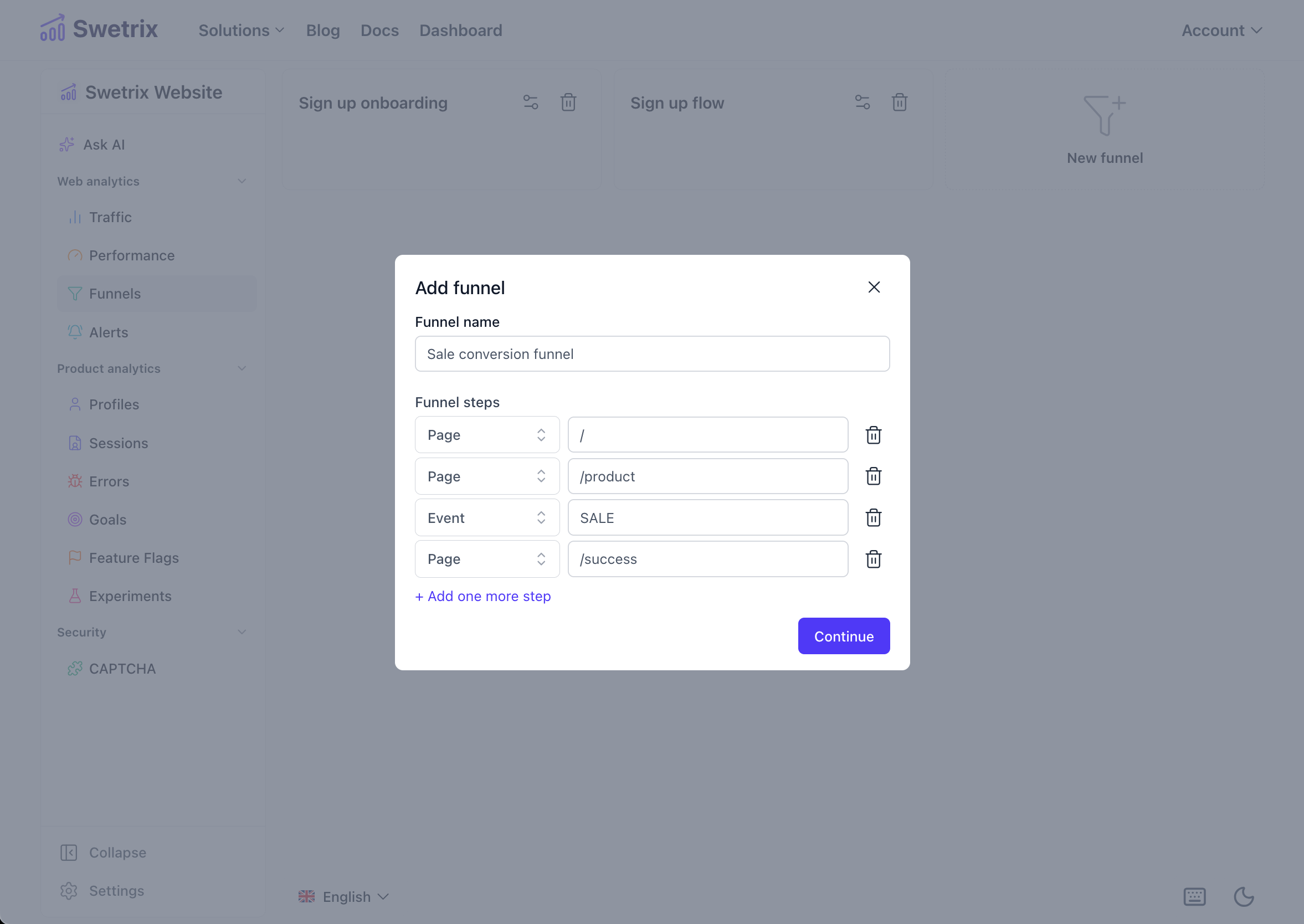
- Click New Funnel. If you already have funnels, you can also use the dashed New Funnel card in the list.
- Name: Give your funnel a descriptive name (e.g., "Checkout Flow").
- Steps: Add the steps you want to track in order.
- Choose Page for page paths. Page steps should start with
/, for example/pricing. - Choose Event for custom events, for example
Registration. - Funnels must contain at least 2 steps and can contain up to 10 steps.
- Choose Page for page paths. Page steps should start with
- Click Continue to save.
Analyzing a Funnel
When you view a specific funnel, Swetrix opens a dedicated funnel detail view. The funnel is selected through the URL, so you can share or revisit a specific funnel view directly.
The date selector is available in the funnel detail header. Funnels support the following time ranges: last hour, last day, last 7 days, last 4 weeks, last 3 months, last 12 months, all time, and custom ranges.
Summary Metrics
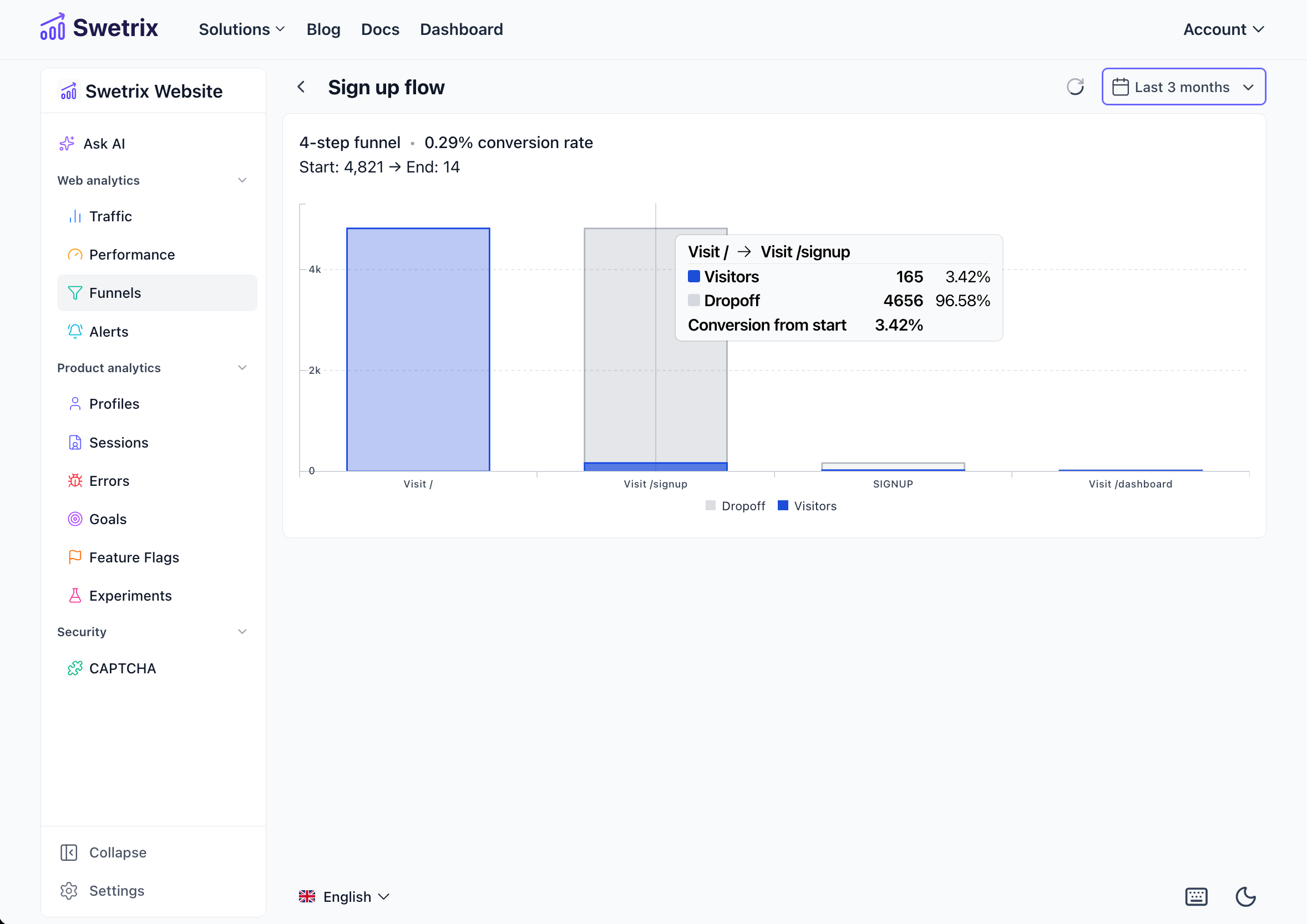
At the top of the funnel chart, you will find a compact summary:
- Steps: The total number of steps in the funnel.
- Conversion Rate: The percentage of users who started the funnel and successfully reached the final step.
- Start Visitors: The number of unique visitors who entered the funnel (completed the first step).
- End Visitors: The number of unique visitors who completed the entire funnel.
Funnel Chart
The chart visualizes the flow of users through each step:
- Visitors: The blue section shows the number of visitors who successfully reached this step.
- Dropoff: The striped section shows how many visitors dropped off before reaching the next step.
This visualization helps you instantly spot the "leaky" parts of your flow where you are losing the most users.
Hover over a step to see more detail, including:
- Visitors who reached the step.
- Visitors who never entered the funnel, for the first step.
- Dropoff from the previous step.
- Conversion from the previous step.
- Conversion from the start of the funnel.
- Top sources and countries for visitors who reached that step, when available.
Exploring Sessions per Step
You can click on any bar in the funnel chart to open a sessions drawer showing the individual sessions that reached that step. These are not just sessions that visited the page — they are sessions that completed every prior funnel step in order, matching the same sequential logic the funnel itself uses.
For every step except the final one, the sessions drawer can be switched to show only drop-offs: sessions that reached the selected step but did not continue to the next step.
For example, in a three-step funnel (/pricing → /signup → /dashboard), clicking the /dashboard bar will only show sessions where the visitor first viewed /pricing, then /signup, and then /dashboard — in that order.
Managing Funnels
You can manage your funnels directly from the main list:
- Edit: Click the Settings (gear) icon on a funnel card to change its name or modify the steps.
- Delete: Click the Delete (trash bin) icon to remove the funnel permanently.
If you edit a funnel while viewing it, the analytics refresh automatically after the changes are saved.
Permissions
Only project owners and administrators (managers) can create, edit, or delete funnels. View-only members can view the funnel data but cannot make changes.

Help us improve Swetrix
Was this page helpful to you?