

How to invite users to your website
Invite teammates or clients to a Swetrix project and manage their access to your website analytics without sharing account credentials.
Swetrix allows you to invite other people to your website. This is useful if you want to give access to your team, clients or other people without sharing your login credentials.
You can invite any person to your website using their email address. If they already have a Swetrix account, they'll receive an invitation notification in their dashboard and via email. If they don't have an account yet, they'll receive an email with a link to create one — no paid subscription or credit card is required for invited users.
If you want to share your dashboard without requiring the other person to have a Swetrix account, you can password-protect your dashboard and share the password with them.
How to invite users to your website
- Go to your site settings page.
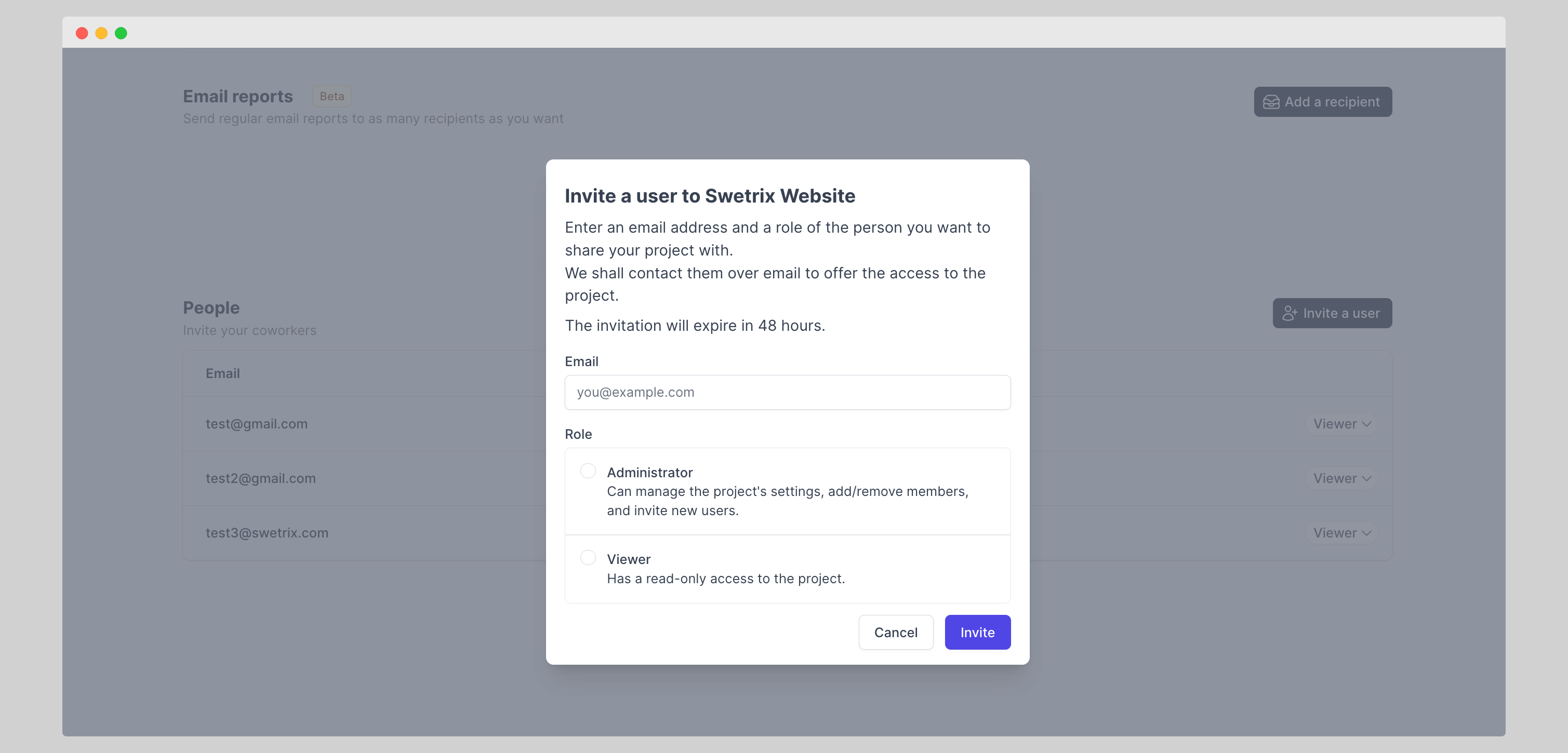
- Scroll down to the "People" section and click the "Invite a user" button.
- Enter the email address of the person you want to invite.
- Select a role for the person you're inviting. You can choose between "Admin" and "Viewer" roles.
- Admin: Admins have full access to your website. They can view and edit all settings, add and remove other users, and view all analytics data.
- Viewer: Viewers can only view your website's analytics data. They can't edit any settings or invite other users.
- Click the "Invite" button to send the invitation.
If the invitee already has a Swetrix account
They will receive an email with a link to accept the invitation. Once they accept it, they will be able to access your website. We'll also display a notification in their Dashboard page to let them know they've been invited to your website and they can accept the invitation from there as well.
If the invitee does not have a Swetrix account
They will receive an email with a link to create their account. After signing up through that link, the invitation is automatically accepted and they'll have immediate access to your website's analytics dashboard. These users do not need to start a trial or enter a credit card.
Who is responsible for billing?
The owner of the website is responsible for billing and needs to have a paid subscription. If you invite someone to your website, they can access it without having a paid subscription.
However, if you transfer ownership of your website to someone else, they will become responsible for billing.
If an invited user wants to create their own personal projects later on, they will need to start a free trial and subscribe to a plan.
How to modify user permissions
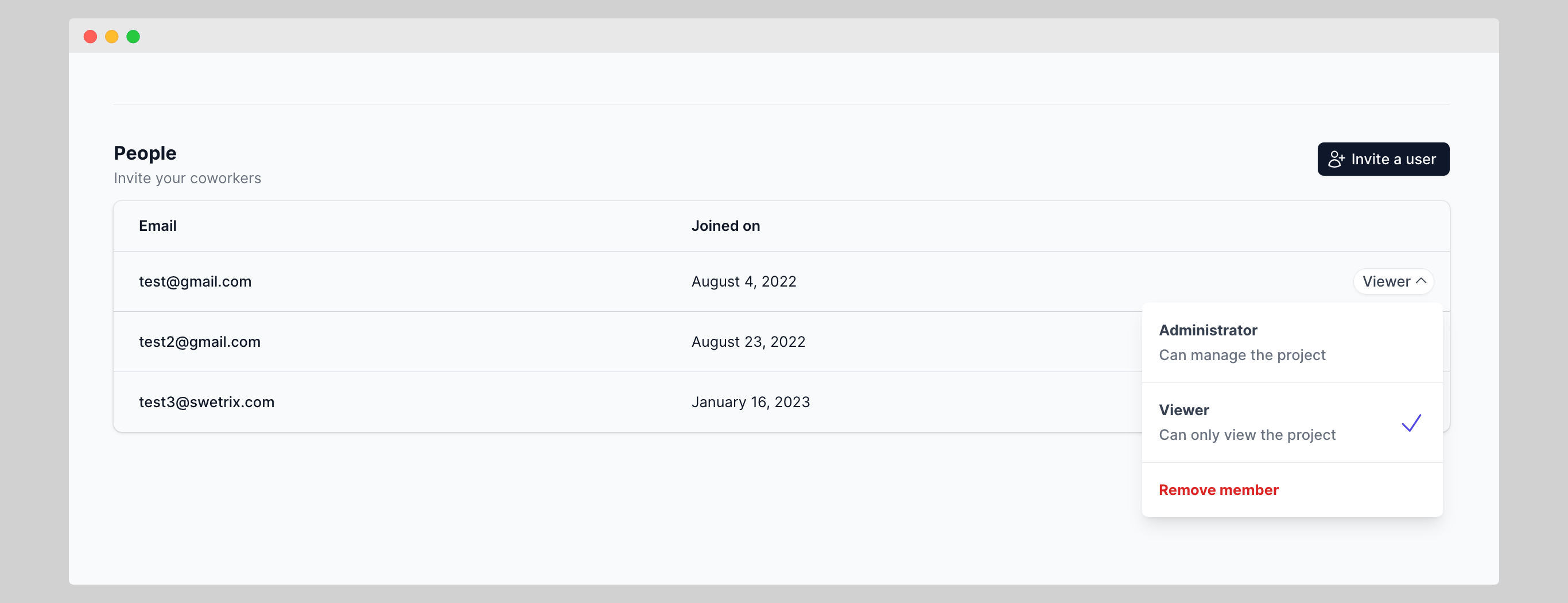
You can modify the permissions of any user at any time. To do this, go to your site settings page and scroll down to the "People" section. Here you can see a list of all users who have access to your website.
To modify a user's permissions, click on their role. You can then change their role between "Admin" and "Viewer". Once you change the role, the user will have the new permissions immediately.
How to remove a user from your website
To remove a user from your website, go to your site settings, scroll down to the "People" section, click on the user you want to remove, and then click the "Remove member" button.
Once you confirm the action, the user will no longer have access to your website.
How to transfer ownership of your website
To transfer ownership, open the project's Danger Zone settings, click Transfer ownership, and enter the email address of the person you want to transfer the project to.
You will receive an email to confirm the transfer. Once you confirm it, the other person will become the owner of the website and will be responsible for billing.
You can only transfer ownership to someone who is registered on Swetrix with the same email address you're transferring the website to.

Help us improve Swetrix
Was this page helpful to you?
Bot Protection
Configure Swetrix bot protection, review blocked traffic, and allow trusted IP addresses to keep automated visits out of your analytics.
How to transfer ownership of your website
Transfer a Swetrix project to another account and learn what changes when a new owner takes over your website analytics.