- Date
What Is This IP? A Clear Guide
 Andrii Romasiun
An IP address is a network-layer address that the Internet Protocol uses to identify the source and destination of data packets as they travel across networks. Knowing the address format helps you understand how devices communicate. For IPv4, RFC 791 specifies addresses that are 32 bits long.
When you ask, “What is this IP?”, you are usually looking up an unfamiliar address found in a server log, a firewall alert, or an analytics dashboard. This process differs from checking your own current public IP, which shows the address your local connection presents to external websites. Neither lookup will reveal a person's name or precise physical identity. For website administrators, checking a specific public IP provides the network context needed to filter out internal traffic. Identifying your office network connection allows you to block those testing visits from your analytics data, keeping your Swetrix dashboard focused on genuine user behavior.
What an IP Lookup Can and Cannot Tell You
An IP address query returns registration records and network routing context. Regional Internet Registries allocate large blocks of addresses to internet service providers, hosting companies, and major corporations. When a service provider assigns one of those addresses to a customer, the underlying registration record remains tied to the provider.
An RDAP or WHOIS lookup for an assigned IP address can identify the network operator to which it was assigned, and IANA's guidance on abuse and IP addresses explains that you first identify the responsible Regional Internet Registry, then look up the address there.
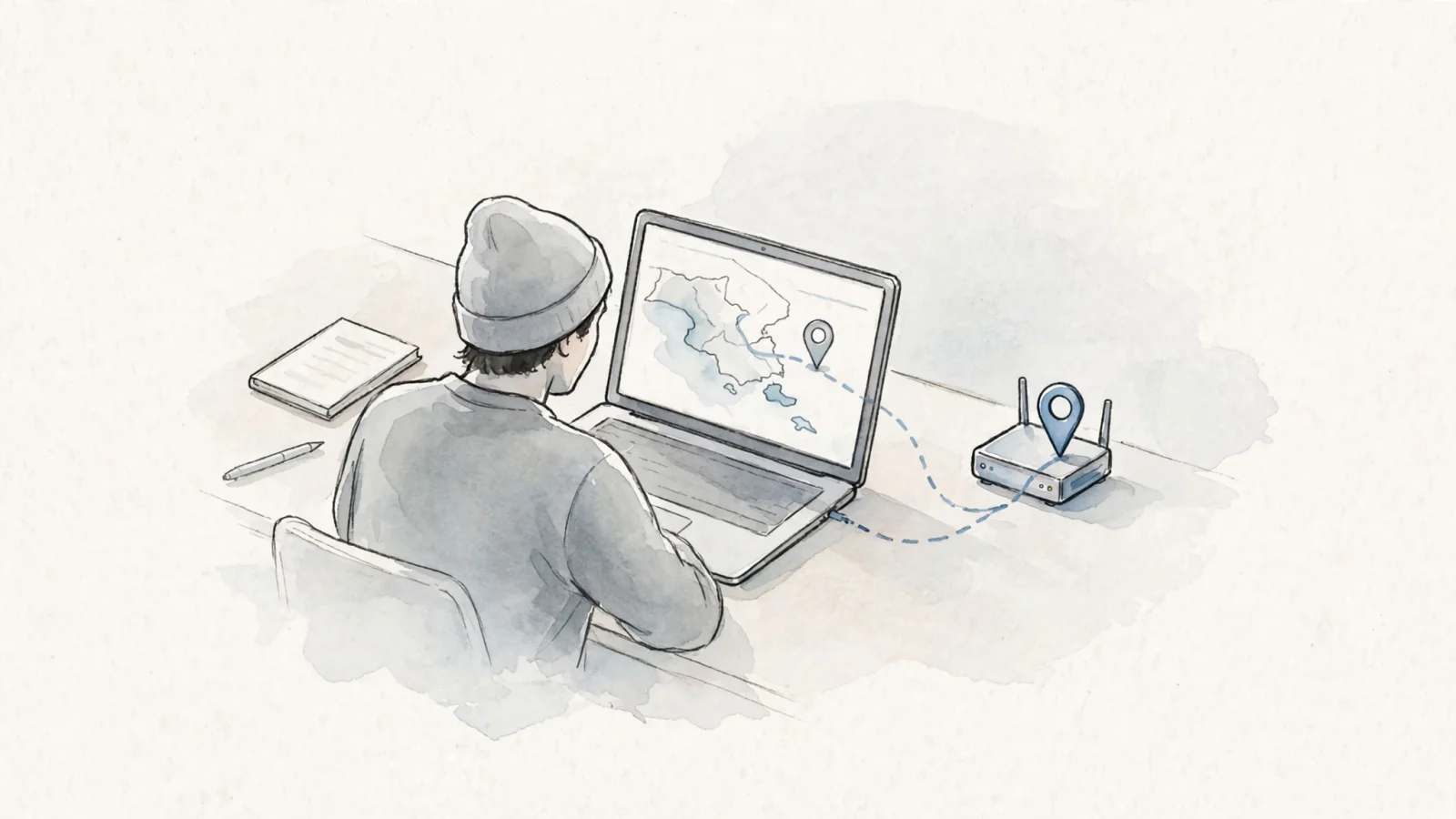
Geolocation tools attempt to map these addresses to physical places by combining registration data with routing information and third-party data feeds. A lookup will typically estimate a country, region, and city. You can use these tools to find its approximate location, treating the result as a broad estimate.
MaxMind states that IP geolocation is not precise enough to pinpoint a specific person, household, or street address. Its accuracy varies by country, distance, IP type, and ISP practices, and mobile-network IP addresses can be used by phones across large distances.
Virtual private networks and proxy servers further separate the user from the lookup result. When a visitor connects through a VPN, their traffic enters an encrypted tunnel and exits onto the public internet through a server in a different location. The IP address recorded by your web server belongs to the VPN exit node. A lookup may identify the data center hosting that node and the city where the server sits, but it provides no reliable indication of the visitor's physical location. You should view an IP address as a description of a network path rather than a permanent endpoint identifier.
Public, Private, and Shared IP Addresses
Every device connecting to a network needs an IP address, but not all addresses serve the same function. Understanding the difference between public and private roles prevents you from trying to trace an address that exists only on a local network.
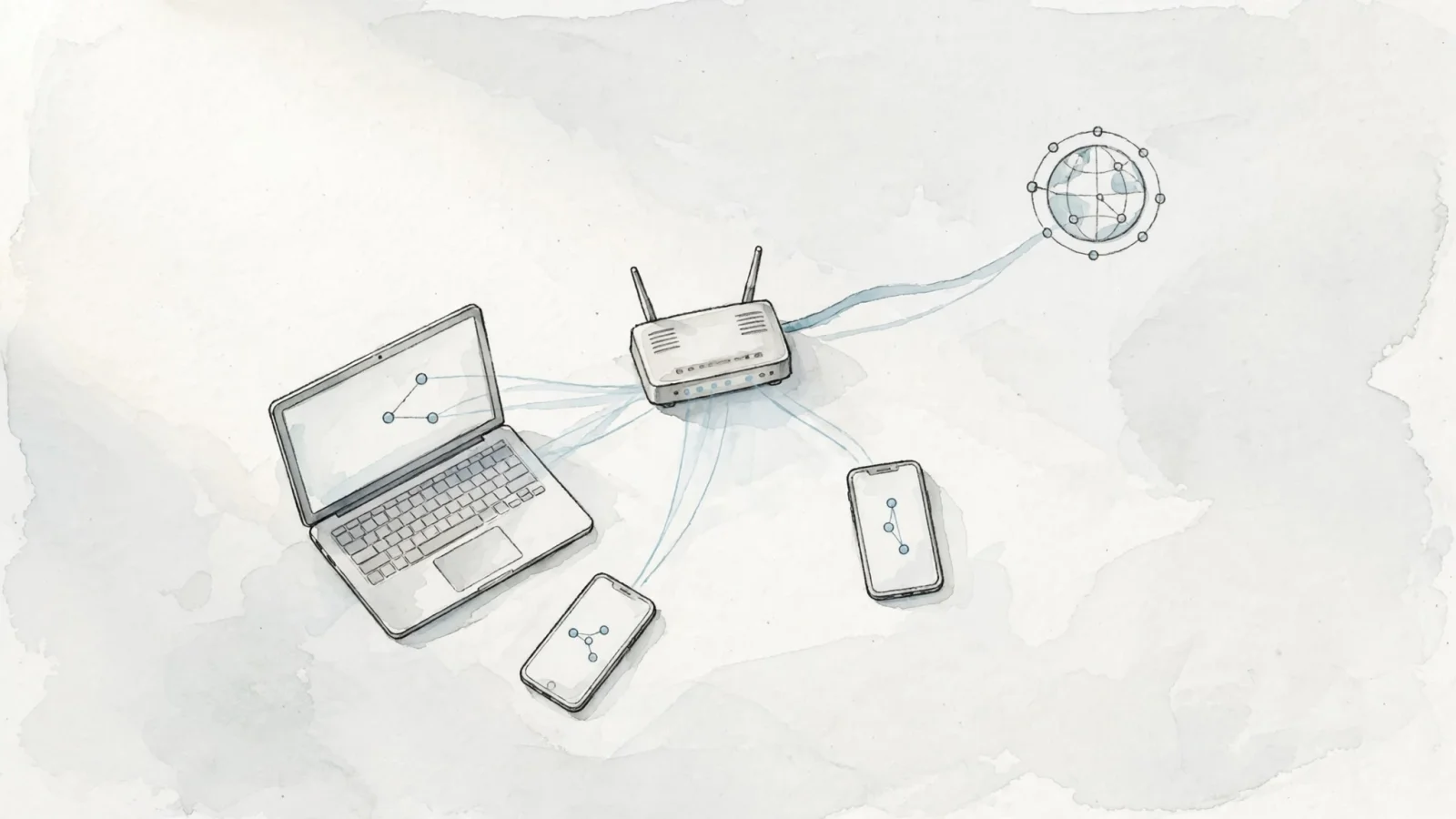
Public IP addresses route globally across the internet. An internet service provider assigns a public address to a modem or enterprise router, allowing external servers to send data back to that specific connection. Public IP addresses are assigned to avoid conflicts across the internet, so organizations register and manage them carefully.
Private IP addresses exist only within local networks. A home router or corporate firewall assigns private addresses to individual laptops, phones, and printers to route traffic internally. These addresses cannot communicate directly with the outside world. When a local device requests a web page, the router intercepts the request, substitutes its own public IP address using Network Address Translation, and forwards the packet. When the web page replies, the router translates the public address back to the private one and delivers the data to the correct device.
IANA reserved three IPv4 address blocks for private internets, as described in RFC 1918, which says packets with private source or destination addresses should not be forwarded across inter-enterprise links.
| Network Type | Address Range | CIDR Notation | Primary Use |
|---|---|---|---|
| Private Class A equivalent | 10.0.0.0 to 10.255.255.255 | 10.0.0.0/8 | Large corporate networks |
| Private Class B equivalent | 172.16.0.0 to 172.31.255.255 | 172.16.0.0/12 | Medium corporate networks |
| Private Class C equivalent | 192.168.0.0 to 192.168.255.255 | 192.168.0.0/16 | Home networks and small offices |
| Carrier-Grade NAT | 100.64.0.0 to 100.127.255.255 | 100.64.0.0/10 | ISP shared address space |
A common mistake involves misreading the 172 block. The /12 CIDR notation means only the addresses from 172.16.0.0 through 172.31.255.255 are private. An address like 172.15.0.5 or 172.32.0.5 falls outside this boundary, meaning it is outside the private range and can be publicly routed.
Service providers also use shared address spaces to conserve the limited supply of IPv4 addresses. Mobile carriers use Carrier-Grade NAT to put thousands of cell phones behind a single public IP. The carrier assigns addresses from the 100.64.0.0/10 block to individual mobile devices on their internal network. The carrier's central routers then translate those addresses to a shared public IP before the traffic reaches the internet.
The format of the address does not establish its role. An IPv4 address uses 32 bits, and an IPv6 address uses 128 bits. Seeing an IPv6 address in your logs indicates the connection supports the newer protocol, as both formats include specific ranges designated for public routing and private local network use.
How to Interpret an IP Lookup
Reading an IP address correctly prevents you from blocking the wrong network or misinterpreting a visitor's location. Rather than treating a lookup tool as an identity check, evaluate the address through a structured sequence.
- Check for local routing restrictions. Compare the address against the RFC 1918 ranges. If you see an address starting with 10 or 192.168, it belongs to a local network. A lookup tool cannot map a private address to a geographic location because millions of different home and office routers use those same numbers simultaneously.
- Query the registration data. If the address is public, an RDAP or WHOIS query will identify the registered operator. Look at the organization name to understand the connection type. A telecom or cable company name suggests a residential or mobile user, whereas a cloud provider name like Amazon Web Services or DigitalOcean suggests a bot, a scraper, a proxy, or an enterprise application.
- Read the location as an estimate. The geographic coordinates returned by a lookup tool point to the center of the city or postal code associated with the network operator's routing infrastructure, rather than pointing to a specific building.
- Account for network consolidation. If a lookup shows an internet service provider in a major metropolitan area, the visitor might reside fifty miles away in a suburb served by the same routing hub.
- Consider the exit point. A lookup returning a corporate VPN gateway identifies the gateway's network location, regardless of where the remote worker sits.
If a public IP lookup associates an address with a corporate network in London, it may indicate that the traffic exited through that network. You can use that information to configure a firewall rule or adjust an analytics filter, though it cannot prove who was operating the keyboard.
Why You Might Check Your Own IP
You might look up your own public IP address to prevent daily website testing from skewing your analytics reports. If you reload a landing page twenty times to test a layout change, a basic tracking script will record those reloads as twenty new pageviews. Identifying your network connection allows you to filter that activity out.
Swetrix supports excluding your own visits using direct IP rules. You can configure your project to ignore traffic originating from a specific IPv4 address, an IPv6 address, or an entire CIDR range. When a request hits the analytics endpoint, the system checks the incoming connection against your blocklist before processing the event.
Using an IP rule comes with a specific trade-off. Blocking a shared office IP address excludes your visits, but it also excludes any colleagues working on the same local network. The rule applies only to future visits and will not retroactively remove data already collected in your dashboard. If your internet service provider assigns you a dynamic address that changes every week, a static IP rule will eventually fail to catch your traffic.
For dynamic networks, a browser-based exclusion often works better. Swetrix allows you to set a local cookie in your specific testing browser. The tracking script reads this cookie and halts tracking for that browser across any network connection, leaving your colleagues' traffic intact.
Understanding this network exclusion process shows the difference between routing context and user tracking. Filtering an IP address happens at the network edge to manage data collection. Once the data enters a privacy-focused platform, the raw IP address loses its utility.
The Swetrix Data Policy outlines how cookieless analytics handles this network data. The platform processes the incoming IP address in memory to generate a daily salted session identifier. This mathematical hash allows the system to group a sequence of pageviews into a single session without storing the raw IP address in any database or log file. The salt changes daily, so the IP-derived identifier changes from day to day.
This in-memory processing proves that robust analytics do not require persistent IP tracking. You can track referral sources, measure campaign performance with UTM parameters, build conversion funnels, and monitor technical SEO metrics without maintaining a database of raw visitor IP addresses. The system provides approximate country and city reporting based on that initial memory check, delivering actionable geographic insights while respecting user privacy out of the box. Session replays remain an optional feature, and personal data exposure in those replays depends entirely on what your site displays and how you configure the masking rules.
Common IP Questions, Answered
What Can an IP Lookup Tell Me?
A lookup reveals the organization or telecom provider registered to manage that specific public address. It also provides an estimated geographic location based on routing data and third-party databases, showing how the traffic reached the public internet through a data center, a mobile carrier, or a regional ISP hub.
Can an IP Address Identify a Person or Exact Home Address?
No. An IP address indicates a network connection point rather than a permanent personal identifier. Internet service providers rotate addresses among different households, and multiple devices in a home or office share a single public IP. Geolocation databases map addresses to cities or regions, not to precise street addresses.
Is Every IP Address Beginning With 172 Private?
Only a specific subset of the 172 block is reserved for private local networks. The private range covers 172.16.0.0 through 172.31.255.255. Any address falling outside that window, such as 172.10.x.x or 172.40.x.x, functions as a normal public IP address that routes across the internet.
Why Does an IP Lookup Show a Different Location Than Expected?
Location databases map addresses to the infrastructure routing the traffic. If your service provider routes your connection through a central hub in a neighboring city, the lookup will display that hub's location. Using a corporate VPN or a proxy server will cause the lookup to show the location of the remote server rather than your physical desk.
Can Several People Share One Public IP Address?
Yes. Network Address Translation allows dozens of devices on a local office or home network to share one public IP address. Carrier-Grade NAT takes this further, allowing mobile telecom providers to route thousands of individual smartphones through a single shared public connection.
How Do I Exclude My Own Visits From Swetrix Analytics?
You can exclude your own traffic by adding your public IP address or a CIDR range to your project settings, which prevents the platform from recording your testing visits. If you work on a shared office network or have an internet connection with a frequently changing IP address, you can use the browser-cookie alternative to exclude your specific testing browser instead.
Understanding how network addresses function gives you complete control over your traffic data. Transitioning to a cookieless platform does not mean losing the technical insights you need to grow your site. Swetrix provides advanced product analytics, custom event tracking, and built-in SEO utilities without relying on intrusive tracking methods.
Try Swetrix to experience powerful, privacy-first web analytics built for modern site owners.