

How to change or reset your Swetrix account password
Change your Swetrix account password or reset a forgotten password to regain access to your website analytics securely.
How to change your password
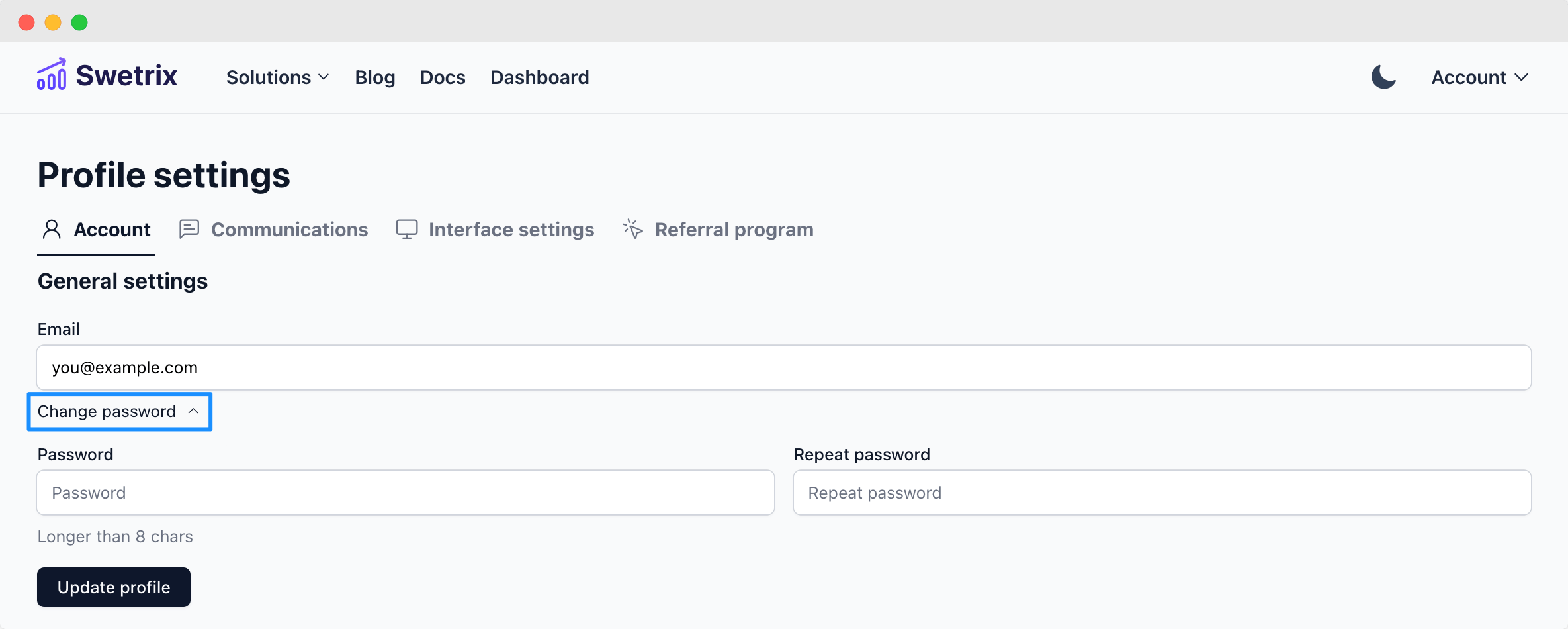
To change your password, you need to log in to your account and go to the account settings page.
Open the "Password and sign-in" tab and find the "Change password" section.
Enter your current password and your new password, then click the "Update password" button. This logs you out of Swetrix on every device, including this one. You will need to sign in again with your new password.
How to reset your password
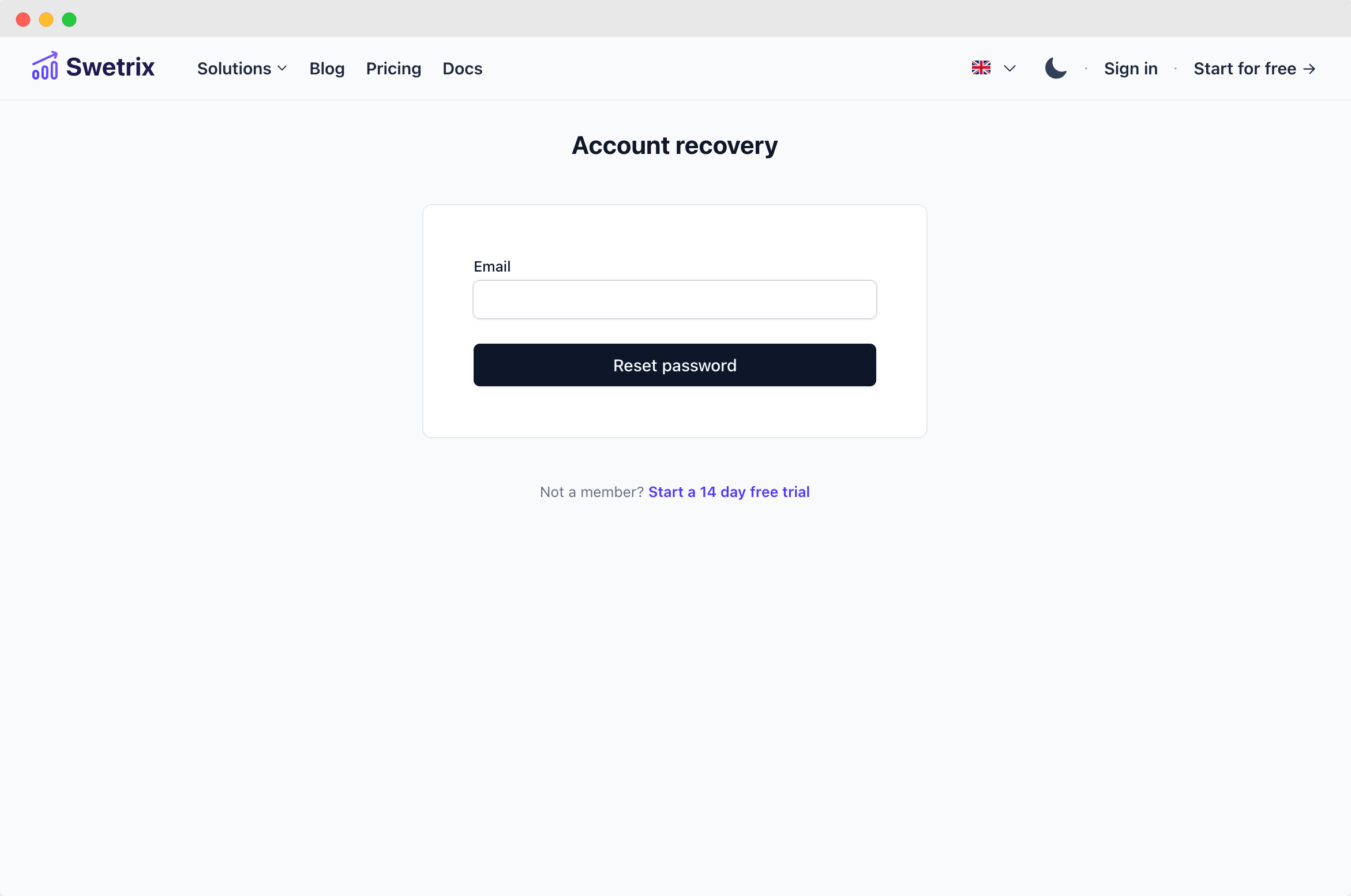
If you forgot your password, you can reset it by going to the account recovery page.
You will be asked to enter your email address and you will receive an email with a link to reset your password.
When you click on the link in the email, you will be asked to enter a new password.
When you reset your password, you will be logged out of all your devices and you will need to log in again with your new password.

Help us improve Swetrix
Was this page helpful to you?
How to change your Swetrix account email
Update the email address associated with your Swetrix account and complete verification to keep access and notifications working.
Delete your account
Learn how to delete your Swetrix account and review the consequences for your projects and analytics data before proceeding.