- Date
How to Verify a Sitemap
 Andrii Romasiun
Validating your XML file and confirming that search engines can index your pages are different technical exercises. A sitemap might pass a syntax check perfectly while pointing crawlers to blocked, redirecting, or unindexed URLs. Because search engines treat sitemap submission as a discovery hint rather than an indexing command, reliable verification requires checking multiple systems.
Before you begin, make sure you have administrative access to your website server or content management system, along with a verified property in Google Search Console that matches your production domain. To verify a sitemap thoroughly, locate the exact file URL, confirm public accessibility, validate the XML structure, and audit the URLs listed inside. Then, submit the file for search engine processing and inspect representative pages to confirm indexability. Google Search Console handles the technical indexing status. Once those pages are indexed, a platform like Swetrix measures what search visitors do after they arrive, connecting search visibility with user engagement and conversions.
Find the Exact Sitemap URL
Many technical errors begin with submitting the wrong file path. Avoid assuming your sitemap lives at /sitemap.xml, because while that filename is a common convention, content management systems and SEO plugins frequently generate variations or place the file in different directories.
Start your search in the website's robots.txt file by opening it at your root domain in a browser and checking for a fully qualified Sitemap directive. This line contains the absolute URL, including the protocol and host. If your site generates multiple files, multiple directives will be listed sequentially.
If the text file lacks this directive, check your CMS settings. Platforms like WordPress, Wix, and Blogger generate these files automatically, often under names like sitemap_index.xml or wp-sitemap.xml. Once you locate the file, you can use a Robots Txt Generator to create the correct directive and upload it to your server.
Finally, verify that the URL matches your production environment. The protocol needs to match your canonical setup (HTTPS instead of HTTP), and the host needs to reflect your preferred domain (www versus non-www). Verifying ownership in Search Console allows you to submit and inspect a file, but submitting a staging URL or using a mismatched domain property can cause a processing failure.

Validate the Sitemap File Structure
Loading the exact URL in a web browser provides your first accessibility check. A successful load confirms a public response without a login screen, staging hostname restriction, HTML error page, or empty body. This browser test proves basic accessibility, meaning a human or crawler can download the document, but it does not prove search engines can parse the formatting.
Validating the XML structure is a separate mechanical test. A standard sitemap uses a <urlset> root element containing individual page URLs, while a larger application often uses a <sitemapindex> root element containing links to child sitemaps. Both structures require the correct sitemap namespace declaration and UTF-8 encoding.
Inspect the raw code for properly escaped characters, because an ampersand or less-than sign in URL text can break the XML parser if left unescaped. Quotes require escaping inside XML attributes, although they do not need it in element text. For instance, an ampersand needs to appear as & inside the <loc> tag.
File limits dictate how you structure these documents. Google restricts sitemaps to 50,000 URLs and 50 MB uncompressed per file, so when a website exceeds either limit, split the URLs across multiple sitemaps and optionally create a sitemap index to manage them.
You can test XML syntax locally by opening a terminal and running xmllint --noout sitemap.xml, or rely on online XML validators to spot unclosed tags and invalid characters. Syntax validation remains a structural check that confirms the file is formatted correctly, independent of whether the URLs inside are live or indexable.
Audit the Sitemap's URLs
A perfectly formatted XML document still fails if it points search crawlers to the wrong pages. The sitemap serves as a curated directory of the canonical URLs you want search engines to discover, crawl, and index.
Review a representative sample of the URLs listed in the <loc> tags to verify they are absolute URLs. A relative path like /blog/article fails because the crawler lacks the defined host and protocol. Make sure every URL matches the site's canonical HTTP version, because if your site forces HTTPS, listing HTTP URLs wastes crawl budget on redirects.
Test the live status of the sample pages, dropping any URLs that return a 404 Not Found error. These may represent deleted or unpublished content lingering in a cached sitemap. Remove URLs that redirect to another destination and replace them with the final target URL.
Check your parameter handling next. A tracking variation like ?utm_source=newsletter might be accessible to a browser, but it splits indexing signals and wastes crawler resources. Keep the clean, preferred page path. You can run complex URL structures through a Canonical Url Checker to confirm the page's canonical tag points to itself rather than another version, and include only that self-referencing canonical version in your XML file.
Finally, evaluate the <lastmod> date values. Search engines can use this field to inform recrawling, provided the dates are consistently accurate and reflect substantive content modifications, structural changes, or link updates. Updating the value for every routine deployment or automated copyright-year change can make the timestamps less useful as a signal. Google officially ignores the <priority> and <changefreq> tags, so you can omit them to reduce file size.

Check the Fetch Status in Search Console
Once the file structure and URL quality pass inspection, you can hand the document over to the search engine. Open Google Search Console, select the verified property that exactly matches your sitemap's domain and protocol, and navigate to the Sitemaps report in the left sidebar.
Enter the exact URL of your sitemap or sitemap index and submit it. The report updates with a fetch status, where "Success" confirms Google reached the server, downloaded the file, parsed the XML without errors, and extracted the URLs.
Submission operates on a delay, so while the interface might show a successful fetch immediately, crawling the extracted URLs takes time.
Use the URL Inspection tool's live test to examine the sitemap URL itself by entering the XML file path into the top search bar. The result can show whether Googlebot can fetch the resource and whether robots.txt blocks it. If the inspection shows a block, you likely have a server firewall or a rogue robots.txt disallow rule interfering with the bot.
Next, inspect representative page URLs pulled directly from the XML document to check whether the live page is accessible and whether indexing is allowed. The inspection report details the declared canonical URL, the canonical URL Google selected, and whether the URL appears in a known sitemap. You can run batch tests using an Indexability Checker to identify pages carrying rogue noindex directives before waiting for Google to discover them.
For larger sites, filter the Page Indexing report to compare URLs submitted through a sitemap against unsubmitted URLs. This comparison highlights gaps in your generation logic, meaning if a critical product page appears under the unsubmitted filter, your CMS plugin is dropping pages.
As Google's search documentation outlines, sitemap submission functions as a discovery hint. A successful processing status means Google has read the sitemap and queued its URLs for crawling, but it does not guarantee that Google will crawl or index every URL.
Troubleshoot Processing Errors and Track Performance
Failures during the verification process generally fall into three categories: fetch errors, parsing errors, and indexing failures. Addressing each category requires a different diagnostic approach.
Fetch errors appear when Search Console reports "Couldn't fetch," an error that usually indicates Googlebot could not reach your server. Test your site for broad 404 responses, DNS resolution failures, or restrictive server firewalls blocking known crawler user agents, and ensure your CMS is not placing the file behind a login screen or a maintenance-mode block.
Parsing errors occur when the search engine downloads the file but cannot read the contents. These failures stem from invalid XML syntax, incorrect namespaces, unescaped special characters, or unsupported file formats. Validate the XML locally, correct the malformed entry, and check that the root tags close properly. If you receive a limit error, your file contains more than 50,000 URLs or exceeds 50 MB, so you will need to split the document and submit a sitemap index instead.
Indexing failures happen when the file processes successfully, but the listed pages refuse to appear in search results. Investigate these URLs using the Page Indexing report, looking for "Crawled - currently not indexed" or "Discovered - currently not indexed" statuses. These statuses indicate Google has processed the sitemap, but they describe different outcomes: "Crawled - currently not indexed" means Google crawled the page without indexing it, while "Discovered - currently not indexed" means Google knows about the URL but has not yet crawled it. For pages you intend to index, resolve active blocks by removing noindex tags, fixing robots restrictions, and clearing duplicate content conflicts.
Technical verification proves crawlers can read your site, though it stops short of proving your content works for users. Once Search Console confirms your pages are indexed, a measurement layer helps track the business outcome of that search visibility.
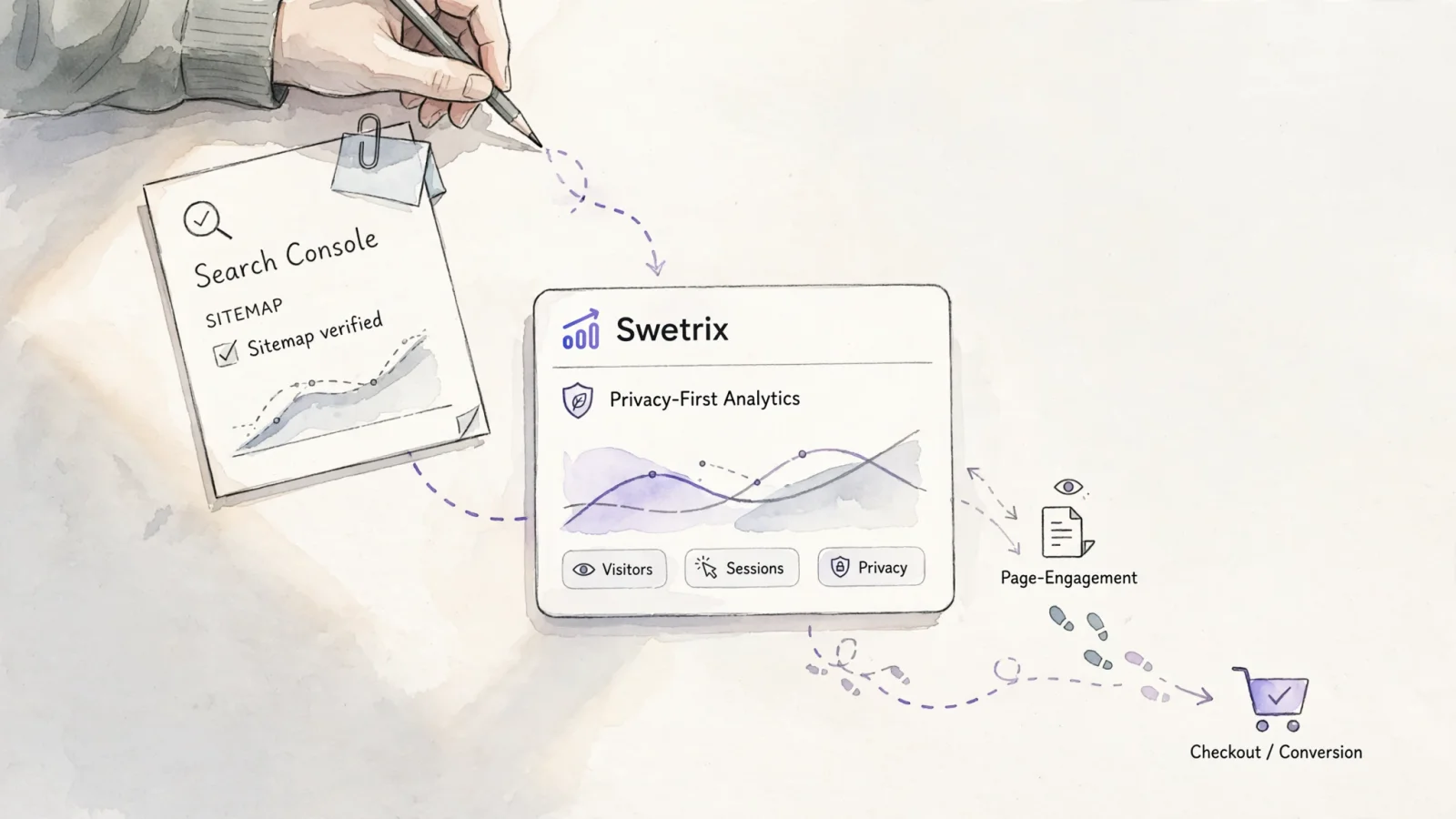
Swetrix bridges this gap through its read-only Google Search Console integration. After your sitemap drives indexing and impressions, Swetrix pulls search clicks, average position, top queries, and AI referral data into a dedicated SEO dashboard. The platform connects that search performance with on-site behavioral analytics, letting you track which indexed pages drive the most engagement, measure conversion funnels, and analyze user events without deploying cookie consent banners.
Connecting technical SEO with privacy-first traffic analytics ensures you measure the complete journey. Fixing a parsing error gets the page crawled, while Swetrix tells you if the resulting organic visitor clicked the checkout button.
Maintain Sitemap Health Post-Verification
Verifying a sitemap requires recurring maintenance rather than a single setup step. A file that processes perfectly today can accumulate dead links, redirects, and canonical conflicts as your website evolves.
Recheck your XML files immediately following any site migration, redesign, or domain change. Updating your CMS or switching SEO plugins often resets generation rules, which can change the file path or dump unindexed category pages back into the active <urlset>.
Agencies and technical teams managing multiple properties benefit from maintaining a strict status model for each domain. Record the exact sitemap URL, the matching Google Search Console property, the last known processing status, and the indexability of five representative pages. Separating these milestones prevents account managers from assuming a "Success" status in the Sitemaps report automatically translates to new landing pages ranking in search.
Extend your monitoring to Bing Webmaster Tools if your strategy targets multiple search engines. Its documentation covers monitoring performance and optimizing a site for Bing search.
Website administrators frequently misunderstand the necessity and function of these files. A small website with 500 pages or fewer might not strictly need a sitemap if every page connects through clear internal links from the homepage. Even so, generating one remains useful for new sites struggling for initial discovery, deep content archives, or fast-changing editorial platforms.
Opening sitemap.xml in a browser confirms a human can see the text, though it cannot prove the file works for a search engine. Similarly, submitting the document in a webmaster dashboard requests a crawl without guaranteeing indexing, and including a page in the <loc> tag suggests you want it found without overriding a noindex tag or a robots.txt disallow rule.
Keeping these distinctions clear prevents wasted troubleshooting hours. Treat the sitemap as your site's canonical map, keep it updated, ensure the search engines can read it, and rely on your analytics platform to measure the traffic that follows it.
Ready to connect your indexed pages with user behavior? Swetrix gives you powerful, privacy-first web analytics to track events, funnels, and conversions from your organic search traffic, completely free of invasive cookies. Try Swetrix and see the complete picture of your search performance today.