- Date
Fixing the HTTP Status Code 500 Internal Server Error
 Andrii Romasiun
An HTTP status code 500, more commonly known as an Internal Server Error, is a vague but serious message. It tells you that something has gone wrong on the website's server, but the server itself isn't sure what the exact problem is. The key takeaway? The issue isn't with your computer, your browser, or your internet connection.
What an HTTP 500 Error Really Means

Think of a 500 Internal Server Error like calling a restaurant and the person on the other end just says, "We have a problem in the kitchen," and hangs up. You know something’s wrong, but you’re left completely in the dark about what it is. This error is the server's way of throwing its hands up and admitting it's hit a roadblock it didn't expect.
Unlike client-side errors you might have seen (like a 404 Not Found, which means the page doesn't exist), a 500 error confirms the problem is squarely on the website's end. It's a "catch-all" response for a huge range of potential server-side failures, which is what makes it so tricky to pin down without digging into the server's logs.
The Impact on User Trust and Experience
For a visitor, a 500 error is frustrating. For a business, it's damaging. When your site fails without any explanation, it can immediately make your brand feel unreliable or even insecure. This has a direct and negative impact on your users and your bottom line.
- Erodes Credibility: A site that frequently breaks feels unprofessional and poorly managed.
- Increases Bounce Rate: Most users won't stick around. They'll just leave and find a competitor.
- Disrupts Conversions: If someone tries to buy a product and hits a 500 error at checkout, that sale is almost certainly lost.
The HTTP 500 Internal Server Error isn’t a new problem. It was defined in the original HTTP/1.0 specification back in 1996 as a generic signal for server-side issues.
Even decades later, it’s a constant headache for developers. In fact, on high-traffic WordPress sites, this single error can account for up to 40% of all server-related incidents. You can see just how common these issues are by checking out Kinsta's 2023 performance reports.
Realizing that the HTTP status code 500 is a server-side problem is the first and most important step. It tells you to stop checking your own connection and start looking at the website’s backend infrastructure, which is where the real fix is needed.
Common Causes Behind a 500 Internal Server Error
Trying to find the exact reason for a 500 Internal Server Error can feel like searching for a needle in a haystack. The error code itself is frustratingly vague; it’s the server’s way of saying something went wrong, but it won't tell you what. The good news is that most 500 errors come from just a handful of common problems. Once you know where to look, your troubleshooting becomes a whole lot easier.
These issues usually boil down to misconfigurations, software conflicts, or the server simply running out of resources. I like to think of a website as a complex machine with dozens of moving parts. If one small piece fails, the whole system can grind to a halt, and that’s when you see that dreaded error message. The trick is to check the most common points of failure first.
Corrupted Files and Configuration Errors
One of the most frequent culprits is a corrupted .htaccess file. This little file holds a lot of power on Apache web servers, controlling high-level configurations. A single typo, a misplaced character, or a bad rule added by a new plugin can take your entire site down in an instant.
Similarly, incorrect file and folder permissions can stop the server dead in its tracks. If the server doesn't have the right permissions to read a script it needs to run your website, it can't fulfill the request. The result? A 500 error.
An internal server error is the server's equivalent of saying, "I've hit a problem I don't know how to handle." It's not that the page is missing (like a 404 error), but that the server itself can't do its job properly.
Plugin Conflicts and Resource Limits
If you're running a CMS like WordPress, third-party plugins and themes are a primary suspect for 500 errors. A brand-new plugin might not play well with one you already have installed, or a recent theme update could introduce incompatible code. These conflicts often pop up right after you've updated something, turning a perfectly fine site into a broken one.
Another all-too-common issue is hitting the PHP memory limit. If a script or plugin needs more memory than the server is allowed to give it, the process will crash. This often happens during resource-heavy tasks, like processing a huge image or running a complex database query. The server, unable to provide what's needed, simply gives up and throws a 500 error.
The data backs this up. Third-party plugin conflicts are responsible for a whopping 28% of 500 errors, especially after updates. Close behind are permission misconfigurations at 20%, with database corruption making up another 14%. You can dig into more statistics on what causes 500 errors over on SiteLock's blog.
Here’s a quick checklist of the usual suspects to investigate:
- Corrupted .htaccess File: Check for typos or bad rules.
- Plugin or Theme Conflicts: A recent update or installation is a major red flag.
- Exhausted PHP Memory Limit: A script asked for more memory than was available.
- Incorrect File Permissions: The server can't access the files it needs.
- Corrupted Core Files: Key CMS files might be damaged.
- Database Connection Problems: The server couldn't talk to your database.
Your Step-by-Step Troubleshooting Process
Seeing an HTTP status code 500 can be alarming, but don't panic. With a methodical approach, you can turn that vague error message into a clear action plan. Instead of jumping to conclusions, it's best to work through a checklist, starting with the simplest potential fixes and moving toward the more complex ones.
The first thing to do is often the easiest. Before you start digging into server files, just try reloading the page and clearing your browser cache. It might sound too simple, but sometimes a temporary server hiccup or a cached error page is the real culprit. This quick check could save you a ton of time.
If that doesn't do the trick, it’s time to look under the hood. The server itself holds the clues, and your next stop should be the error logs.
Check Your Server Error Logs
Your server's error logs are your single best friend when diagnosing a 500 error. While your visitors see a generic "Internal Server Error" page, the logs contain the nitty-gritty details: specific error messages, file paths, and even line numbers that can point you directly to the broken script or misconfiguration.
You can usually find these logs in a standard location on your server:
- For Apache servers: Look for the file at
/var/log/apache2/error.log. - For Nginx servers: You'll typically find it at
/var/log/nginx/error.log.
Once you have the file open, scan for entries matching the timestamp of when the error happened. Look for phrases like "fatal error," "parse error," or "PHP Fatal error." These are the breadcrumbs that lead you straight to the source, telling you exactly which function failed or what file couldn't be processed.
This decision tree gives you a great visual of the common culprits you're likely to find documented in your logs.
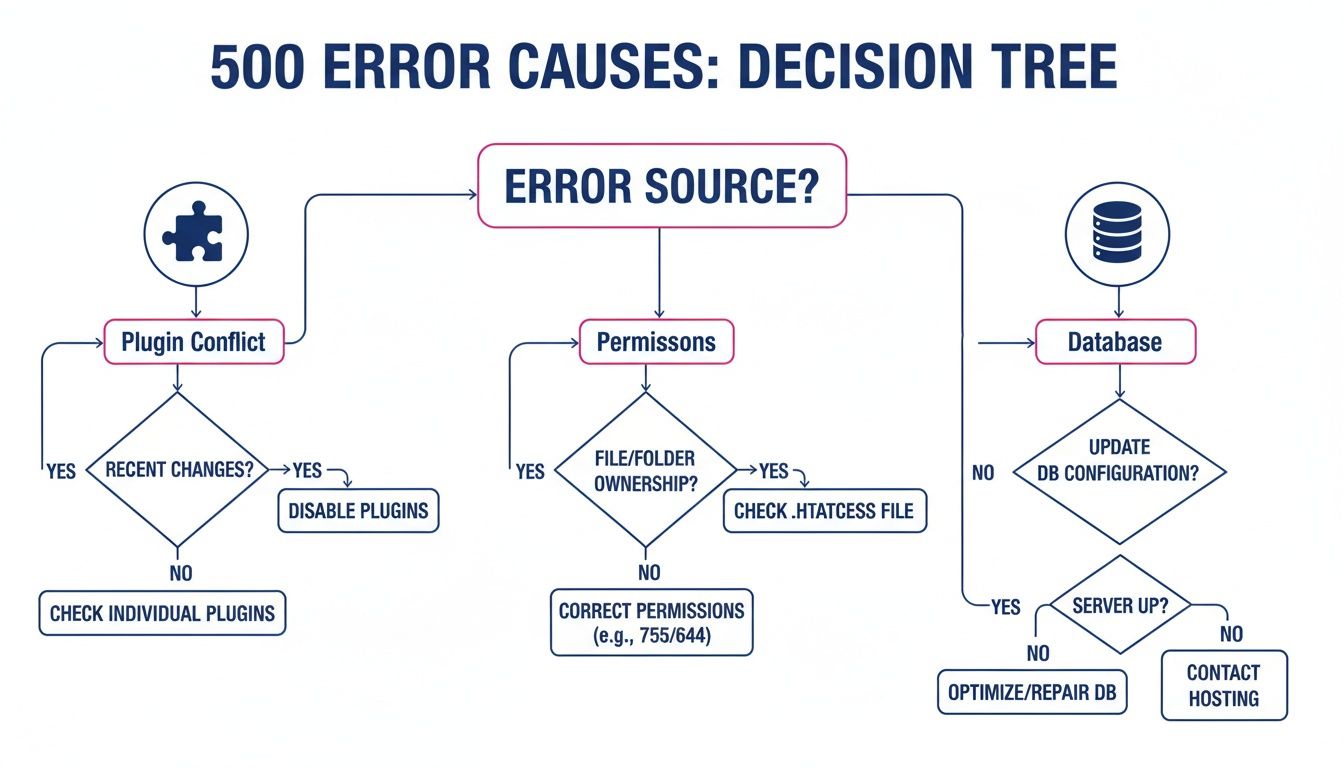
As you can see, most 500 errors come down to a handful of issues like plugin conflicts, incorrect permissions, or database connection problems—all of which leave a clear trace in the server logs.
A Prioritized Troubleshooting Checklist
To keep your troubleshooting organized, follow a checklist that moves from low-impact, easy checks to more involved diagnostics. This ensures you find the root cause efficiently without making unnecessary changes.
| 500 Error Troubleshooting Checklist | |||
|---|---|---|---|
| Step | Action | Common Tools/Location | What to Look For |
| 1. Quick Client-Side Checks | Reload the page. Clear browser cache and cookies. | Your web browser | If the error disappears, it was a temporary glitch or caching issue. |
| 2. Review Server Logs | Check Apache or Nginx error logs for recent entries. | SSH/FTP access to /var/log/ | "Fatal error," "parse error," specific script names, memory limit messages. |
| 3. Isolate Plugins/Themes | Deactivate all plugins. If the site works, reactivate them one by one. | CMS Admin Dashboard (e.g., WordPress) | The error reappearing after a specific plugin/theme is activated. |
4. Check .htaccess File | Temporarily rename your .htaccess file (e.g., .htaccess_old). | FTP or File Manager | If the site loads, the file was corrupted. Regenerate a new one. |
| 5. Verify Resource Limits | Check and increase the PHP memory limit. | wp-config.php, php.ini, or .htaccess file | Memory exhaustion errors in the logs. |
| 6. Check File Permissions | Ensure files are set to 644 and directories to 755. | FTP client or SSH command line | Permission denied errors in the logs. |
Following these steps in order helps you rule out the simple stuff first, saving you from a deep dive into code when the fix might just be a corrupted configuration file.
Isolate Plugin and Theme Conflicts
If your error logs are hinting at a problem with a third-party extension, your next job is to isolate it. Plugins and themes are one of the most common causes of 500 errors, especially right after an update that introduces a code incompatibility.
The classic way to find the culprit is to deactivate all your plugins at once. If the error vanishes, you've confirmed a plugin is to blame. From there, reactivate them one by one, reloading the page after each activation. When the error comes back, you've found your problematic plugin. The same logic applies to themes—try switching to a default theme to see if that solves it.
While digging through logs and manually deactivating plugins works, it can be tedious. Modern tools can make this much faster. With a platform that offers automated error tracking, you can get alerts that pinpoint these issues instantly, saving you the manual detective work.
Inspect Configuration and Resource Limits
If plugins and themes aren't the issue, it’s time to check your server's configuration and resource limits. Two areas are notorious for causing 500 errors.
Inspect Your .htaccess File: For sites running on Apache, a corrupted
.htaccessfile is a top suspect. Even a single misplaced character in this file can bring your entire website down. To test this, simply rename the file to something like.htaccess_oldand reload your site. If it loads, you've found the source. You can then generate a fresh, default.htaccessfile to get things back to normal.Increase PHP Memory Limit: Sometimes, a script or a plugin simply needs more memory than the server is configured to provide. When it hits that ceiling, it crashes. You can often fix this by increasing the PHP memory limit in your
wp-config.php,php.ini, or.htaccessfile. For instance, addingdefine('WP_MEMORY_LIMIT', '256M');to a WordPresswp-config.phpfile is a quick way to resolve memory exhaustion problems.
The Hidden Costs of 500 Errors on SEO and Business
An http status code 500 is so much more than a temporary glitch. For a developer, it's a server problem. But for a business owner or marketer, it's a direct threat to revenue, credibility, and your standing with search engines.
Think of it this way: every single time a visitor or a search engine bot hits a 500 error on your site, a little piece of the trust you've built chips away.
For your users, the experience is jarring. They were about to buy something, read your latest post, or sign up for a newsletter, and bam—a digital brick wall. That single point of failure often leads to abandoned carts, skyrocketing bounce rates, and a lingering feeling that your brand is unreliable. In a competitive market, they’ll just head over to a competitor whose site actually works.
The Impact on Search Engine Rankings
Search engines like Google are obsessed with reliability. When the Googlebot comes to crawl your site and keeps getting slapped with a 500 error, it sends a loud and clear signal: your server is unstable. And Google really doesn't like that.
If a site is down for an extended period, say over six hours, Google might see the 500 error as a site-level issue that needs to be addressed. This prolonged downtime could directly impact your search rankings.
Persistent errors tell Google that your website offers a poor user experience. As a result, it might start crawling your site less often to avoid wasting its own resources. Some studies have shown that continuous 500 errors can slash crawl rates by up to a staggering 70%.
When crawlers visit less frequently, your new content takes forever to get indexed. In a worst-case scenario, Google might even temporarily de-index your pages, making them completely disappear from search results. For a deep dive, check out how server errors affect your site's health on SiteLock's blog.
Quantifying the Business Damage
The financial hit is just as serious. Every minute your site is down is a minute you aren't making sales or capturing leads. But the damage goes far beyond the immediate transaction—it poisons long-term customer loyalty and how people perceive your brand.
- Revenue Loss: Imagine an e-commerce site going down during a flash sale. We're talking about thousands of dollars lost in mere minutes.
- Eroded Brand Trust: Would you enter your credit card details on a site that feels broken? Your customers won't either.
- Wasted Ad Spend: If you're running paid ad campaigns that point to a broken page, you're literally just burning cash.
At the end of the day, a 500 error isn't just a server issue. It hits every important metric you track, from user engagement and conversion rates to your site's overall authority. It’s why focusing on a fast, dependable user experience is critical, and why understanding things like the Core Web Vitals is so important. Preventing these errors isn't just a job for the tech team—it's a fundamental business strategy.
Preventing Errors with Proactive Monitoring
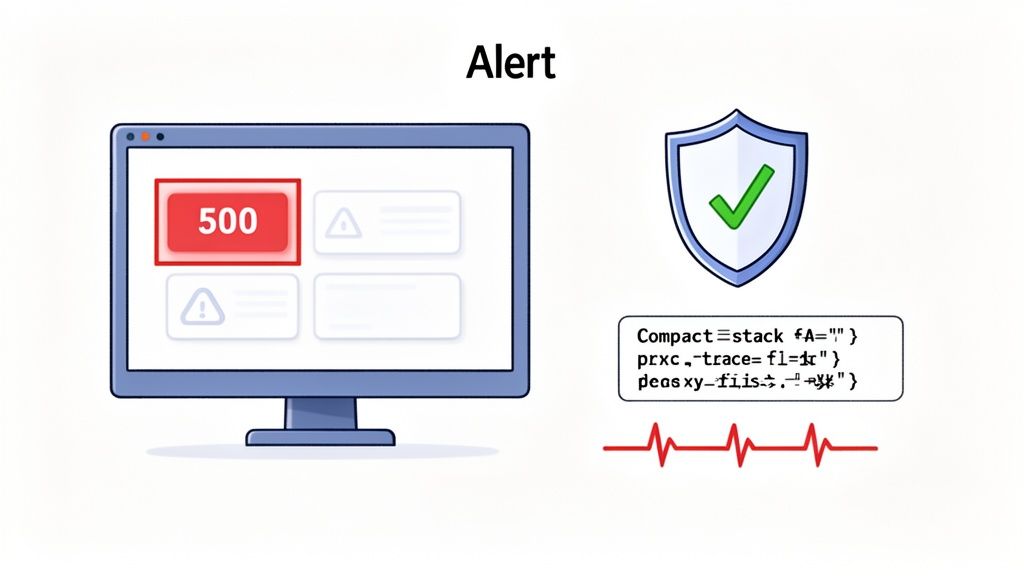
Fixing an http status code 500 after it’s already brought your site down is one thing. But what if you could catch the problem before it ever affects a customer? That’s the whole game. The goal is to move from a reactive state—scrambling through server logs after the fact—to a proactive one where you have a constant pulse on your website’s health.
Instead of waiting for an angry email or a failed uptime ping, modern monitoring tools can spot server-side issues the moment they surface. This means you can jump into debugging right away, often before a single user even knows something went wrong.
Moving Beyond Reactive Log Checking
Relying on server logs alone is like waiting to smell smoke. By the time you do, there's already a fire. Proactive monitoring, on the other hand, is the smoke detector that goes off at the first spark. This is exactly where a dedicated error tracking and analytics platform becomes a non-negotiable part of your toolkit.
Platforms like Swetrix are built to automatically catch both server-side and client-side errors, funneling them into one central dashboard. It’s a complete mindset shift, moving you from putting out fires to preventing them from starting in the first place.
Proactive monitoring transforms a vague "Internal Server Error" message into a specific, actionable insight. It gives you the full story, helping you fix things fast, cut down on downtime, and keep your users happy.
When you integrate a real-user monitoring (RUM) solution, you get the full picture of your site's performance straight from your actual visitors. If you want to see how different platforms stack up, you can check out this comparison of the best website performance monitoring tools available.
How Swetrix Speeds Up Debugging
Swetrix doesn't just log an http status code 500; it combines privacy-first analytics with built-in error tracking to capture the entire context of what went wrong.
When an error pops up, it’s not just a line in a log. It’s a detailed report on a clean, organized dashboard. Developers can see exactly what the error is, how many times it has happened, and when it was last seen, which makes the whole diagnostic process so much faster.
Here’s where this approach really makes a difference:
- Instant Notifications: Get an immediate heads-up via Slack, Telegram, or Discord the second a new 500 error is found. This closes the gap between the error happening and your team knowing about it.
- Detailed Stack Traces: Developers get the full stack trace, pointing to the exact function and line of code that broke. No more guesswork.
- User Journey Context: You can see which pages or user actions led to the error. This is gold for product managers who need to understand how server problems are breaking critical flows, like your checkout or sign-up process.
And because Swetrix was built from the ground up to be privacy-first, you get all this crucial diagnostic data without ever compromising your users' privacy. It’s a powerful, ethical way to keep your site stable and ensure it remains a place your audience can trust. This proactive mindset is the key to making 500 errors a minor blip, not a major catastrophe.
Got Questions About 500 Errors? We've Got Answers.
When you're staring down an http status code 500, it’s easy to feel a bit lost. These server-side errors can be tricky, but understanding what they are (and what they aren't) is the first step to getting things back on track.
Let's clear up some of the most common questions that pop up when an internal server error brings your site to a standstill.
Can a User's Action Actually Cause a 500 Error?
It’s a great question, and the answer is a little nuanced. While a 500 error is always a server-side failure, a user's action can absolutely be the trigger. Imagine a user submitting a form with a weird character or an unexpectedly long string of text. If your backend code isn't prepared to handle that specific input, it could crash the script.
So, while the user's input kicked things off, the real fault lies with the server's code for not handling the unexpected data gracefully. The responsibility to fix it always lands back on the developer's shoulders, not the user's.
Think of a 500 error as a smoke alarm for your server. A user might accidentally burn the toast and set it off, but it's the server's job to have a reliable alarm system that can handle a little smoke without shutting down the whole house.
How Is a 500 Error Different From a 404?
This is a critical distinction for anyone trying to troubleshoot a website issue. Both errors mean something went wrong, but they point to completely different problems.
A 404 Not Found error is pretty straightforward. It means the server is running just fine, but it couldn't find the specific file or page you asked for. It's like asking a librarian for a book that simply doesn't exist in the library.
A 500 Internal Server Error is much more serious. This means the server itself hit a major snag and couldn't process your request at all. In our library analogy, this is like the entire library's computer system crashing, making it impossible to look up any book, let alone the one you wanted.
If I Get a 500 Error, Does That Mean My Whole Website Is Down?
Not always. The blast radius of a 500 error really depends on what caused it. A faulty line in a core configuration file like .htaccess in your root directory could certainly knock the entire site offline.
But more often than not, the problem is more localized. A bug in a specific plugin, a script that connects to a third-party API, or a failed database query might only break one part of your site. Maybe it’s just the checkout page, the user login portal, or a single contact form. This is exactly why diving into your server logs is so crucial—it helps you pinpoint the exact location and scope of the failure.
Should I Bother Making a Custom 500 Error Page?
Yes, you absolutely should. A generic, unbranded 500 error page looks jarring and can scare visitors away, making them think your site is insecure or has been abandoned.
Creating a custom 500 page is a smart move for a few reasons:
- It maintains your brand's look and feel, which is far more professional than a blank white screen.
- You can reassure your visitors with a simple message letting them know you're on the case and working on a fix.
- It provides a helpful path forward, like linking back to your homepage, status page, or support team.
A custom page turns a frustrating dead-end into a more reassuring experience. It helps you maintain trust with your audience, even when things are temporarily broken behind the scenes.
Diagnosing and preventing errors is much easier with the right tools. Swetrix provides privacy-first web analytics with built-in error tracking to give you instant visibility into your site's health. Stop guessing and start fixing—discover how Swetrix can help you today.