- Date
A Complete Guide to Check 404 Errors and Protect Your SEO
 Andrii Romasiun
The easiest way to check for 404 errors is to use a free tool like Google Search Console, which shows you broken pages Google has already found. For a deeper dive, running a site crawler like Screaming Frog will give you a complete audit of all your internal links. Both methods give you clear, actionable reports to start hunting down every "Page Not Found" error that’s hurting your user experience and SEO.
Why You Need to Check for 404 Errors Now

Hitting a "Page Not Found" message isn't just a minor inconvenience for your visitors. It's a dead end. It instantly breaks their trust and tells them the content they expected to find simply isn't there. That friction is often all it takes for them to bounce from your site and head straight to a competitor.
The damage doesn't stop with a single lost visitor, either. These errors quietly undermine your search engine optimization (SEO) efforts behind the scenes. When search engine bots crawl your site and repeatedly hit these dead ends, they waste their crawl budget—the finite amount of time and resources they'll spend indexing your pages.
A website riddled with 404s sends a clear signal to search engines: it's not well-maintained. This can cause them to crawl your site less often, which means your new blog posts, updated pages, and important content will take longer to get indexed and ranked.
The True Cost of Broken Links
This problem, often called "digital decay," is more common than you might think. A 2024 study from the Pew Research Center discovered that a shocking 23% of news webpages have at least one broken link. It’s a powerful reminder of how quickly even high-authority sites can fall into disrepair. For any website, letting this slide is a surefire way to erode user trust and hurt your site's perceived quality in the eyes of search engines.
Ignoring these errors is a massive missed opportunity. Fixing them isn't just a technical chore; it’s a core part of maintaining a healthy, credible, and high-performing website. By regularly checking for 404s, you ensure a smooth journey for your users and a clear, crawlable path for search engines. This guide will walk you through the practical strategies to find, prioritize, and fix every broken link, protecting both your user experience and your hard-earned rankings.
Your Toolkit for Finding Every 404 Error
Alright, enough with the theory. Let's get our hands dirty and start hunting down those pesky 404 errors. You don't need a special license to do this, just the right tools and a smart approach. The good news is, you've got several powerful—and often free—ways to check for 404 errors on your site.
Each method gives you a different angle. Some show you what the search engines are running into, while others reveal the real, unfiltered experience your visitors are having. By layering these different viewpoints, you can build a complete health report for your website.
Using Google Search Console for Free Insights
Your first stop should always be Google Search Console (GSC). It’s Google's free gift to webmasters, giving you a direct look at how its crawlers see your site. Think of it as Google handing you a list of every broken link it has stumbled upon.
This is a critical starting point because these are the errors that directly mess with your SEO. If Google hits a 404, it can't index the page. No index means no ranking. Simple as that.
Here’s what the main dashboard looks like—it's your command center for site performance.
The real magic happens in the 'Pages' report. This is where GSC lists every single URL that has returned a "Not found (404)" error. It’s an instant, prioritized list of what Google already knows is broken.
Finding your 404s in GSC is straightforward:
- Head to the Pages report, found under the 'Indexing' section on the left.
- Scroll down until you see the 'Why pages aren't indexed' table.
- Find and click the row labeled Not found (404).
Just like that, you'll have a complete list of every broken URL Google has found. You can export this right away and use it to build your initial fix-it list.
Deploying a Website Crawler
While GSC shows you what Google sees, a website crawler gives you a complete map of your own internal linking. Think of tools like **Screaming Frog** (which has a great free version for up to 500 URLs) or **Sitebulb** as your personal search bot.
You just plug in your homepage, and the crawler methodically follows every link it can find—from your main navigation to a tiny link buried in a blog post from five years ago. It then spits out a detailed report of every URL and its HTTP status code.
This is the best way to uncover broken internal links. For example, you might find an old blog post linking to a product you discontinued and deleted ages ago. Simply filter the final crawl report for client errors (any 4xx status code), and you've got an immediate action plan.
Pro Tip: When you run a crawl, don't stop at 404s. Keep an eye out for long redirect chains (a 301 that points to another 301, and so on). Cleaning those up can give your site a nice little boost in speed and crawl efficiency.
Digging into Server Logs and Analytics
If you want to get more technical, your server's access logs are a treasure trove of data. These raw text files record every single request made to your server. That includes every time a user or bot tried to access a URL that no longer exists. This method gives you the most raw, unfiltered view of every single missed connection.
Finally, your analytics platform can drop some major hints. While Google Analytics doesn't have a built-in "404 report," you can do some detective work. Look for pages with suspiciously high exit rates. If your custom 404 page (e.g., yoursite.com/404) is one of your top exit pages, that’s a huge red flag that people are hitting dead ends all the time.
For a more automated approach, dedicated real-user monitoring and **error tracking software can automatically capture these issues** the moment they happen, sending you an alert so you can fix them before more users are affected.
Comparison of 404 Error Detection Methods
Choosing the right tool depends on your specific needs, technical comfort level, and budget. Some methods are quick and free, while others offer deeper, more comprehensive insights.
This table breaks down the most common approaches to help you decide where to start.
| Method | Best For | Cost | Technical Skill |
|---|---|---|---|
| Google Search Console | Finding errors that directly impact SEO and Google's crawl. | Free | Beginner |
| Website Crawlers | Discovering broken internal links and analyzing site structure. | Free & Paid versions | Beginner to Intermediate |
| Server Log Analysis | Getting a complete, unfiltered view of all 404 requests. | Free (requires server access) | Advanced |
| Analytics & RUM | Understanding real-user impact and getting instant alerts. | Free (basic) & Paid (advanced) | Intermediate to Advanced |
Ultimately, a combination of these methods provides the most complete picture. Start with Google Search Console for the SEO-critical errors, then run a crawler to clean up your internal linking. From there, you can dig into logs or set up monitoring for a more proactive, long-term strategy.
How to Prioritize and Fix 404 Errors Effectively
Okay, so you've got a list of broken links. Seeing a spreadsheet with hundreds of 404s can feel pretty daunting, but here’s the thing: not all of them are created equal. Trying to fix every single one without a clear strategy is a surefire way to waste a ton of time with very little to show for it.
The real trick is to zero in on the errors that are actually causing damage. By prioritizing intelligently, you can focus your energy on the fixes that will make an immediate difference to your users and protect your hard-earned SEO value.
A Tiered Approach to Fixing 404s
Instead of staring at one massive to-do list, I find it’s much more effective to break the errors down into priority tiers. This simple framework helps you put your resources where they’ll have the biggest impact.
High Priority: These are the fires you need to put out now. We're talking about pages with significant backlinks, pages that get a lot of internal traffic, or URLs that are part of your core conversion funnels. A broken link on a key product page is a much bigger deal than a typo in some forgotten blog post from five years ago.
Medium Priority: This tier is for pages that have some history—maybe they used to get decent traffic, have a few internal links pointing their way, or a handful of lower-quality backlinks. A blog post that was once popular but has since been deleted is a perfect example. Fixing these is good for overall site health, but they aren't as urgent as the high-priority stuff.
Low Priority: These are the URLs that have no traffic, no valuable links, and no strategic importance to your site. Often, these are just phantom URLs created by bots probing for vulnerabilities or random typos from users. Honestly? It's usually perfectly fine to let these remain as 404s.
This flowchart maps out how you can start finding these errors, whether you're using Google Search Console, a crawler, or digging into your server logs.
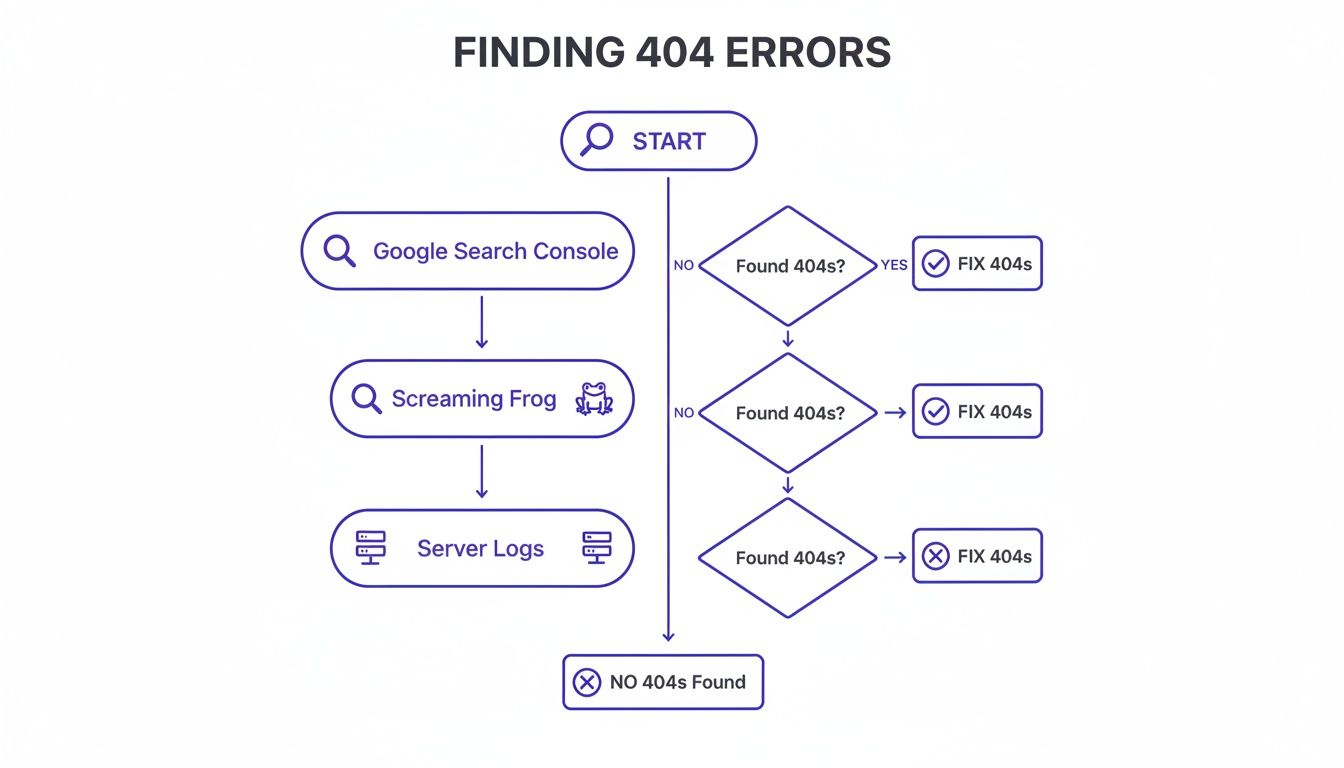
From experience, starting with Google Search Console is almost always the most efficient path. It shows you exactly what Google is seeing, which directly impacts your SEO.
To figure out a broken URL's value, I'll typically run it through a tool like Ahrefs or Moz to check its backlink profile. If a 404 page has several high-authority links pointing to it, that’s an immediate high-priority fix. You want to reclaim that "link juice" as soon as possible.
Choosing the Right Fix for Each Error
Once you’ve got your list prioritized, you have to decide how to fix each error. The solution isn't one-size-fits-all.
Your most powerful tool is the 301 redirect. A 301 is a permanent redirect that tells browsers and search engines that a page has moved for good. This is absolutely critical for passing link equity from the old, broken URL to a new, relevant page.
While 404s aren't a direct ranking penalty, they do waste crawl budget and can lead to pages being de-indexed, especially on mobile. The scale of the problem is huge—research shows a staggering 66.5% of links pointing to sites from the last 9 years are now dead. This "link rot" makes using 301 redirects essential for preserving your site's authority.
But a redirect isn't always the right move. Sometimes, it’s much better to correct the link at its source. For example, if you have an internal link on your "About Us" page that points to a non-existent URL, the cleanest fix is to simply edit that page and update the link. It's more efficient and avoids adding another redirect to your site, which is great for your overall website performance optimization strategy.
So, when should you use each method? Here's a quick cheat sheet based on common scenarios.
| Scenario | Best Solution | Why It Works |
|---|---|---|
| A deleted product page with backlinks | 301 Redirect | Redirect to the most relevant category page to preserve link equity and help the user. |
| A broken internal link in a blog post | Correct Source Link | Fixes the error directly and is more efficient than adding an unnecessary redirect. |
| An outdated, low-value blog post | 301 Redirect | Redirect to the main blog index or a related, updated article to keep visitors engaged. |
| A URL with no traffic and no links | Let it 404 | There's no value to reclaim, so spending time on a fix provides no real benefit. |
By matching the right solution to the right problem, you can efficiently resolve 404 errors without creating unnecessary complexity or long redirect chains. This strategic approach ensures your efforts are focused on high-impact actions that truly benefit your users and your site’s health.
Creating a Custom 404 Page That Actually Helps Users

Okay, so you've hunted down and fixed your most critical broken links. Great. But let's be realistic: 404 errors are never going to disappear completely. Someone will inevitably mistype a URL, or an old, forgotten link on some random forum will send a visitor to a page that no longer exists.
Instead of hitting them with a dead end, you can turn this moment of frustration into a genuinely helpful experience with a custom 404 page.
Think of your 404 page as a customer service representative, not an error message. Its job is to greet a lost visitor, acknowledge the mix-up, and immediately point them in the right direction. A generic, server-generated "Not Found" page is a brand-killer. It basically tells your visitor, "Tough luck, you're on your own now," and they'll take that invitation to leave and never come back.
The Anatomy of a Great 404 Page
A truly effective 404 page is more than just a polite apology; it's a navigational safety net. It's your chance to guide someone who's lost back to the content they might care about and, most importantly, keep them on your website.
Here's what every solid 404 page needs:
- Plain English, Not Tech Jargon: Start with a simple, human message. "Oops! We can't seem to find the page you're looking for" is infinitely better than the cold, technical "404 Not Found" headline.
- A Big, Obvious Search Bar: This is the most important element. If a user landed here looking for something specific, a search bar is their lifeline. It empowers them to find what they wanted without having to start over.
- Helpful Navigation Links: Don't just leave them with a search box. Offer a few key escape routes. Links to your homepage, blog, contact page, or your most popular product categories are perfect for this.
- Consistent Brand Experience: The page must look and feel like the rest of your site. It should have your logo, your colors, and your main navigation menu. This reassures users they haven't been teleported to some weird corner of the internet.
A custom 404 page is your user experience safety net. It catches visitors when they fall, acknowledges the problem, and immediately offers a way back up. This simple act can be the difference between a bounced user and a happy customer.
By turning a point of friction into a helpful interaction, you show visitors you've thought through their entire journey—even the parts that go wrong. The best 404 pages I've seen even inject a bit of brand personality or humor, transforming a negative into a memorable, positive touchpoint. It’s a small detail that says a lot about how much you value your audience.
Setting Up Proactive Monitoring and Alerts
Fixing 404s after they’ve been sitting around for a while is one thing. But the real game-changer is catching them the moment they happen.
A proactive monitoring system flips the script from cleanup to prevention. Instead of waiting for a user to complain or for Googlebot to find a broken link, you get an alert almost instantly. This saves a ton of time and, more importantly, protects your user experience and SEO equity.
Automating Detection with Uptime Monitors
One of the easiest ways to get started is with an uptime monitoring service. You might already be using a tool like UptimeRobot or Better Uptime to see if your server is online, but they can do so much more.
Most of these services let you monitor specific, critical URLs. Think about your homepage, a top-selling product page, or the final step in your checkout funnel. You can set them up to ping these pages and look for a 200 OK status code. If one of them suddenly returns a 404, you’ll get an immediate notification via email, Slack, or SMS. Problem solved before it becomes a real problem.
Think of automated alerts as a smoke detector for your website. You hope it never goes off, but when it does, it gives you that crucial head start to put out the fire before it causes real damage.
Using Google Analytics to Spot New Issues
Your Google Analytics account is another goldmine for this, and it’s completely free. While there isn't a pre-built "404 report," you can create custom alerts that flag strange activity—which often points directly to a new broken link.
A classic move is to set up an alert that fires when traffic to your custom 404 page suddenly spikes.
Let’s walk through a real-world scenario:
- You create a custom alert that emails you if daily sessions on your
/404.htmlpage jump by more than 50% over the previous day. - A major industry blog links to one of your articles but accidentally includes a typo in the URL.
- Suddenly, hundreds of their readers are hitting your 404 page. Ping! You get an alert.
This simple alert helps you immediately check 404 errors that are driving real traffic, allowing you to pop in a redirect and capture that value. If you want to get more advanced, there’s a whole world of specialized website performance monitoring tools that provide much deeper insights and automation.
Scheduling Regular SEO Crawls
For total peace of mind, nothing beats a scheduled, recurring crawl. Tools like Screaming Frog or Sitebulb are perfect for this.
You can set these platforms to run a full site audit automatically every week or month. Once the crawl is done, they’ll email you a report highlighting any new broken links or other technical SEO problems. It’s the ultimate safety net, ensuring that as your site changes and grows, no broken internal links slip through the cracks.
Got Questions About 404 Errors? We've Got Answers
Digging into 404s often brings up a few common questions. Let's clear up some of the most frequent ones I hear from folks trying to get a handle on their site's health.
Why Is My WordPress Admin Showing a 404?
There's nothing quite like that sinking feeling when you try to log into your WordPress site and get hit with a 404 page. It happens more often than you'd think.
Usually, the culprit is a corrupted .htaccess file. This can happen after installing a new plugin or even during a server update. Incorrect file permissions are another common cause. If you've just added a new plugin or theme, it could also be a conflict causing the issue.
The first thing to try is a permalink reset. If you can't even get into your dashboard to do that, your next best bet is to use an FTP client to connect to your server. Find the plugins folder and simply rename it to something like plugins_old. This deactivates all your plugins at once and, in most cases, will get you back in.
How Bad Are 404s for SEO, Really?
A few stray 404s here and there won't destroy your search rankings. Google understands that websites change. But if your site is littered with them, it sends a strong signal that it's not well-maintained. This can eat up your crawl budget—the finite amount of time Google's bots will spend crawling your site.
The real danger to your SEO is when a page with high-quality backlinks goes to a 404. All that hard-earned link equity just evaporates. That's why it's critical to check 404 errors specifically for pages that have backlinks pointing to them. Set up a 301 redirect for those pages immediately to pass that value on to a relevant, live page.
Is It Okay to Just Let Some Pages 404?
Absolutely. In fact, sometimes it's the right thing to do.
If a page never existed in the first place, or if an old page has zero traffic, no internal links pointing to it, and no valuable backlinks, just let it return a 404. For instance, you might see bots trying to access weird, auto-generated URLs that result in 404s—ignore them.
Don't waste your time creating redirects for every single broken link. Your energy is much better spent fixing the 404s that impact real users and preserve your SEO authority.
Tired of playing whack-a-mole with broken links? **Swetrix** offers privacy-first analytics with automatic error tracking built right in. You can spot 404s as they happen and get the data you need to fix them before they affect your users or your rankings. See how it works at https://swetrix.com.