- Date
Caddyfile Reverse Proxy Example for Your App
 Andrii Romasiun
Exposing an application port directly to the internet can leave the application without SSL certificates and make it harder to host multiple services on the same server or route requests by path. A reverse proxy addresses these limitations by sitting in front of the application, answering external requests, and forwarding them to the correct internal service.
Caddy handles this routing with very little configuration. With a Caddyfile reverse proxy, you can securely route a domain to a local or Dockerized application while the server manages certificates and headers automatically. Once the infrastructure reliably serves the application, adding a privacy-first analytics platform like Swetrix tracks visitor traffic, referral sources, and product usage without deploying cookie consent banners. The proxy manages the network traffic, and the analytics platform measures the business outcomes.
A Minimal Caddyfile Reverse Proxy Example
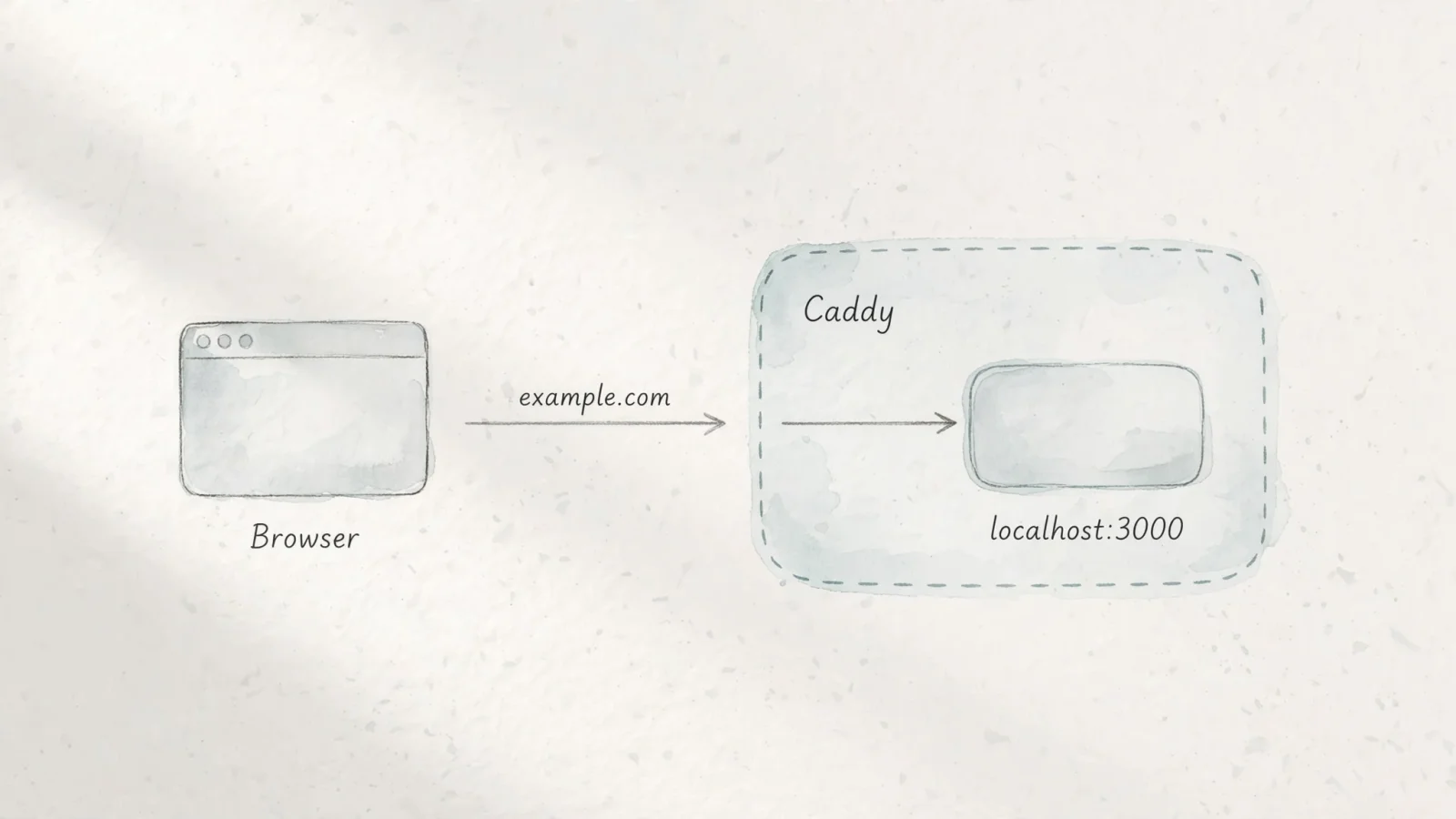
The most common routing scenario involves a single application running on the same server as Caddy. You configure this by defining the public domain and pointing the proxy directive to the application's local address.
example.com {
    reverse_proxy localhost:3000
}
Replace example.com with your domain name. The reverse_proxy directive tells Caddy to forward incoming requests for that domain to the designated upstream address, which in this case is localhost on port 3000. You must change 3000 to the specific port the application uses. This target works as long as Caddy can reach the application at that local address, which is standard when running both Caddy and the application directly on the host operating system.
When Caddy processes a request through this block, it acts transparently. The proxy forwards the original HTTP method and the exact request URI to the backend application unless an explicit rewrite rule alters them, which means a GET request for /users/profile arrives at the application as a GET request for /users/profile.
For a basic reverse-proxy setup, Caddy's Common Caddyfile Patterns shows an example that sends all requests to localhost:5000.
Check DNS and Automatic HTTPS
Caddy differentiates itself from other web servers by fully automating the certificate lifecycle. When you supply a qualifying domain name in the site block, Caddy automatically obtains an SSL certificate, renews it before expiration, and redirects all insecure HTTP traffic to the secure HTTPS endpoint.
For public domains using Caddy's default HTTP-01 and TLS-ALPN challenges, the A/AAAA records must point to the server, and ports 80 and 443 must be open externally or forwarded to Caddy. Port 80 handles the HTTP-01 challenge and HTTP-to-HTTPS redirects, while port 443 serves HTTPS and handles the TLS-ALPN challenge; both challenges are enabled by default, but Caddy selects one at random when multiple challenges are enabled and falls back to another if needed. A configured DNS challenge does not require open ports, and Caddy's Automatic HTTPS documentation also lists a writable, persistent data directory and the domain name in the configuration as requirements for automatic HTTPS.
If the certificate setup fails, Caddy logs errors indicating that it cannot solve the challenge. Stale DNS records often cause these failures. Moving a domain to a new server means DNS caches across the internet may still point to the old IP address, causing the certificate authority to check the wrong server. Waiting until DNS changes have propagated before starting Caddy can prevent this issue.
Another common failure point involves port conflicts. If another web server like Nginx or Apache is already using ports 80 and 443 on the host, Caddy cannot bind to them. Stopping and disabling competing web servers allows Caddy to bind to the necessary ports and negotiate certificates.
Keep the distinction between external and internal security clear. Caddy terminates the HTTPS connection from the client, encrypting the traffic between the visitor and the proxy. Meanwhile, the traffic between Caddy and the backend application usually remains unencrypted HTTP, which is secure when both processes operate on the same host. The backend application does not need to handle SSL certificates when Caddy sits in front of it.
Point Caddy at a Docker Compose Service
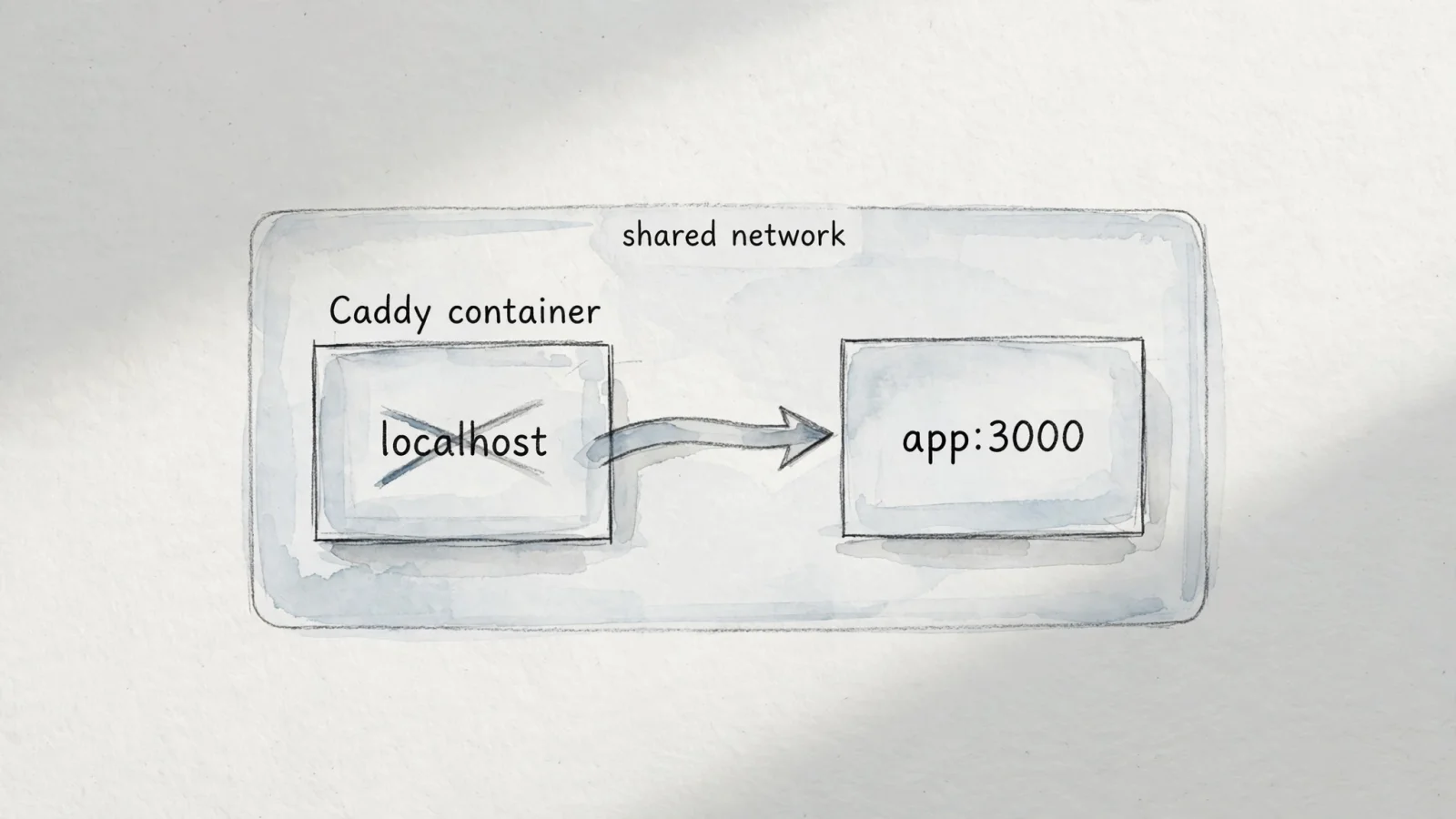
Deploying applications via Docker changes how network addresses function. When running Caddy inside a Docker container, network isolation means localhost no longer refers to the host operating system. Instead, localhost inside the Caddy container points only to the Caddy container itself.
To route traffic to an application running in a different container, configure Caddy to communicate across a Docker network. When using Docker Compose, services attached to the same custom network can resolve each other using their service names.
example.com {
    reverse_proxy app:3000
}
In this configuration, app must match the exact service name defined in the docker-compose.yml file. The port 3000 is the internal container port that the application listens on, not a port published to the host machine.
This approach limits the application's exposure to the public internet. You do not need to expose the application's port to the host machine using the ports directive in the Compose file. Instead, exposing only Caddy's ports 80 and 443 to the host allows the server to proxy the traffic safely through the internal Docker bridge network. Service-to-service requests use the internal container port exclusively.
If Caddy reports that it cannot resolve the hostname, verify that Caddy and the application share a network. By default, Compose connects services in the same project to one network, where containers can discover each other by service name, and Docker's Compose networking documentation covers connecting services across separate projects.
Route an API and Frontend by Path
Modern web deployments often split a single domain across multiple backend services. A server might handle a static frontend application for the user interface while routing specific paths to a backend API. Caddy manages this through explicit routing blocks.
Routing an API and a frontend on the same domain requires evaluating paths and prioritizing the API route before falling back to the frontend.
example.com {
    handle /api/* {
        reverse_proxy api:8080
    }

    handle {
        reverse_proxy web:3000
    }
}
The handle directive groups routing logic. Caddy evaluates directives based on a predetermined sorting order, but since handle blocks are mutually exclusive, the server processes the first matching block and ignores the rest. In the example above, any request starting with /api/ matches the first block and routes to the API container. All other requests fall through to the empty handle block, which acts as a catch-all and routes traffic to the frontend web container.
When using handle /api/*, Caddy preserves the matched path entirely. A visitor requesting example.com/api/users reaches the API backend as a request for /api/users, meaning the backend application requires the /api/ prefix in its routing logic.
If the backend API does not expect the prefix, stripping it before forwarding the request is necessary. Caddy provides the handle_path directive specifically for this purpose.
example.com {
    handle_path /api/* {
        reverse_proxy api:8080
    }

    handle {
        reverse_proxy web:3000
    }
}
Replacing handle with handle_path tells Caddy to remove the matched prefix from the URI. With this configuration, a request for example.com/api/users reaches the API backend as /users.
Path routing introduces considerations for frontend applications as well. Serving a frontend application under a subpath like /app/ often means the application itself needs a matching base-path or public-URL setting configured in its build process. Otherwise, the frontend attempts to load CSS and JavaScript assets from the root domain, resulting in 404 errors.
Structuring paths correctly also simplifies analytics implementations. Using Swetrix to measure product usage with clean, distinct paths allows accurate report filtering. Administrators can isolate API traffic from human visitor traffic in dashboards, build conversion funnels based on specific frontend routes, and track custom events without mixing backend service calls into user behavioral data.
Validate, Reload, and Troubleshoot a 502
Modifying a Caddyfile requires applying the new configuration to the running server. Restarting the entire Caddy service drops active connections and causes brief downtime, making it better to validate syntax and reload the configuration gracefully.
caddy validate --config /etc/caddy/Caddyfile
caddy reload --config /etc/caddy/Caddyfile
Adjust the path in these commands to match the location of the Caddyfile. The validate command parses the configuration file to ensure there are no syntax errors, missing brackets, or invalid directives. If validation passes, the reload command instructs the running Caddy process to read the new configuration and apply it. Existing connections finish processing normally, and new connections use the updated routing rules.
When a reverse proxy is misconfigured, the most common result is an HTTP 502 Bad Gateway error. A 502 error indicates that Caddy successfully received the client's request but could not communicate with the upstream backend application to get a response, requiring an investigation of the connection between the proxy and the app.
To troubleshoot a 502, start by verifying that the backend application is running and has not crashed. Next, check the upstream hostname and port in the Caddyfile. If running on the host, ensure the application is listening on the address and port specified in the Caddyfile. If using Docker, verify that the Compose service name is spelled correctly and that both containers reside on the same network.
If the backend requires HTTPS, use the https:// scheme in the upstream address, which enables TLS for Caddy's HTTP transport, as the `reverse_proxy` documentation explains.
Header trust is another common troubleshooting area. Caddy natively handles standard forwarded headers, but if the server sits behind a CDN or an external proxy like Cloudflare, Caddy will see the CDN's IP address rather than the visitor's IP. To fix this, configure the trusted_proxies global option with the specific IP ranges of the CDN provider. This tells Caddy to parse the incoming X-Forwarded-For header rather than overwriting it.
Once the 502 errors are resolved and traffic flows correctly, you can shift focus from infrastructure to measurement. A stable proxy setup guarantees that visitors reach the content, while Swetrix provides the tools to understand what they do next. Our platform displays real-time traffic and referral sources without requiring cookie banners, offering product analytics like user funnels and error tracking to help teams improve their applications. Swetrix operates entirely separate from the Caddy routing; it is an optional measurement layer that provides visibility into the traffic the proxy works hard to deliver.
Caddyfile Reverse Proxy FAQs
Operating a reverse proxy requires balancing public security with internal network routing. Caddy handles the public-facing SSL requirements for qualifying domains automatically, while the proxy directive requires a reachable upstream address to pass traffic successfully. Understanding how these pieces interact makes resolving common errors straightforward.
Does Caddy handle HTTPS automatically?
Yes, Caddy provides automatic HTTPS for any valid domain name defined in a site block. It obtains certificates from Let's Encrypt or ZeroSSL and redirects HTTP traffic to HTTPS. For the default HTTP-01 and TLS-ALPN challenges, your DNS records must point to the server, and ports 80 and 443 must be open to the public internet. A configured DNS challenge does not require open ports.
What should go after `reverse_proxy`?
Provide the network address and port where the backend application listens. This can be localhost:3000 for an application on the same host, an IP address like 192.168.1.50:8080 for a machine on the local network, or a domain name. Caddy must have network access to reach that destination.
How do I proxy to another Docker container?
When both Caddy and the application run as Docker containers on a shared network, use the application's service name and its internal container port. If the Compose file names the application service api and it listens on port 5000 internally, use reverse_proxy api:5000. You do not use localhost because that only resolves to the Caddy container itself.
Why am I getting a 502 Bad Gateway?
A 502 Bad Gateway occurs when Caddy cannot connect to the backend address specified in the configuration. Verify that the backend application is currently running, that it listens on the correct port, and that no firewalls block Caddy from reaching that local address or Docker container.
Should I set `X-Forwarded-For` manually?
No, configuring X-Forwarded-For manually in a standard setup is unnecessary. Caddy automatically sets or augments the necessary forwarded headers. If you place Caddy behind an external service like Cloudflare, you should define trusted_proxies with the provider's IP ranges rather than writing a blanket header override.
Building a reliable infrastructure stack starts with secure routing and ends with clear visibility. After configuring Caddy to proxy traffic and handle certificates, understanding how visitors interact with the application becomes the next priority. Swetrix provides a fully cookieless, GDPR-compliant analytics platform that delivers real-time traffic data, user funnels, and session insights without slowing down the site or interrupting visitors with consent banners. To measure application growth ethically and accurately, start tracking with Swetrix today.