- Date
Your Ultimate Guide to Solving the 500 Error Code
 Andrii Romasiun
We’ve all seen it: you try to load a page, and instead of the content you expect, you're hit with a cryptic message. A 500 error code, or Internal Server Error, is one of the most common—and frustrating—of these messages. It's essentially your website’s server throwing its hands up and saying, "Something went wrong, and I don’t know what."
What a 500 Error Code Really Means

Let’s think of your website's server as a restaurant kitchen. A user visits your site, which is like a customer placing an order. When everything is running smoothly, the kitchen (server) whips up the dish (the webpage) and sends it out.
A 500 Internal Server Error is the equivalent of the waiter coming back to the table and saying, "There’s a problem in the kitchen." The order was understood perfectly, but some unexpected issue is preventing the chefs from making the food. Maybe an oven broke down, or they ran out of a key ingredient. The important thing to know is that the problem isn't with the customer's request; it's with the kitchen's ability to handle it.
Why This Error Demands Urgent Attention
A 500 error is a purely server-side problem. This is a critical distinction because it tells you the issue isn't with the user's browser, their internet connection, or anything on their end. The fault lies squarely within your infrastructure.
And that's a big deal. The consequences are immediate and damaging. The table below breaks down the instant fallout from a 500 error.
Immediate Impact of a 500 Internal Server Error
| Area of Impact | Specific Consequence | Why It's Critical |
|---|---|---|
| User Trust | Visitors see your site as broken and unreliable. | A single bad experience can erode confidence and drive users to competitors permanently. |
| Bounce Rates | Frustrated users leave immediately, often for good. | High bounce rates signal a poor user experience to search engines and kill conversion opportunities. |
| SEO Rankings | Search engines penalize unreliable sites, hurting visibility. | Consistent 500s tell Google your site is unstable, leading to lower rankings and less organic traffic. |
| Revenue | Sales and lead generation come to a halt. | If users can't access your site, they can't buy products, fill out forms, or engage with your business. |
As you can see, a 500 error is far more than just a temporary glitch.
This error has been a web developer's headache since it was first defined back in 1992 as a catch-all for any server-side failure. Search engine crawlers, in particular, have no patience for it. Persistent 500s can cause SEO rankings to plummet by 20-30 positions in just a few weeks as they flag your site as unstable. You can learn more about how server errors impact search engine visibility and user experience.
In short, a 500 error isn't just a technical problem; it's a direct threat to your website's reputation, traffic, and bottom line. Understanding this urgency is the first step toward building a system that can handle them effectively.
Alright, let's track down what's actually causing these frustrating 500 errors. To fix a problem, you first have to find it. This is a lot like a mechanic trying to figure out why a car won’t start—the issue could be the battery, the starter, or the fuel line. Server errors are similar; the culprit usually falls into one of a few key categories.
These aren't just minor technical glitches, either. They actively chip away at user trust and can hurt your bottom line. Research shows that just one 500 error can cause a 22% drop in return visits. For the 70% of US startups building on WordPress, a staggering 52% of these errors come from plugin and theme conflicts, a common issue you can read more about in this guide to WordPress errors.
Once you know where to look, you can zero in on the root cause much more quickly.
Misconfigurations and Permission Problems
One of the most common reasons for a 500 error is a simple typo or mistake in a server configuration file. A single misplaced character or an incorrect rule in a file like .htaccess on an Apache server can knock your entire site offline. It’s like giving a delivery driver the wrong address—the whole system grinds to a halt because of one bad instruction.
File permissions are another frequent offender. Your web server needs specific permissions to read and run files. If those permissions are set too strictly, the server gets locked out and can't do its job. On the other hand, if they’re too loose (like the notorious 777 permission), it creates a major security hole that many hosting providers will automatically block, triggering a 500 error to protect the server.
Resource Limitations and Exhaustion
Your server isn't infinite. It has a limited amount of memory and processing power to go around. When a script or application gets greedy and tries to use more than its fair share, the server has to step in and shut it down, which results in an error.
Think of it like a delivery truck that runs out of gas halfway to its destination. The truck is fine, the driver knows where to go, but without any fuel, the delivery is a failure.
A classic example is a PHP script hitting its memory_limit. This happens all the time with heavy database queries or when trying to process large images without enough allocated memory. Keeping an eye on these resources is a core part of good site management. If you're new to this, our guide on what is performance monitoring is a great place to start.
This category also covers script timeouts. If a script takes too long to run—maybe it’s caught in an endless loop or waiting on a slow external service—the server will eventually kill it to stop it from hogging resources indefinitely.
Software Conflicts and Code Bugs
Modern websites are complex ecosystems where dozens of different pieces of software have to play nicely together. When they don't, you get a 500 error.
- Plugin or Theme Conflicts: In content management systems like WordPress, a newly installed or updated plugin can easily clash with another plugin or even your main theme. It’s like a digital turf war breaking out on your server.
- Third-Party Service Failures: Does your site rely on an external API for data or functionality? If that service goes down or becomes unresponsive, your server might time out waiting for it, causing your own site to fail.
- Bugs in Your Code: And of course, sometimes the problem is just a plain old bug in your own code. An unhandled exception or a fatal error in a script will stop everything in its tracks and often throw a 500 internal server error.
A Step-By-Step Guide to Diagnosing the Error
When a 500 error pops up, your first instinct might be to panic. Don't. Guessing won't get you anywhere. What you need is a clear, methodical plan to find the root cause and get your site back online. Think of it as detective work.
Your investigation always starts in one place: the server error logs. These logs are the server's diary, capturing every important event, especially the errors. Honestly, they're the single most valuable tool you have for figuring out what's behind a 500 error.
Find and Interpret Server Logs
So, where do you find these logs? They’re just plain text files, but their location depends on your server setup.
- For Apache servers: You're looking for a file named
error.log. The usual spot is/var/log/apache2/or a similar directory. - For Nginx servers: The log file is also typically called
error.logand is often found in/var/log/nginx/.
Once you have the file open, scroll to the timestamp when the error happened. You’re searching for the "smoking gun"—that one entry that spells out the problem. For instance, a message like PHP Fatal error: Allowed memory size of... exhausted tells you instantly that a script is eating up too much memory.
A server log entry is like a black box flight recorder for your website. It provides the raw, unfiltered data needed to understand the sequence of events that led to the crash. Without it, you’re just flying blind.
This flow chart breaks down the common culprits, from misconfigurations to resource ceilings.
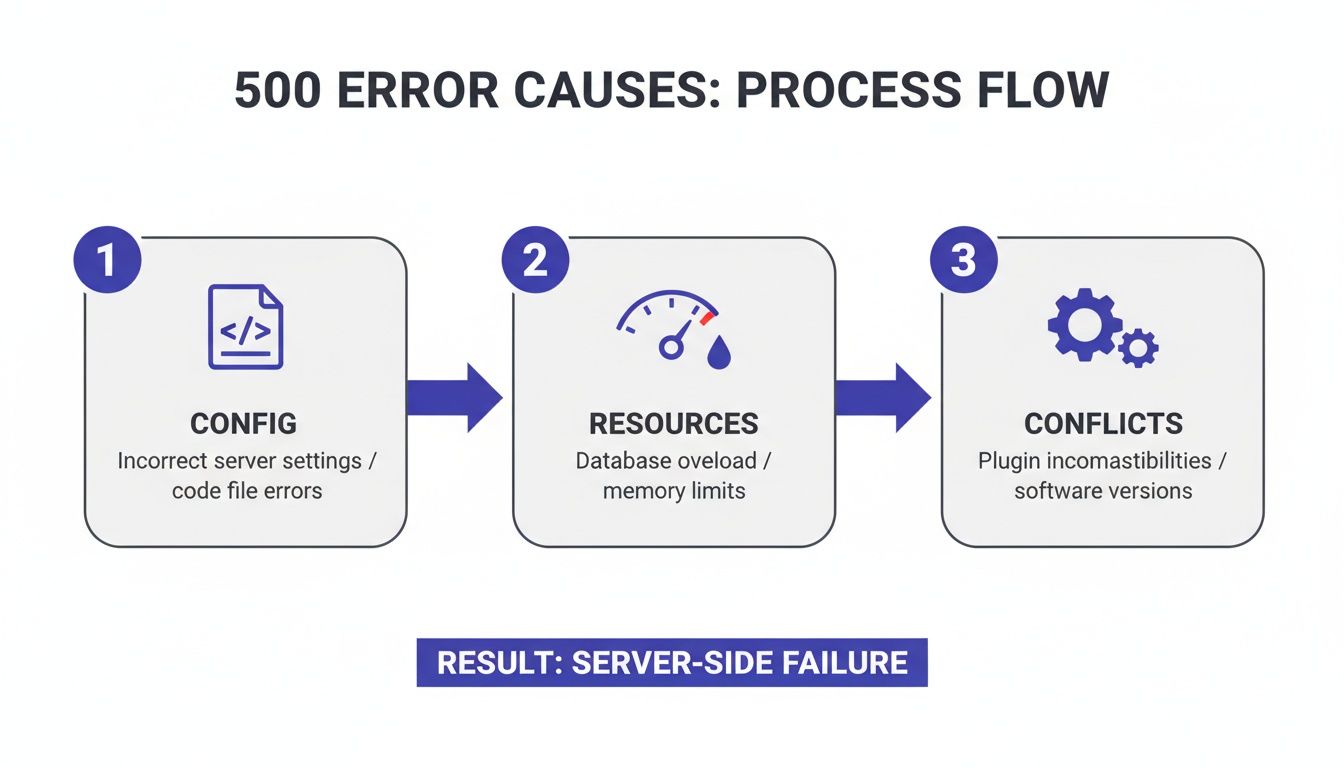
Think of each step in the diagram as a checkpoint in your investigation, helping you narrow the focus from general possibilities to specific issues.
Enable Debugging Mode for More Detail
Sometimes, the server logs just don't have enough detail, especially if you're working with a complex CMS or application framework. The next step is to flip on a more verbose debugging mode. This replaces the generic 500 error page with a full diagnostic report.
This report usually includes a stack trace, which is basically a roadmap showing the exact sequence of function calls that led to the failure. For a developer, it's gold, pointing them to the specific line of code that broke.
Here's how to turn it on for a few common platforms:
- WordPress: Open your
wp-config.phpfile and find the linedefine( 'WP_DEBUG', false );. Just changefalsetotrue. This will display all PHP errors right on the screen. - Django: Head into your
settings.pyfile and setDEBUG = True. This triggers Django's detailed error page, complete with tracebacks and request info. - Laravel: In your
.envfile, make sure theAPP_DEBUGvariable is set totrue. This activates Laravel’s detailed error reporting.
A quick but important warning: while debugging mode is fantastic for troubleshooting, it can expose sensitive information about your server. Never, ever leave debugging mode enabled on a live production site.
Of course, digging through logs by hand every time something breaks isn't a scalable solution. Modern teams use automated tools to stay ahead of these problems. You can learn more about how comprehensive error tracking can automatically catch, group, and alert you to 500 errors in real-time, giving you all the context needed for a fast fix.
Actionable Fixes for Your Technology Stack
Alright, you've done the diagnostic work and have some clues from your server logs. Now it’s time to get your hands dirty and apply the fix.
The tricky thing about a 500 error is that it's a general-purpose "something went wrong" message. The right solution depends entirely on what's running under the hood—your web server, your programming language, your framework. What fixes an issue in an Apache setup won't do a thing for a Node.js app.
Let's dive into targeted, practical fixes for the most common technology stacks out there. No fluff, just the specific files and settings you need to check.
Correcting Apache and Nginx Configurations
When you're running web servers like Apache or Nginx, the first place to look is almost always a configuration file. A single typo or a misplaced command in these files can easily take down your entire site.
For Apache users, the usual suspect is the .htaccess file. It's incredibly powerful, but that power comes with the risk of easy mistakes.
- Syntax Errors: Comb through the file for typos, extra characters, or incorrect flags. It's surprisingly easy to make a small mistake that renders the whole file invalid.
- Invalid Directives: Make sure any commands you're using in
.htaccessare actually permitted by your server's main configuration (oftenhttpd.conf). Sometimes, a directive is disabled for security or performance reasons.
If you're on Nginx, your investigation should start with the main config file, which is usually at /etc/nginx/nginx.conf or inside the /etc/nginx/sites-available/ directory. Look for issues like misconfigured proxy_pass directives or problems with your PHP-FPM connection, which often disguise themselves as 500 errors.
Resolving Common PHP Issues
Given that a huge chunk of the web runs on PHP, it's no surprise that PHP-related issues are a common cause of 500 errors. More often than not, the problem boils down to a script trying to use more resources than the server is configured to allow.
The solution is usually found in your php.ini file.
- Increase Memory Limit: Look for the
memory_limitdirective. If a script is choking on a large dataset, bumping this value from128Mto256Mcan provide the necessary breathing room. - Extend Execution Time: In the same file, the
max_execution_timesetting controls how long a script can run before being terminated. Increasing this can prevent timeouts on heavy, long-running processes like big data imports.
A quick heads-up: while increasing these limits will get your site back online fast, think of it as a temporary patch. The real, long-term fix is to optimize the code so it doesn't need so many resources in the first place. Relying on high limits can hide deeper performance problems.
Handling Errors in Node.js and Python Applications
With modern application frameworks like Node.js or Python's Django and Flask, a 500 error is a classic sign of an uncaught exception. This means an error occurred somewhere in your application's logic, and there was nothing in place to handle it, causing the whole thing to crash.
If you're running a Node.js app, your server logs will almost certainly point you to the problem with a stack trace. The fix is to wrap the fragile piece of code in a try...catch block. This stops the error from crashing the server.
try { // Your code that might fail goes here const result = someRiskyOperation(); res.send(result); } catch (error) { // Log the error so you can fix it later console.error(error); // Send a generic 500 error instead of crashing res.status(500).send('An unexpected error occurred.'); }
The principle is the same in Python frameworks. Solid error handling is non-negotiable. Forgetting to check if a value is None or failing to handle a database connection error are common ways to trigger a 500. By catching these exceptions, you can log the issue and serve a user-friendly error page instead of a complete server failure.
Common 500 Error Fixes by Technology Stack
To make things easier, here's a quick-reference table summarizing where to look for the most common 500 error causes and solutions across different tech stacks.
| Technology Stack | Common Cause | Primary Solution / File to Check |
|---|---|---|
| Apache | Syntax errors or invalid rules in .htaccess | Check .htaccess for typos and httpd.conf for permissions. |
| Nginx | Misconfigured proxy or gateway timeouts | Review nginx.conf or site-specific config files. |
| PHP | Script exceeding memory or execution time | Increase memory_limit or max_execution_time in php.ini. |
| Node.js | Uncaught exceptions crashing the process | Implement try...catch blocks in your application code. |
| Python/Django | Unhandled exceptions or database errors | Add try...except blocks and check database connections. |
Think of this table as your first-response checklist. While the actual cause might be more complex, these are the most frequent culprits we see in the wild, and checking them first will often lead you straight to the solution.
How to Stop 500 Errors Before They Ever Happen with Swetrix
Sure, fixing a 500 error code is good. But what's even better? Preventing it from ever reaching your users in the first place. When you’re only reacting to problems, you're always playing catch-up. Users have already hit a wall, trust has taken a hit, and your reputation is on the line. The smart play is to get proactive and catch these server-side hiccups the second they start.
This is exactly why a dedicated error tracking tool isn't just a nice-to-have; it's essential. Think of it as a smoke detector for your server. Instead of waiting for angry support tickets or watching your traffic nosedive, you get an immediate heads-up that something’s wrong.
Tools like Swetrix were built from the ground up for this job. They become the central nervous system for your server-side errors, giving your dev team the clear, contextual data they need to jump on a problem and solve it fast.
Finally Get Instant Visibility into Server-Side Glitches
The biggest headache with any 500 error is how frustratingly vague it is. An error tracking platform cuts right through that ambiguity by capturing, organizing, and making sense of every single error event. It doesn't just tap you on the shoulder and say, "Something's broken." It shows you precisely what broke, where it broke, and how often it’s happening.
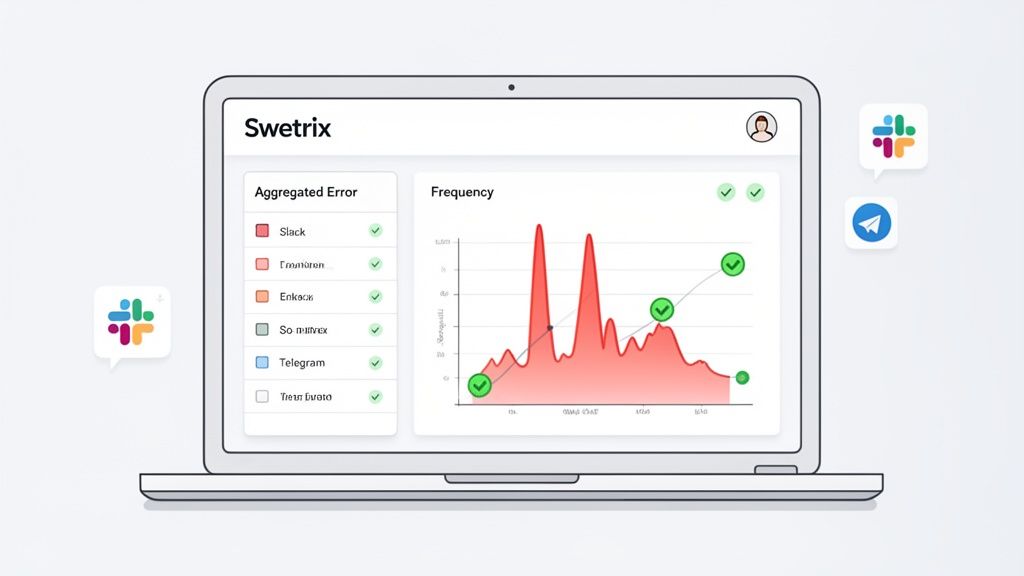
Swetrix intelligently groups identical errors into one single, trackable issue. This simple feature is a game-changer. Your team isn't bombarded with a thousand notifications for the same bug. Instead, you get a clean, prioritized list showing which errors are most frequent and affecting the most users. This kind of detailed insight is a cornerstone of effective real user monitoring. You can learn more about the practice in our guide on what real user monitoring is and why it's crucial.
This approach turns a chaotic firehose of raw logs into clear, actionable intelligence.
Go from Alert to Resolution in Minutes, Not Hours
Knowing an error happened is just the first step. The real race is getting the right information to the right people so they can fix it—fast. Manually digging through logs just doesn't cut it when your application is down.
With automated alerts, your team’s existing communication channels—whether it's Slack, Discord, or Telegram—can be turned into a real-time incident response hub. The moment a new 500 error pops up or a known issue suddenly spikes, your team knows.
These alerts aren’t just vague pings, either. They come packed with the critical diagnostic data needed to get started:
- Detailed Stack Traces: A full trace pinpoints the exact function and line of code that threw the error. No more guesswork.
- Request Information: You get the context you need to reproduce the bug, including the user's browser, OS, and the specific URL they were trying to access.
- Frequency and Impact: An error that happened 1,000 times in the last hour is a much bigger deal than one that happened twice. Alerts tell you the scale of the problem instantly.
By weaving a tool like Swetrix into your workflow, you completely change the game. You move from a stressful, reactive cycle of firefighting to a calm, proactive process of building a more stable application. You stop waiting for 500 errors to bite you and start catching them before they even have the chance.
Frequently Asked Questions About the 500 Error Code
When you're dealing with server errors, a lot of questions can pop up. Let's tackle some of the most common ones you might have about the dreaded 500 internal server error.
Can a User's Computer Cause a 500 Error?
Nope, a 500 error code is always a server-side problem. This is a key difference from 4xx errors (like the familiar 404 Not Found), which point to an issue with the user's request itself.
When a 500 error happens, it means the user's browser sent a perfectly valid request, but something on the server broke while trying to handle it. While clearing a browser cache might seem like a fix sometimes, it's usually a coincidence; the real issue is always on the server.
How Quickly Does a 500 Error Affect SEO Rankings?
The impact on your SEO really comes down to how long the error sticks around. A single, isolated 500 error that you fix within a couple of hours? Google will barely notice. It's unlikely to have any effect at all.
But if that error persists for a full day or keeps happening over and over, search engine crawlers will start to see your site as unreliable. They might stop indexing the broken pages, and you could see a noticeable drop in your rankings in just a few days. This is why getting on top of these errors fast is so crucial.
A custom 500 error page is a critical tool for user experience. It allows you to maintain brand consistency, reassure visitors that you're aware of the problem, and provide helpful links back to your homepage or contact options, reducing bounce rates during an outage.
How Can I Tell If a Specific Plugin Is Causing a 500 Error?
If you're running a CMS like WordPress, a faulty plugin is one of the most common culprits behind a 500 error. The classic way to diagnose this is to deactivate all your plugins. If the error goes away, you know a plugin is to blame.
From there, you can turn them back on one by one, reloading the page each time. When the 500 error pops up again, you've found your troublemaker. For a more direct approach, dive into your server's PHP error logs—they often point directly to the exact file and line of code in the problem plugin.
Don't wait for users to report problems. Swetrix provides real-time error tracking that helps you find and fix 500 errors before they impact your audience. Start your free 14-day trial and gain complete visibility into your application's health.