- Date
Master GA4 Custom Dimensions: Setup, Limits, And Privacy
 Andrii Romasiun
Data analysts use default analytics platforms to track generic page views, session durations, and standard click events. Business decisions require distinct, contextual data. A B2B software company needs to know the specific subscription tier clicked during an onboarding flow. An ecommerce brand tracks the precise product category viewed before a cart abandonment. Analysts miss this business logic using standard event parameters. Data teams bridge this tracking gap using GA4 custom dimensions to capture exact product categories or subscription tiers.
Configure custom dimensions to capture granular user actions and detailed demographic attributes. Hitting a quota limit or triggering an automated privacy penalty halts data collection. Master the technical configuration steps, manage the Google limits, and explore privacy-compliant alternatives to build a reliable reporting architecture.
What Are GA4 Custom Dimensions?
Analysts configure custom dimensions as text-based attributes to describe a specific event or user. Google Analytics 4 relies on these attributes to group, sort, and filter final reports. Without them, you stare at a chaotic list of raw event counts.
Event-Scoped vs. User-Scoped Data
Analysts prevent corrupted lifetime value calculations by understanding the difference between the available scopes.
Teams configure event-scoped dimensions to describe a specific action taken at a specific moment. A file download event might include a parameter named file_extension. Analysts use the parameter to add exact context to the isolated click. The user might download a PDF today and a CSV tomorrow. Google Analytics updates the event-scoped parameter with every individual action.
Teams configure user-scoped dimensions to describe the permanent or semi-permanent attributes of the person taking the action. A login event might pass a user_plan parameter valued at premium. The analytics platform attaches this attribute to the user profile. Every subsequent action that user takes carries the premium tag, regardless of their subsequent clicks. Assigning a permanent pricing tier to a temporary event-scoped parameter breaks the ability to filter reports by customer segments.
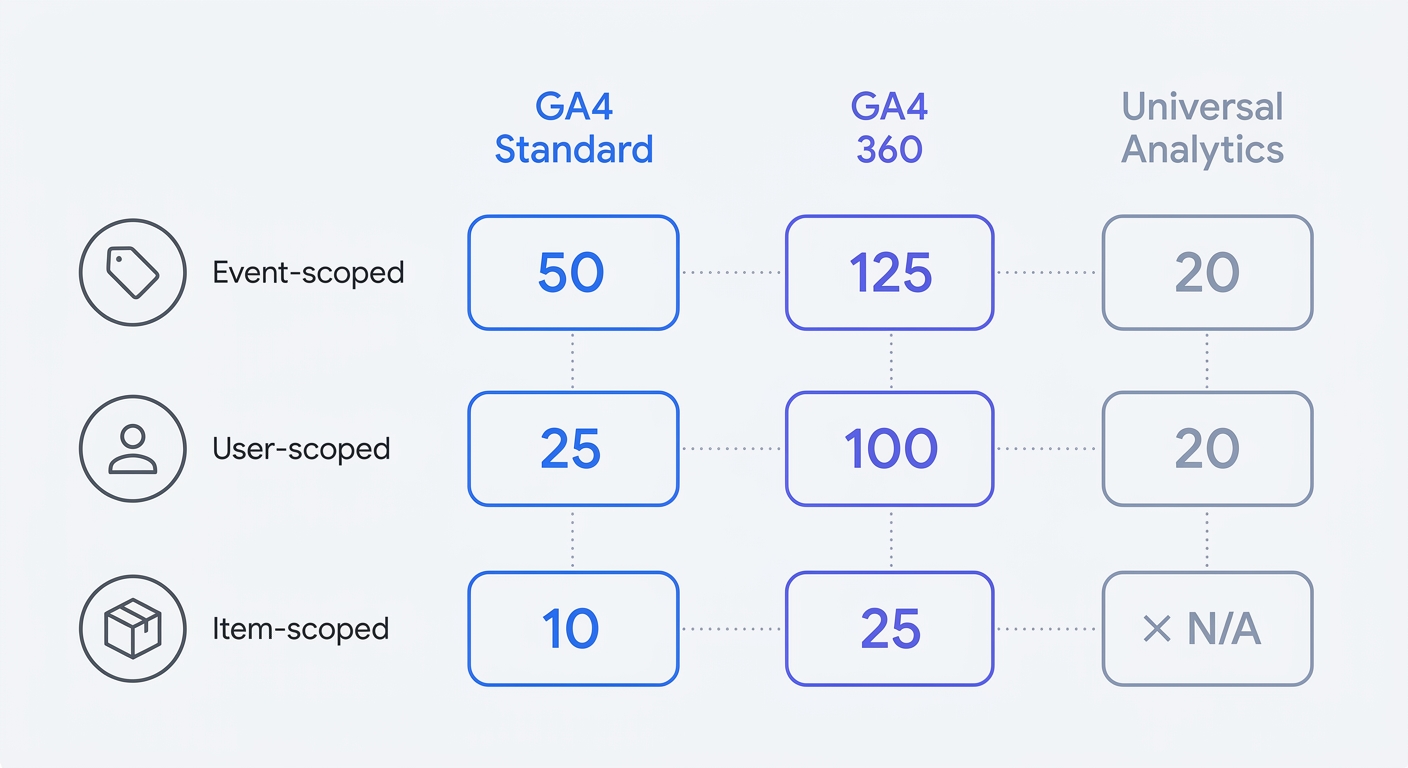
The Strict 50-Dimension Quota Limit
Free accounts face specific constraints. You can configure a maximum of 50 event-scoped, 25 user-scoped, and 10 item-scoped dimensions in standard properties. Enterprise GA4 360 accounts offer higher thresholds, extending to 125 event-scoped slots.
Marketing teams exhaust fifty available slots on a complex website by adding temporary campaign tags, and developers fill slots with error tracking parameters. Build a permanent custom dimension architecture spreadsheet to track slot usage. Prioritize high-value conversion metrics over short-term engagement tests to avoid hitting the ceiling.
How to Set Up GA4 Custom Dimensions
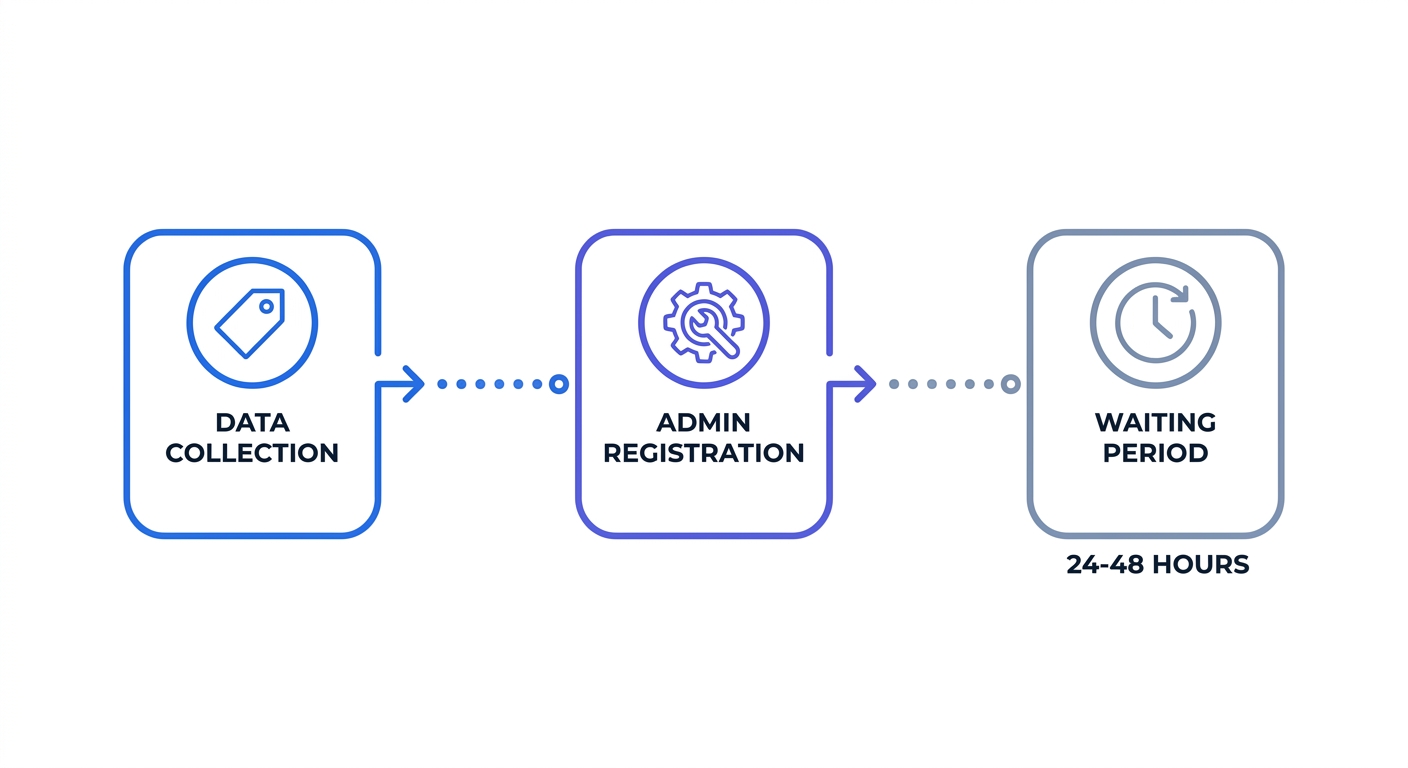
Two distinct phases govern the setup process. You must first push data from the website source code to Google servers. You must then configure the analytics admin interface to recognize and accept that incoming data stream.
Passing Parameters via Tag Manager
Configure Google Tag Manager to capture data layer variables and append them to outgoing payloads.
- Open the Google Tag Manager workspace.
- Select Tags and create a new GA4 Event tag.
- Input a base event name in the required field, using a standard naming convention like
generate_leadoruser_login. - Expand the Event Parameters section.
- Add a new row for the custom dimension.
- Type the exact parameter name into the Parameter Name field using lowercase letters and underscores, such as
login_method. - Click the lego brick icon to assign the dynamic Data Layer Variable containing the value.
- Save the tag and publish the workspace container.
Google Tag Manager fires a custom text parameter alongside the base event payload whenever a user triggers the action.
Registering Definitions in GA4 Admin
You must register the parameter in the user interface after sending the payload from Tag Manager. Data teams send unregistered parameters to Google servers, but the interface excludes them from reports.
Open the GA4 admin panel. Navigate to the Data Display section and select Custom Definitions. Click the blue Create Custom Dimensions button to reveal the configuration panel. You must type a human-readable Dimension Name. Analysts see this exact text in Looker Studio dropdown menus. Select the appropriate scope, choosing either Event or User.
Type the exact parameter name configured in Tag Manager into the Event Parameter field. If you mismatch login_method in GTM with login_type in GA4, you sever the connection. Save the configuration to finalize the registration.
Testing Payloads with DebugView
Verify client-side payloads before relying on live reports. Install the Google Analytics Debugger Chrome extension. Navigate to the DebugView tab in the Admin panel. Trigger the custom event on the live website. Review the timeline to find the incoming hit. Click the specific event name in the visual stream. Ensure the custom parameter appears in the Parameters tab with the expected value.
You prevent silent data failures by confirming the payload here. Anticipate a 24-to-48-hour latency period before the new dimension surfaces in standard Explorer reports, though this timeframe can fluctuate depending on your daily traffic volume and whether you use an enterprise 360 account.
Common GA4 Custom Dimension Pitfalls
Engineers corrupt standard datasets and waste resources through configuration mistakes. Address these persistent errors early to maintain clean data pipelines.
Cardinality Limits and the Other Row
Analysts break native reporting capabilities by passing high-cardinality dimensions. Google aggregates overflow data into an unreadable "(other)" row when a single registered dimension exceeds 500 unique values per day.
Passing unique text identifiers like session IDs, transaction timestamps, or full user agent strings into an event-scoped custom dimension guarantees a cardinality violation. Authentication tracking triggers this error when developers pass specific user IDs instead of categorical login methods.
Use custom dimensions for categorical data. Track discrete values like "premium", "enterprise", or "free trial". Exclude high-variation strings from the tracking plan.
Fixing the Numerical String Sorting Issue
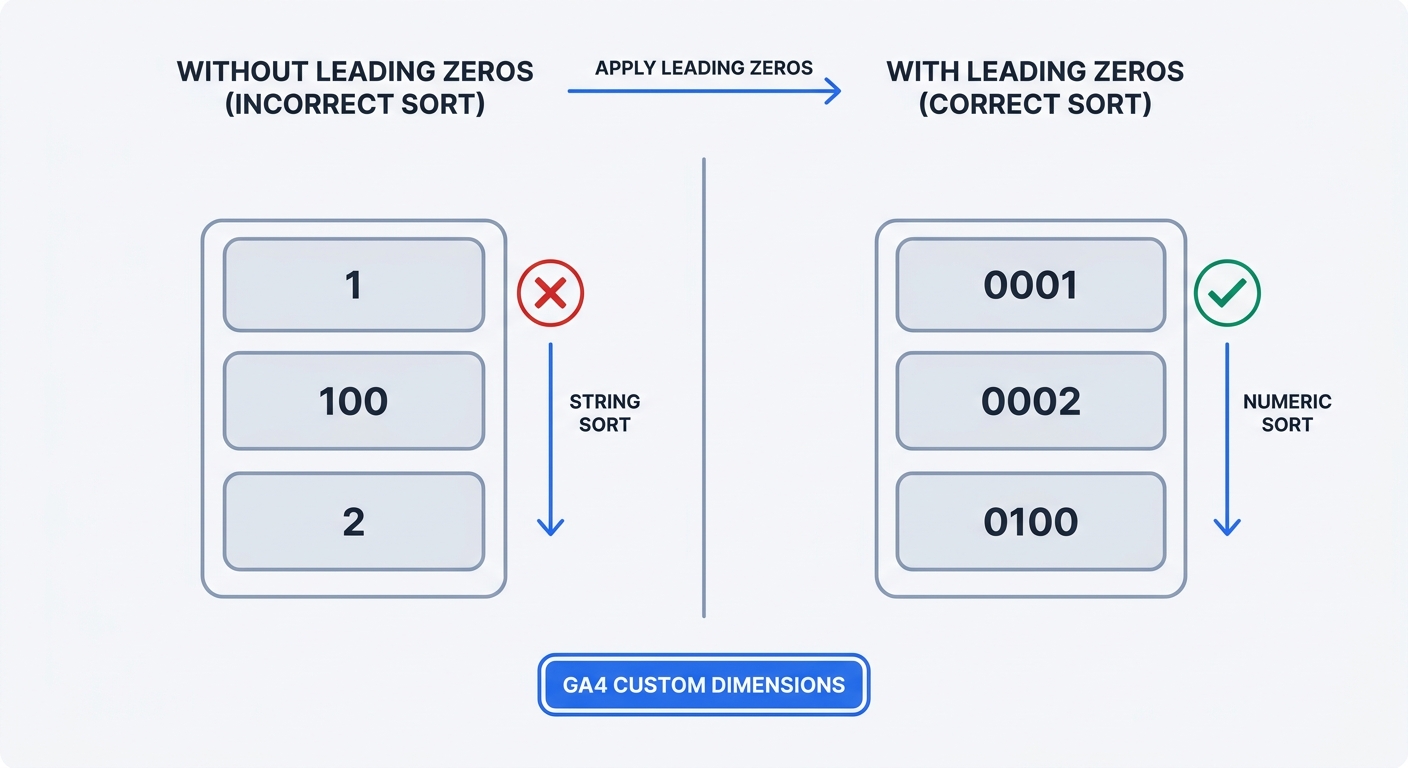
You create a sorting nightmare in data tables by sending a numeric value. The interface places the string value "100" below the string value "2" because the character "1" precedes the character "2" in alphabetical order.
Adopt the leading zeros technique to bypass this limitation. Configure Tag Manager variables to pass formatted values. Send "0002" and "0100" instead of raw integers. This formatting forces the alphabetical sorting logic to display the data in correct ascending order. For additional guidance, refer to the official Google Analytics help documentation on custom dimensions.
| Raw Value Sent | Default GA4 String Sort | Leading Zeros Fix | Corrected Sort Order |
|---|---|---|---|
| 10 | 1 | 0001 | 0001 |
| 1 | 10 | 0002 | 0002 |
| 2 | 100 | 0010 | 0010 |
| 100 | 2 | 0100 | 0100 |
Archiving Custom Dimensions
Mistakes consume the 50-slot limit. Google prevents users from deleting registered custom dimensions. You must archive obsolete parameters.
Archiving a dimension frees a slot and halts data collection for that specific parameter. Historical data remains visible in the interface. Associated rows stop receiving new data. Review parameter names multiple times before saving configurations in the admin panel. Map the full event tracking schema in a shared spreadsheet to avoid wasting slots on redundant metrics.
GA4 Privacy Risks and GDPR Compliance
Marketers create privacy violations using custom dimensions. Sloppy configurations expose businesses to severe compliance failures under modern data protection laws.
Strict PII Penalties in GA4
Google enforces a graduated policy when detecting personally identifiable information such as email addresses, phone numbers, physical addresses, or precise geolocation in custom dimensions. Initial enforcement typically requires deletion of the offending data or remediation of the tracking configuration. Suspension or termination of a GA4 property or account is reserved for repeated or severe violations.
Marketers face the highest risk during form submission tracking. A flawed scraping tag captures the entire form input and passes a plaintext email address into an event parameter. Engineers must deploy client-side redaction scripts to mask personally identifiable information before the payload leaves the browser. Hash the email addresses using SHA-256 formatting within Google Tag Manager. You risk property deletion by relying on automated systems to filter tracking mistakes.
The Legal Minefield of Dynamic URLs
Dynamic query parameters expose developers to data compliance risks. A user clicks a password reset link formatted as ?email=user@domain.com. The standard page view tag fires on load. The browser transmits the full URL path to Google servers.
Transmitting this information to external corporate servers without explicit prior user consent violates European data laws. Developers prevent this transmission by building server-side tagging architectures. You intercept the data stream on a custom subdomain, strip the query parameters via JavaScript, and forward the cleaned payload to the analytics endpoint.
Engineers drain their resources maintaining server-side redaction pipelines. Small teams lack the technical bandwidth to monitor URL parameters across thousands of distinct landing pages.
Skip the GA4 Limits with Swetrix
Managing strict quotas, debugging string values, and building data redaction pipelines consumes hours of development time. Teams implement analytics to measure business performance. The tracking platform dictates the friction in daily workflows.
Privacy-First Analytics Without Quotas
Using Swetrix removes the quota constraints and privacy threats found in the Google ecosystem. Developers prioritize legal compliance by deploying a cookie-free architecture. Bypass complex consent banner configurations to focus on raw data collection. Track granular custom events and business logic without checking an arbitrary 50-slot limit in an admin panel.
Engineers verify data handling practices through the open-source user behavior analytics model. Host the application on custom infrastructure to eliminate third-party data transmission risks. Sending parameters to a self-hosted server solves GDPR cross-border data transfer restrictions.
Eliminate the 48-hour latency window. Watch custom event streams populate in real time. Combine business logic with native error tracking to isolate which subscription tier experiences the most frontend crashes.
Analysts managing a standard GA4 setup execute tag configuration, parameter registration, latency waiting periods, and cardinality monitoring. A Google Analytics alternative allows teams to push a custom event payload and view results without delay. Build analytics workflows to accelerate product decisions. Stop fighting rigid data quotas and latency periods by starting a free trial of Swetrix to track custom events with a cookie-free platform.