- Date
Tracking Script Basics: Setup, Privacy, and Performance
 Andrii Romasiun
A website tracking script is a short piece of code, usually written in JavaScript, added to a webpage to send interaction data to an analytics service. When a visitor loads a page, the code runs in their browser, records selected information about the visit, and sends that data to a remote server. Site owners use these scripts to understand how people find their content, which pages perform best, and where users drop off during a signup process.
Adding code to a live website requires balancing data collection with site speed and visitor privacy. Because client-side scripts run on a user's device, every tracker you install can add network requests and raise data-governance considerations. Understanding how these scripts function makes it easier to choose an analytics configuration that measures real business outcomes without overloading your site.
What Is a Tracking Script?
Before a dashboard can display a chart, a small program must gather and transmit the underlying data. That program is the tracking script. Analytics platforms provide a formatted code snippet for you to paste into your website's template. When someone visits, their browser reads the HTML, loads any external JavaScript associated with the snippet, and runs the code.
Follow the Data From Browser to Dashboard
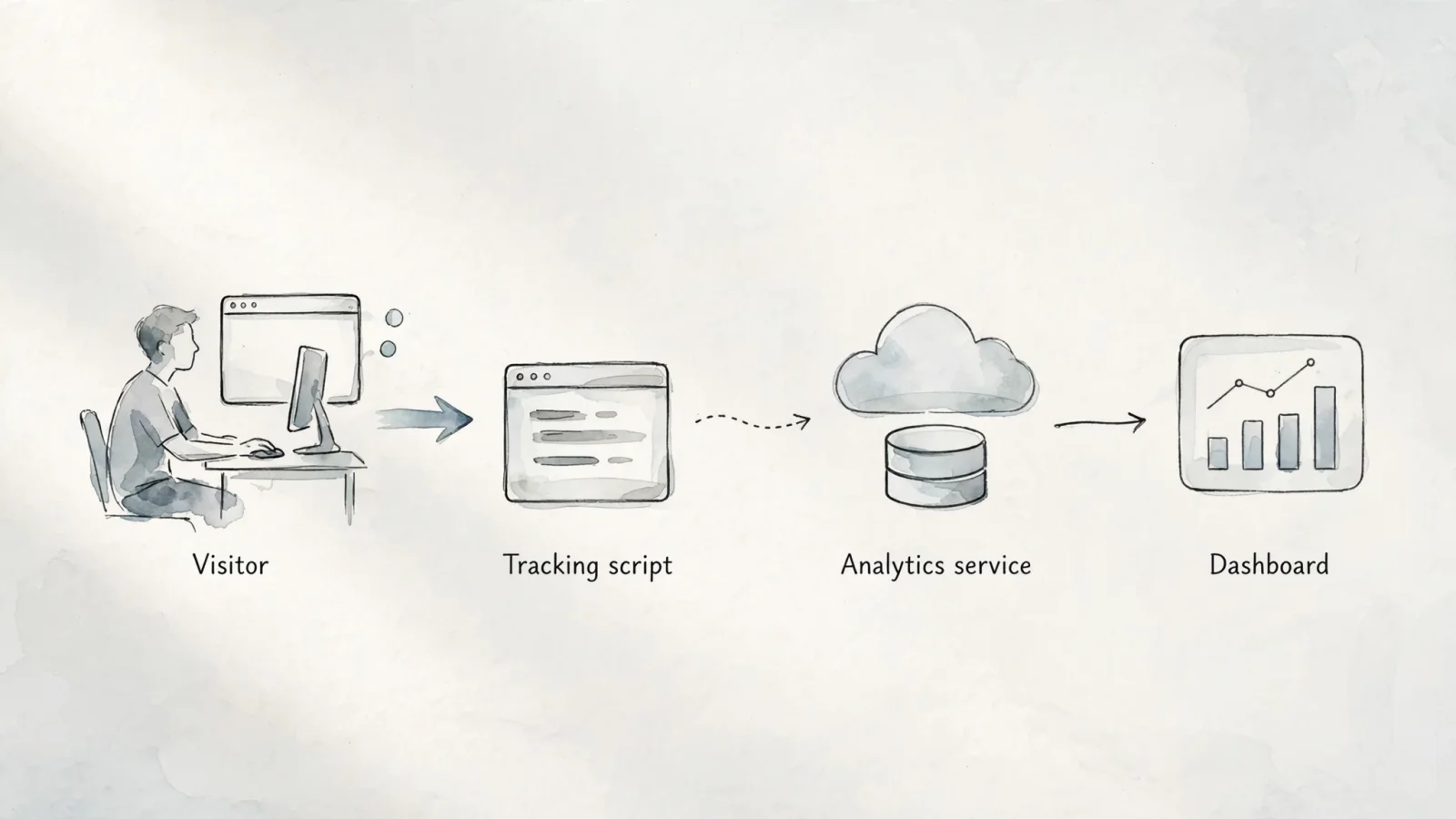
The data journey begins the moment a visitor requests a URL. The browser parses the site’s HTML and encounters the analytics snippet, typically located in the <head> or immediately before the closing </body> tag. The script activates and inspects the browser environment. Depending on the platform and configuration, it may collect the current URL, referring page, screen resolution, and browser type.
Once the script gathers this information, it sends a network request to the analytics vendor's collection endpoint, but the request method and data format vary by platform. The vendor's server receives and processes the data, then stores it for reporting. When you log in to your analytics dashboard, the platform queries that data to generate your traffic reports.
How Tags, Pixels, and Tag Managers Differ
Terminology in web analytics often overlaps, causing confusion during installation. A vendor tag is the actual code snippet provided by the analytics service, typically wrapped in <script> tags. A tracking pixel relies on a different mechanism. Traditionally, a pixel uses a transparent image request, often through an <img> tag, and the request URL can carry analytics data in its parameters.
A tag manager sits on top of these tools. It is a container application that lets you deploy multiple vendor tags and define rules for when they should execute. Tag managers do not generate analytics reports on their own. They govern other scripts, so a specific tag can be set to fire only when a visitor views a checkout page or clicks a specific button.
For site owners looking for a direct, privacy-first Google Analytics alternative, Swetrix offers a lightweight tracking script. Its tracker reference shows how to initialize it with a project ID and call trackViews() for pageviews; tracking specific button clicks or form submissions requires separate custom-event calls.
What Can a Website Tracking Script Measure?
A tracking script divides data into two categories: the baseline information it collects automatically, and the specific interactions you configure it to watch. Understanding this distinction prevents the common mistake of assuming a newly installed tracker will automatically map your entire customer journey.
Pageviews, Referrers, and Campaigns
Many scripts handle basic traffic measurement once page tracking is enabled, logging a pageview for each tracked page load. The script may also read the document.referrer property to identify a referring page when the browser provides one; the analytics platform may then group visits as direct, organic search, or social traffic.
When you share links to your site, you can append UTM parameters to the URLs. These tags, such as utm_source=newsletter or utm_campaign=spring_sale, ride along with the click. Analytics platforms that support campaign tracking can parse these parameters and attribute a visit to the tagged campaign, though supported fields and attribution rules vary by platform. Swetrix's tracker reference lists its standard pageview and campaign fields, including the UTM values it supports.
Events, Conversions, and Funnels
Standard pageviews only show you that someone arrived. To understand what they did next, you configure events. An event is a deliberate data point sent to the analytics server when a user interacts with an element on the page.
You might compare article categories or fire a newsletter_signup event when a reader subscribes. If you operate a small business, you need events that track key steps toward revenue, such as lead_form_submitted, trial_started, and purchase_completed. By configuring a tracking script to log these specific actions, you can build conversion funnels. A funnel tracks the progression from a landing page to a pricing page view and finally to a successful signup event, showing where potential customers leave the process.
Choose Events That Answer Real Questions
Define your required events before writing any code. If you integrate analytics into customer-facing admin panels for a B2B company, you must plan tenant-level data carefully. This process requires assigning project ownership, standardizing event names across the platform, and deciding which customer-level fields are safe to send to the analytics endpoint.
Create a clean tracking plan that lists the event name, the trigger condition, and any metadata attached to the event. Testing this structure helps you check that tenant separation remains intact and permissions function correctly across your user base.
Install and Verify a Tracking Script
Installing a script is a technical process with a clear sequence. Haphazard installations lead to duplicate pageviews, missing data, and broken tracking funnels. Follow a structured approach to deploy your analytics snippet safely.
Decide What You Need to Measure
Identify the outcomes that matter to your business. If you only need traffic and referrer reporting, the baseline script is sufficient. Monitoring a multi-step checkout requires listing the specific page URLs and button clicks that define that journey. Outlining these requirements dictates whether you can rely on a site-wide template integration or if you need developers to bind custom event calls to specific buttons.
Add the Vendor’s Current Snippet
Use the analytics vendor's current documentation to find the correct installation code. You paste the snippet into every page you intend to track. For most sites, this means placing the script in the global header or footer file of your CMS or site template. If you use a framework like React or Next.js, follow the specific module integration instructions provided by the analytics platform.
Confirm Pageviews and Events Arrive
Pasting the code doesn't guarantee that the script works, so test the installation in your browser's developer tools.
Open the Network panel in your browser, refresh the page, and filter the requests by the analytics provider's domain. You should see an outbound request associated with the pageview, although the response status varies by provider. Check the vendor's documentation or dashboard to confirm that the request succeeded. Next, check the Console panel for any red text indicating undefined variables or script execution errors. If you have error tracking enabled in a tool like Swetrix, verify that simulated front-end errors register in your project dashboard.

Once you confirm standard pageviews, test your custom events. Click the newsletter signup button or submit a test lead form. Watch the Network panel for the specific event payload, then check your analytics dashboard to confirm the event registered accurately.
Cookies, Privacy, and Visitor Identity
The privacy rules governing tracking scripts are complex and highly dependent on how you configure your tools. Transitioning to a cookieless analytics platform changes how visitor identity works, requiring you to rethink your approach to tracking unique users across multiple sessions.
What Cookieless Analytics Can and Cannot Do
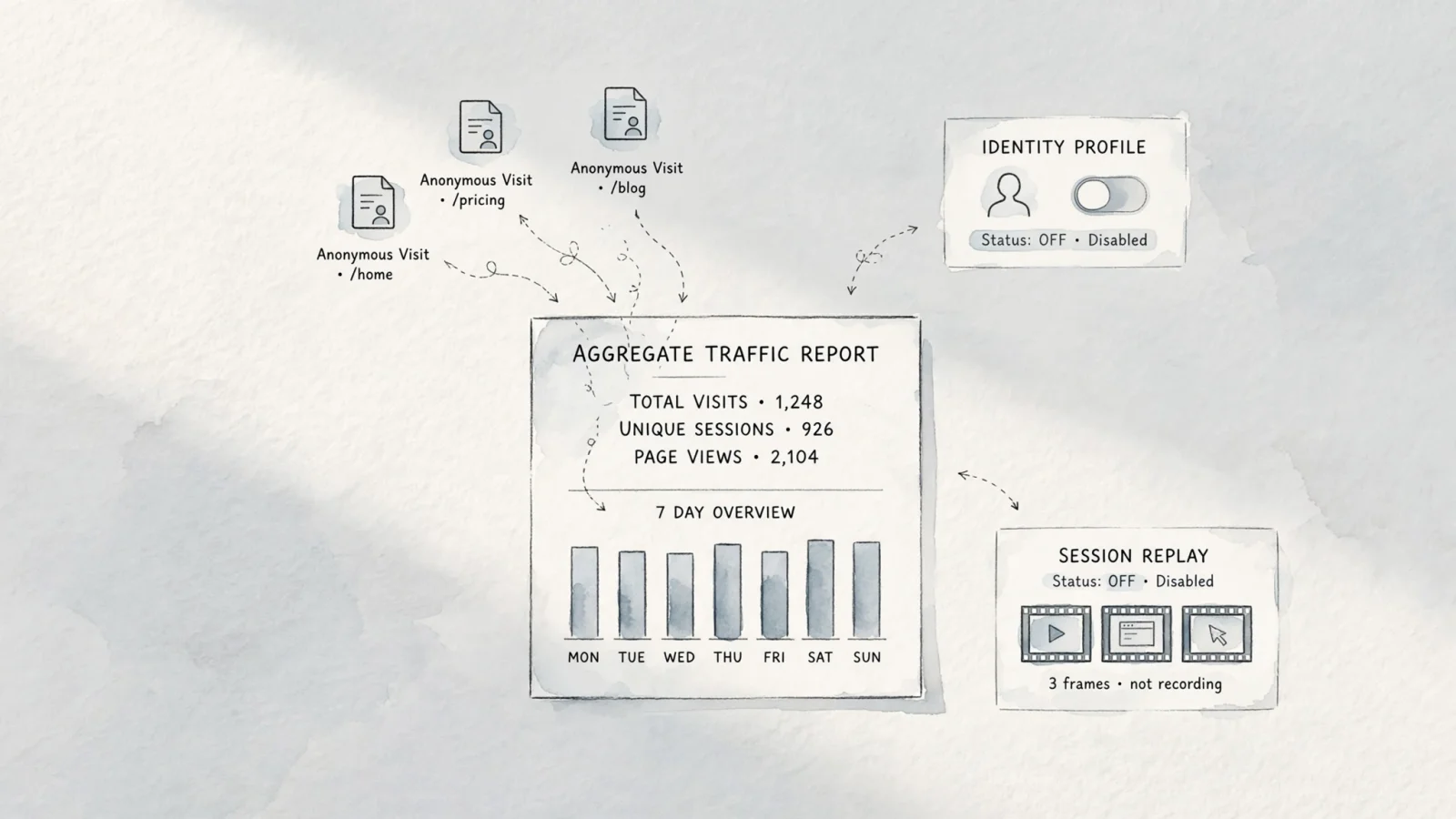
A cookieless analytics setup does not necessarily mean that no identifier is used, because the method varies by platform. Swetrix says its default setup sets no cookies and writes nothing to the browser's localStorage. Instead, its server combines the incoming IP address and user-agent with the project ID and rotating salts to generate anonymous identifiers, as described in Swetrix's visitor-identification guide.
This approach supports aggregate traffic analysis, referrer data, and campaign attribution without writing a persistent identifier to the visitor's device. The session salt rotates daily, while a separate profile salt rotates monthly to support returning-visitor reporting. As a result, the default setup does not provide durable cross-device identity, and shared networks such as offices and universities can cause multiple visitors with the same IP address and user-agent to be counted together, lowering unique-visitor counts. You trade exact cross-device identity for a lightweight, privacy-focused measurement model.
Review Optional IDs and Session Replay Separately
Modern analytics platforms offer optional features that require a separate privacy review. Passing a stable user ID to the script associates activity with a known profile, moving beyond anonymous aggregate counts; Swetrix's visitor-identification guide describes how its identify() option can link signed-in activity to a profile.
Session replay features record page state and interactions, such as pointer movement, scrolling, and clicks, to recreate part of a visit. Depending on privacy mode and masking settings, recordings may include non-password input values. Review masking settings before enabling replays, and keep personally identifiable information out of custom event names and metadata, as Swetrix's tracker reference explains.
Why Consent Rules Depend on Context
Removing cookies does not automatically exempt a website from privacy regulations. Different jurisdictions consider the purpose of the tracking script, the information it accesses, and how long that information persists.
For site owners in the UK, the Information Commissioner’s Office explains how the Privacy and Electronic Communications Regulations (PECR) apply to scripts and tags that access or store information on a user's device. Its guidance on the statistical-purposes exception describes a narrow allowance for analytics. To rely on it, the sole purpose must be gathering statistical information about service use to improve the service; site owners must also provide users with clear information and a simple, free way to object. The exception covers aggregate statistics, not tracking individual visitors or online advertising.
This specific UK guidance does not establish a universal rule for GDPR or CCPA compliance. Evaluate your tracking script against the regulations of the jurisdictions where your visitors reside, paying particular attention to optional identity features and session replay data.
Performance and Troubleshooting
Every script you add to a website consumes browser resources. The network must download the file, and the browser's main thread must parse and execute the JavaScript. Managing this process correctly prevents analytics from degrading your site's user experience.
Understand `async` and `defer`
The <script> element supports async and defer attributes, and Mozilla’s web documentation explains the distinction. For external classic scripts, this means both async and defer let the browser download the file while continuing to parse the HTML.
For classic external scripts, an async script runs as soon as its download finishes, so it may interrupt parsing and its execution order is not guaranteed. A defer script waits until HTML parsing finishes, then runs in document order. Neither attribute removes the cost of executing JavaScript; they change when the browser fetches and runs the script.
If you review a page size checker and find your analytics script dominating the payload, verify your implementation. Placement requirements can differ by vendor, so follow each tracker's own integration guidance rather than applying one tag's instructions to every script.
Find Missing, Blocked, or Duplicate Requests
When data stops appearing in your dashboard, start troubleshooting in the browser. Ad blockers frequently intercept requests to known analytics domains. If a script fails to load, check the browser console for a net::ERR_BLOCKED_BY_CLIENT message.
Duplicate tracking requests usually stem from deployment errors. If you install a script via a tag manager and simultaneously hardcode the snippet into your site template, the browser executes the code twice, artificially inflating your pageview counts. Search your source code for the vendor's project ID to ensure the snippet only exists in one place.
Check Single-Page App Navigation
Single-page applications (SPAs) built with React, Vue, or Angular handle navigation differently than traditional websites. Instead of requesting a new HTML document from the server for every click, many SPAs update the URL and rewrite content dynamically using the browser's History API.
Many baseline tracking scripts only fire on the initial hard page load. To track navigation within an SPA, configure the tracking script to listen for route changes. Verify that navigating between views in your application produces distinct pageview requests in the Network panel without triggering duplicate events for the same component render.
Choose a Tracking Setup That Fits
Selecting an analytics tool requires mapping your required outcomes to the platform's data practices. Avoid choosing a script based purely on a long feature list. Prioritize ease of use, accurate campaign attribution, and performance.
Evaluate Outcomes, Integrations, and Data Practices
Assess how easily a platform lets you configure custom events and funnels. If your marketing team needs to attribute conversions to specific email campaigns, verify the script captures UTM parameters reliably. Examine the size of the script payload and its standard execution method to understand the performance impact on your site. Read the vendor's data policy to determine whether standard analytics data shares a processing pipeline with optional identity or replay configurations.
Where Swetrix Fits
Swetrix bridges the gap between simple traffic reporting and deep product analytics. It provides a cookieless environment by default, but a cookie-free setup does not automatically remove notice or consent obligations. Requirements depend on the features you use and the jurisdictions where your visitors reside.
Transitioning away from legacy analytics does not mean sacrificing actionable growth data. Swetrix lets you track standard pageviews and referrers, then add custom events to build conversion funnels. The platform also offers features such as session replay, performance monitoring, and A/B experiments. Review each feature's setup and privacy options before enabling it.
Tracking Script FAQs
What is a tracking script on a website? It is a piece of code, usually JavaScript, added to a webpage that collects visitor interaction data and sends it to an analytics service to generate traffic reports.
Is a tracking script the same as Google Tag Manager? No. A tracking script sends data to an analytics platform. Google Tag Manager is a container tool used to manage and deploy various tracking scripts based on predefined rules.
What information can a tracking script collect? Depending on the platform and setup, a tracking script may collect page URLs, referring sites, browser details, and UTM campaign parameters. With additional configuration, it can also send custom events such as form submissions and button clicks.
Can a tracking script work without cookies? Yes. Some cookieless analytics tools, including Swetrix in its default setup, create short-lived server-side identifiers from request data instead of writing persistent IDs to the browser. Swetrix's visitor-identification guide explains the trade-offs, including reduced accuracy for visitors on shared networks.
Does a tracking script slow down a website?
Every script requires browser resources to download and execute. For external scripts, async or defer can let the browser continue parsing HTML while the file downloads, but execution still uses resources, and the performance impact depends on the script and page.
Where should I add the script, and how can I tell it is working? Add the script following the vendor's installation instructions, often in your site's global template. Verify it by opening your browser's Developer Tools, checking the Network tab for an analytics request, and confirming the pageview appears in your dashboard. Response status codes vary by provider.
What events should a blogger or small business track? Bloggers benefit from tracking newsletter signups and outbound affiliate link clicks. Small businesses should track lead form submissions, trial signups, and purchase completions to build accurate conversion funnels.
Does a cookie-free label automatically remove UK PECR consent requirements? If a tool stores or accesses information on a device, UK PECR requires consent unless an exception applies. The statistical-purposes exception is narrow, and its requirements include using storage or access solely to collect statistical information about service use for improvement, aggregating the results so they cannot identify people, giving users clear and comprehensive information, and offering a simple, free way to object. It doesn't cover identifying or tracking individual visitors.
Map the specific outcomes your business needs to measure, then implement a privacy-focused tracking script that delivers actionable insights without degrading performance. Review the Swetrix setup guide to deploy cookieless analytics, custom events, and conversion funnels on your site today.